Persons
Written By knollp
Last updated 4 months ago
To add new employees, go to More -> Admin -> Users -> People in 123erfasst Office.

Click the +Person button in the upper right corner of the page to create a new employee.
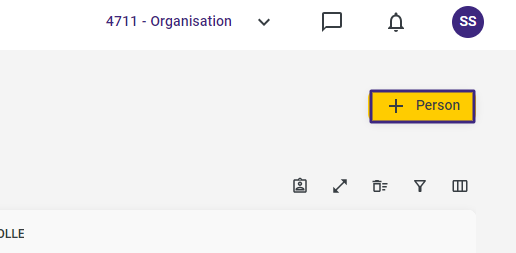
The corresponding entry form will open.
General

In the first step, enter the employee’s first and last name. Optionally, you can also enter their email address.
By clicking on the icon at the top of the General section, you can optionally upload a photo of the employee.
Note: When selecting the image file, make sure it is in JPEG or PNG format and that the file size is no larger than 1 MB!
Employee
If you want to track times for the employee, click the Create Employee button.

The Employee entry screen opens.
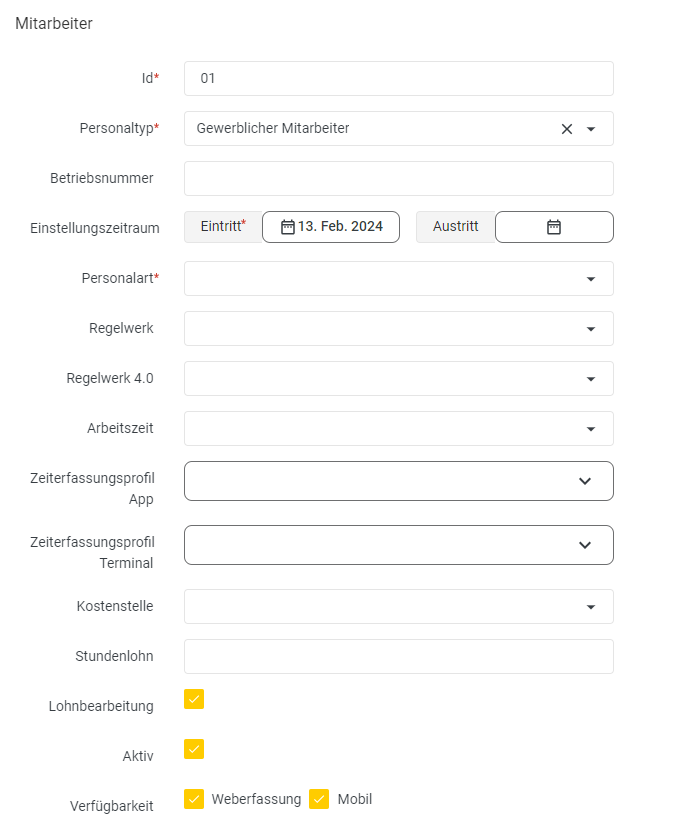
Enter the employee’s personnel number in the Id field, especially if you plan to transfer the employee’s recorded times to the payroll program later.
In the "Personaltyp" dropdown, select a job title or role for the employee. If no suitable title is available for your employee in the dropdown list, you can add it to the "Staff types" (Job Titles).
Entering a company code is only required if you want to transfer data for a single business location to the payroll program.
In the Start and End fields, enter the employee’s start date and end date, respectively. In the Personnel Type field, you can choose between Trainee, Part-time Employee, Employee, and Industrial Employee.
If you work with cost centers in your accounting system, you can assign a primary cost center to the employee using the Cost Center dropdown menu. You can also enter an amount in the Hourly Wage field in 123erfasst for informational purposes only.
In the Hourly Wage field, you can enter an amount that is purely for informational purposes.
The Payroll option lets you control whether the employee is included in the dropdown lists under the Payroll menu item. So if you disable the Payroll option, the employee will no longer appear in the dropdown lists under the Payroll menu item. If this option is disabled, the employee will no longer be displayed in the reports.
If an employee leaves the company, deactivate the Active checkbox. In this case, also enter a departure date for the employee. They will then be listed as an inactive employee in the program and will no longer appear by name in the selection fields.
Note: If you still want to include former employees in the selection lists, you can find the necessary settings at here.
Another important step when entering HR master data is selecting the work schedule for the employee. Learn how to create a work schedule for your employees at here.

Note: As part of the year-end closing process, the work schedule is automatically copied from the old year to the new year.

Using the "Assigned to" dropdown menu, you can select a branch—also called an "element" in 123erfasst—to which an employee is to be temporarily assigned.
User

In the Users section, you enter the login credentials (username and password) for logging into 123erfasst. This is mandatory if the employee is to record project data such as times, photos, etc., via the 123erfasst app or web-based entry. Click the Create User button to activate the Users section.

In the Login field, enter the username (e.g., the employee’s email address) for logging into 123erfasst.
Note: The login does not necessarily have to be an email address. The only important thing is that the login is unique.
Use the Role to assign the employee their permissions for 123erfasst Office (PC application). The Role determines what an employee is allowed to view or edit in Office. To learn how to set up a role, visit here.
In the App Profile field, you define the permissions for using the app/web entry. To learn how to create an app profile, visit here.
In the Password and Repeat Password fields, set the password for the user. For detailed instructions on assigning passwords in 123erfasst, visit Change password.
If you want to block an employee’s access to 123erfasst, select the “Blocked” option. You can unblock the user by deselecting the checkbox.
In the Access section, enable the modules that your employee should use in 123erfasst.
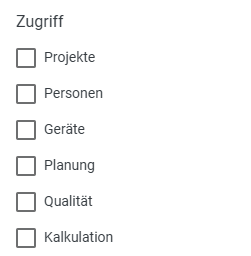
Enable the Projects module if your employee needs to record photos or, for example, materials via the app.
For example, enable the People module if your employee needs to track time or absences.
Enable the Equipment module if the employee needs to log equipment (equipment usage or equipment movements).
Enable the Planning module if the employee needs to access the schedule in the 123erfasst Office.
Activate the Quality module if your employee needs to access Quality and, for example, create tickets.
Enable the Calculation module if your employee needs to access the Calculation module and thus quotes, orders, invoices, and credit memos.
Contact Details
If you want to enter the employee’s contact details, click on Create Contact Details.
Here you can enter purely informational details such as address, phone number, etc.
Affiliation

In the "Element" field, select the branch or business location where the employee works. If you have not entered any branches or business locations within your client, the name of the (main) client will be automatically entered here.
Note: If an employee leaves the company, deactivate the "Active" field and enter a departure date. Then
remove or block the user and deactivate all access rights.
This will mark the employee as inactive and remove them from the selection lists.