App Profiles
Written By knollp
Last updated 4 months ago
You can use App Profiles to create custom profiles for your employees to use the 123erfasst app/web-based data entry.
To do this, go to More -> Admin -> Users -> App Profiles.

Click the +App Profile button in the top-right corner of the page to create a new app profile.

The following input screen will then open.
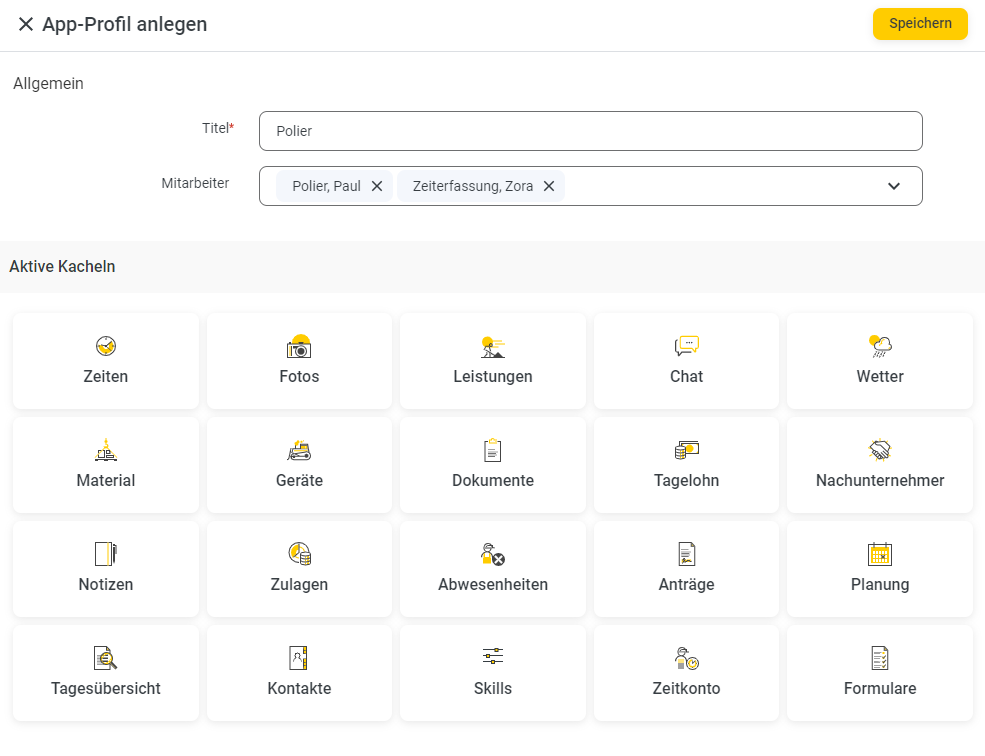
In the upper section of the app profile, first enter a title and assign the profile to the appropriate employees.
In the next step, activate the tiles that should be available for the profile in the app/web entry.
An activated tile is highlighted in yellow.

Activating any tile enables the corresponding settings, which are listed in the lower section of the form.
In this example, the "Times," "Photos," "Devices," and "Requests" tiles have been activated.
Times
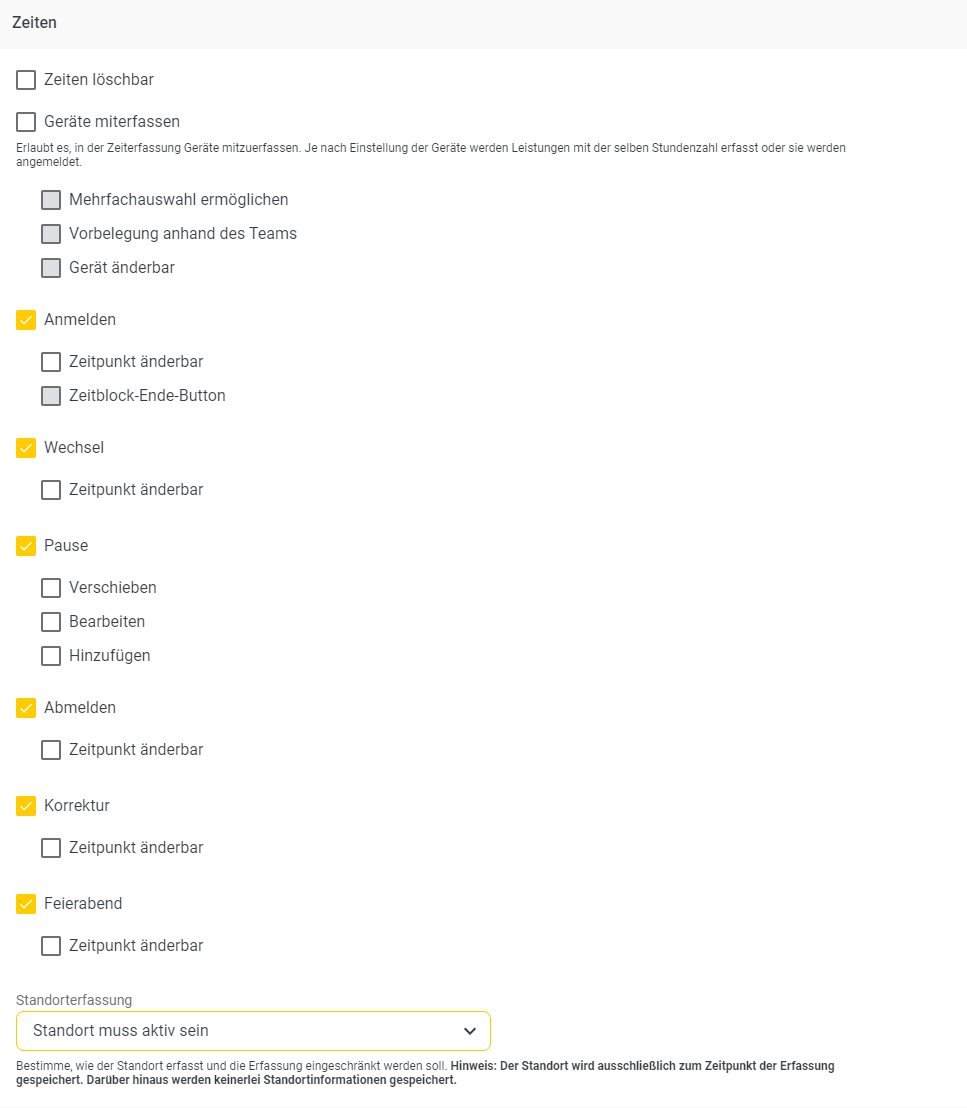
With the following settings, an employee using this app profile can record their times at the current time, switch projects and/or activities, and log breaks and the end of their workday.
Additionally, GPS must be enabled on their smartphone, and the 123erfasst app/Weberfassung must be granted access to the GPS location.
Note: If the employee does not have GPS enabled on their smartphone or has not granted the app/Weberfassung access to it, they cannot save their time entry (the Save button is grayed out).
Photos
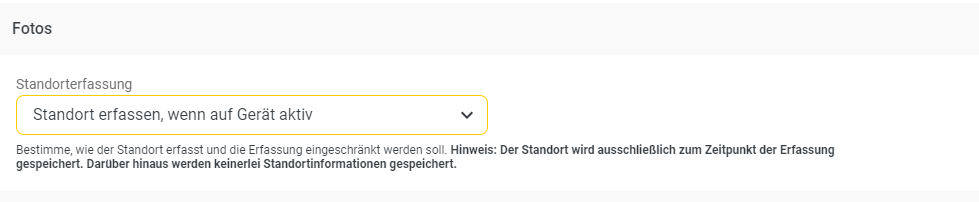
For the Photos tile, you can specify whether the GPS location should be recorded.
Devices
For devices, you can set whether employees using this app profile are allowed to book service devices, provisioning devices, or both types of devices. The differences between these two device types are explained to you here.

Requests
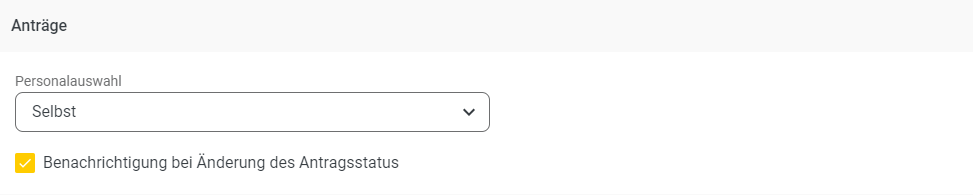
For requests, you specify for whom employees with this app profile are allowed to submit a request via the app/web entry.
Select between Self, Team, or All here.
Checking the "Notify when request status changes" box ensures that employees receive a push notification on their smartphone as soon as the request is approved or rejected.
General
In the General section, you specify which people, projects, subcontractors, or suppliers employees with this app profile can select. For personnel selection, choose between Self, Teams, Planned, and All.
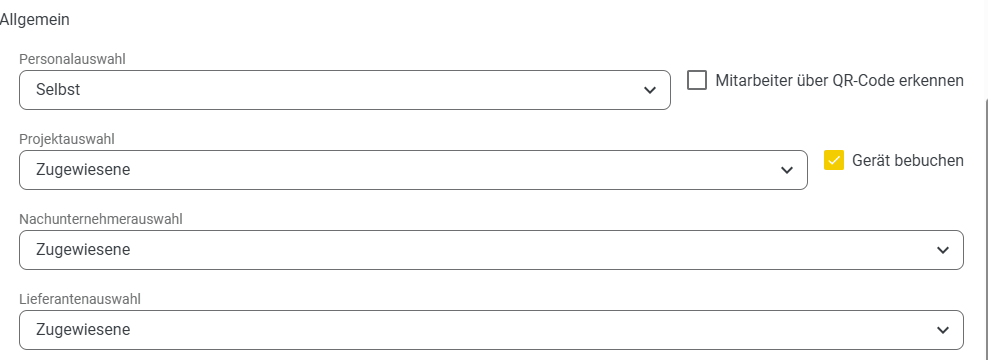
For project selection, as well as subcontractors and suppliers, you can choose between Assigned and All.
You can also set a retroactive entry date, which specifies the number of days for which an employee is allowed to enter data retroactively in the app/web entry (starting from the current day).

Click the Save button to complete the app profile setup.
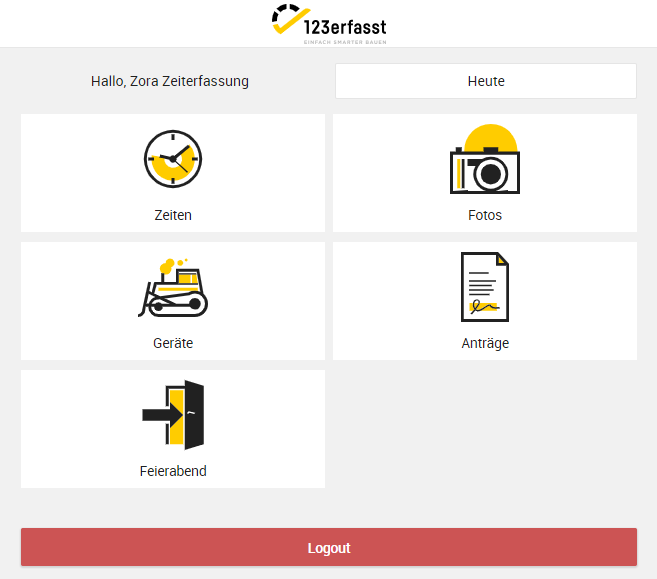
In the app/web entry, the app profile will then look as follows: