Personal settings
Written By Greta Wulf
Last updated 6 months ago
You can access your personal settings in 123erfasst Office by clicking on your avatar or initials in the top-right corner.
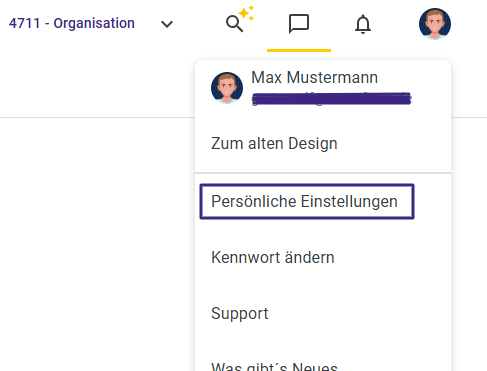
In your personal settings—as the name suggests—you can configure settings that apply only to you and therefore have no effect on your colleagues.
The personal settings are currently divided into three tabs: General, Quality, and Devices

General
On the General tab, you can, for example, manage the time format display or the language in the Office.

In the Display section, you have various configuration options.
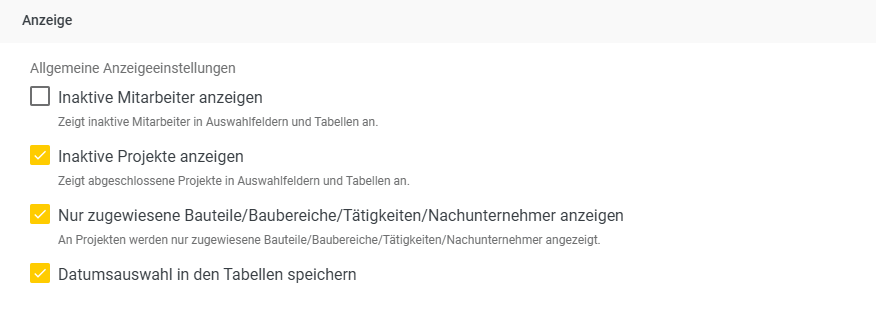
Show inactive employees – If this box is checked, inactive employees (those without a checkmark next to “Active” in the personnel master data) will be displayed in your selection lists in the Office.
Show inactive projects - If this box is checked, inactive/closed projects will be displayed in your selection lists in the Office (e.g., in reports).
Show only assigned components/construction areas/tasks/subcontractors - If this checkbox is selected, only the components/construction areas/tasks/subcontractors directly assigned to the project or employee will be displayed, for example, when entering data in the Office.
Save date selection in tables - If this checkbox is selected, the Office remembers the last selected date in the top right corner of a page and initially displays the data for that date on other pages as well.
In the Personnel Selection section, you can specify whether employees who have been seconded from another entity or branch should be marked accordingly.
You can also control whether the employee type of the respective employee should be displayed.

Next up are settings for device selection.
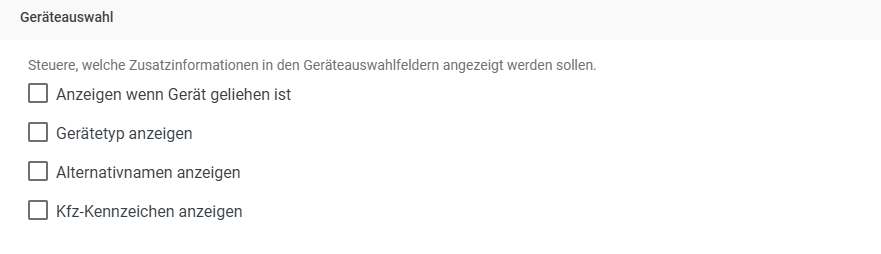
Show when a device is borrowed - Just as with borrowed personnel, this allows you to specify whether a corresponding label should be displayed on the device if it is a borrowed device from another unit or branch.
Show device type - Displays the assigned device type as information next to the device.
Show alternative name - In the device master data, you can enter an alternative name for your device (see also the article on Devices). This would then be displayed in the Office.
Show License Plate - The license plate can also be maintained in the device master data and displayed as device information with this setting.
Next up is a setting option for email notifications.
If an employee creates an "Request" via the 123erfasst app, you will be notified by email if this setting is enabled, provided you have access to that employee’s requests in Office.

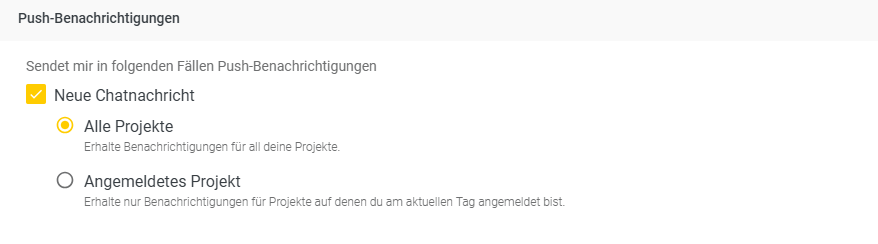
In the Push Notifications section, you can generally control whether you want to receive a push notification as soon as someone sends a new chat message.
Below that, you can specify whether you generally want to be notified as soon as someone sends a message in any project-related chat that you have access to, or whether you only want to receive a push notification for chats in projects that you signed up for or logged time on today.
Quality
On the Quality tab, you can define basic settings for the quality module.
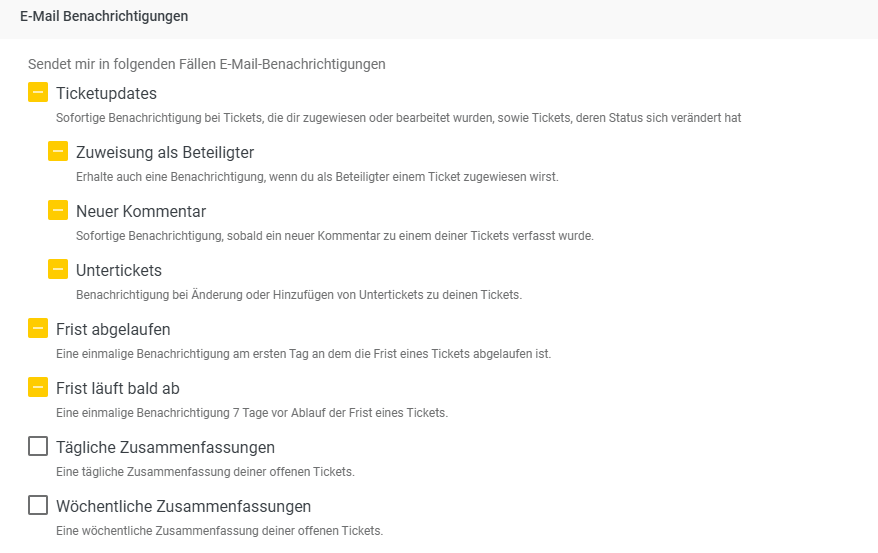
In the Email Notifications section, you can control which changes/updates regarding Tickets you want to be notified about.
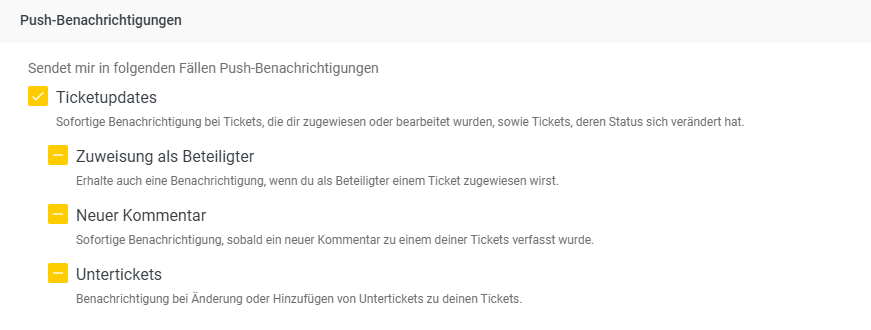
Push notifications are also sent directly to your smartphone or tablet from the Quality module. You can also customize your own settings for this.
Devices
On the Devices tab, you can enable email notifications for maintenance in the device module.
