Contacts / Subcontractors / Suppliers
Written By knollp
Last updated About 1 month ago
Office
To create contacts, subcontractors, and/or suppliers in 123erfasst, navigate to More -> Admin -> General -> Contacts in the Office.
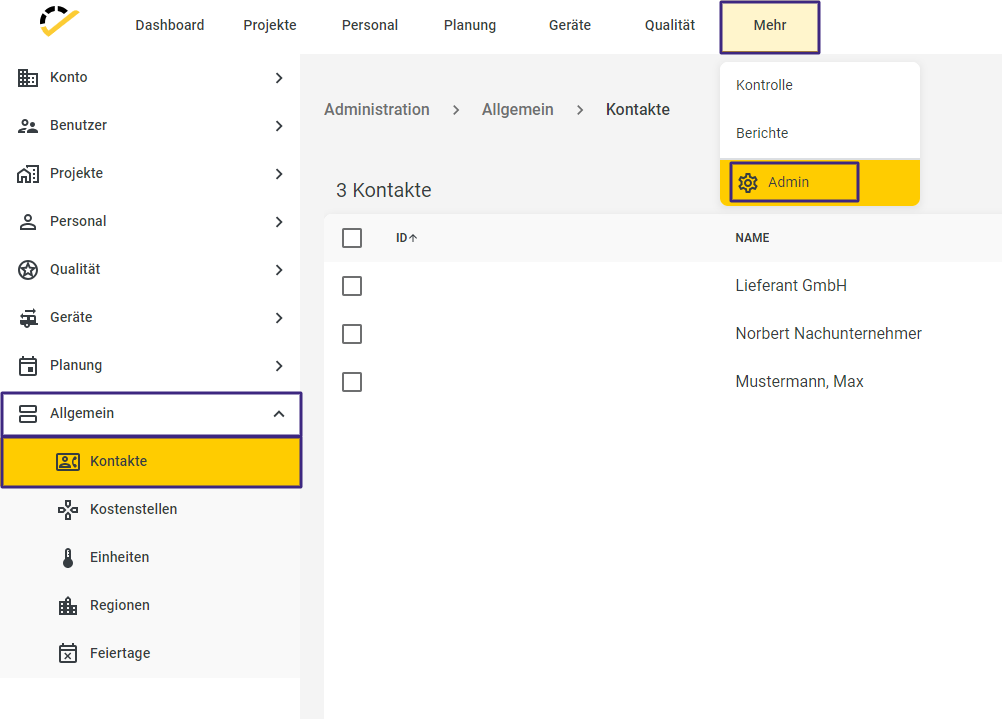
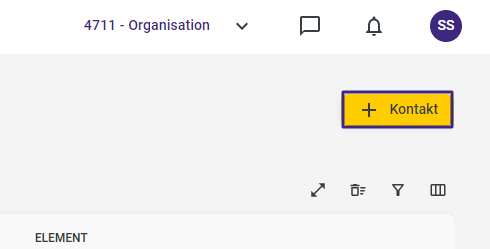
Click the +Contact button at the top right of the page to create a new contact/subcontractor/supplier.
The following entry form will open.
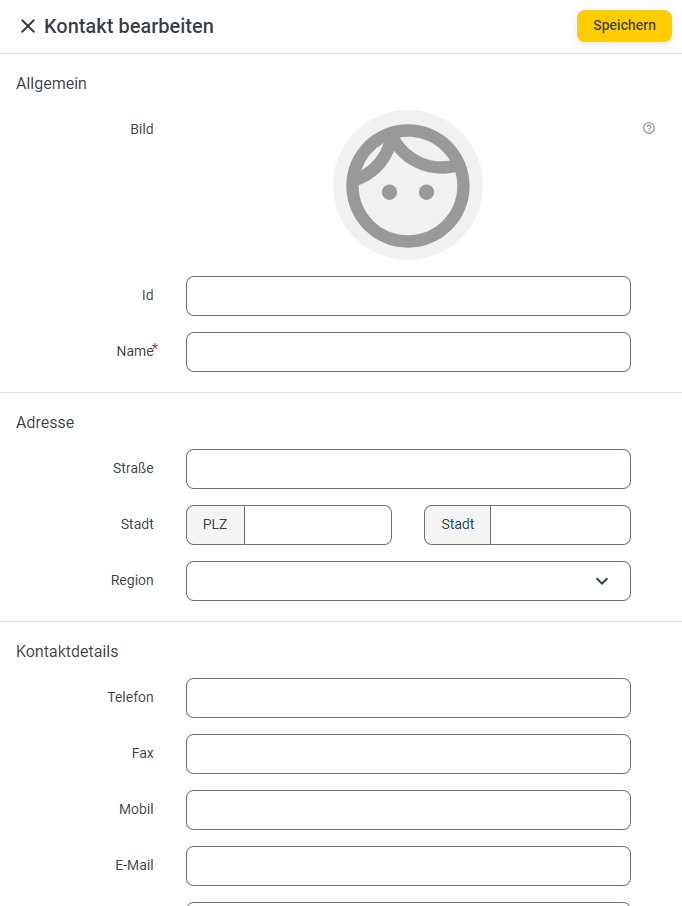
Regular Contact
If you want to create a simple contact, for example, to store your customers’ or clients’ contact information in 123erfasst, fill out the contact details and address section in the form. You can also define a specific contact person for this entry by clicking the +Contact Person button.
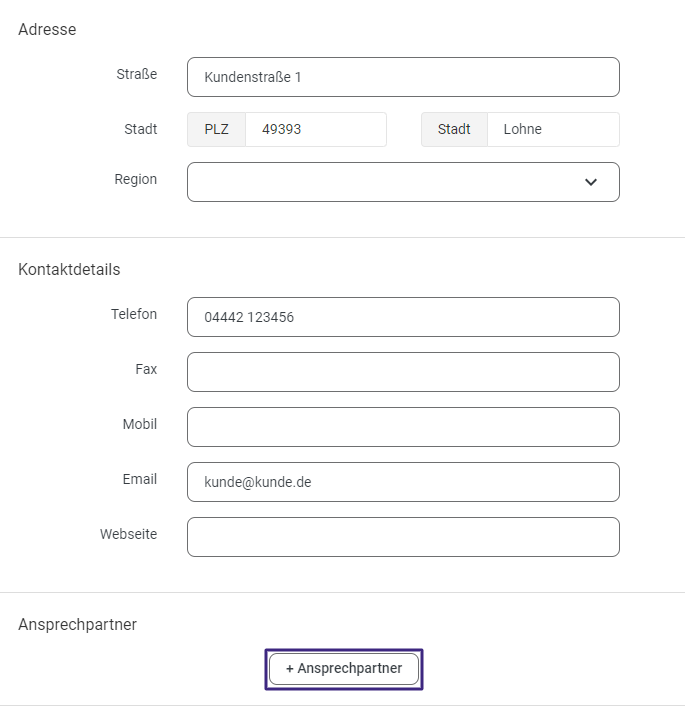
The following section will then open.
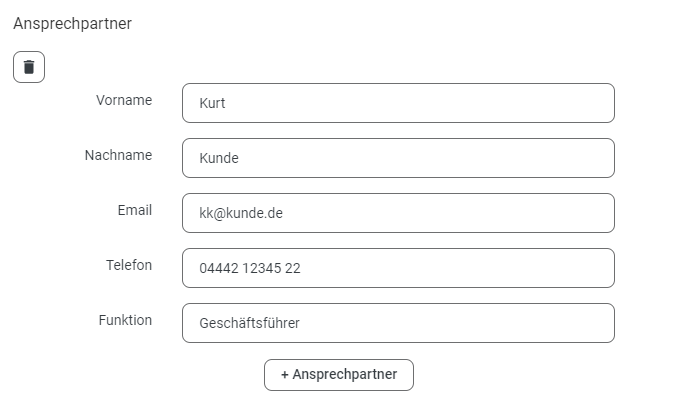
Click Save to complete the entry of your contact.
You can store your contacts in the Contacts field within your projects’ master data.

You also have the option to define separate address groups for your different contact types to categorize the contacts.
Subcontractor
If you click the "Create Subcontractor" button in the entry form, you can convert your contact into a subcontractor.
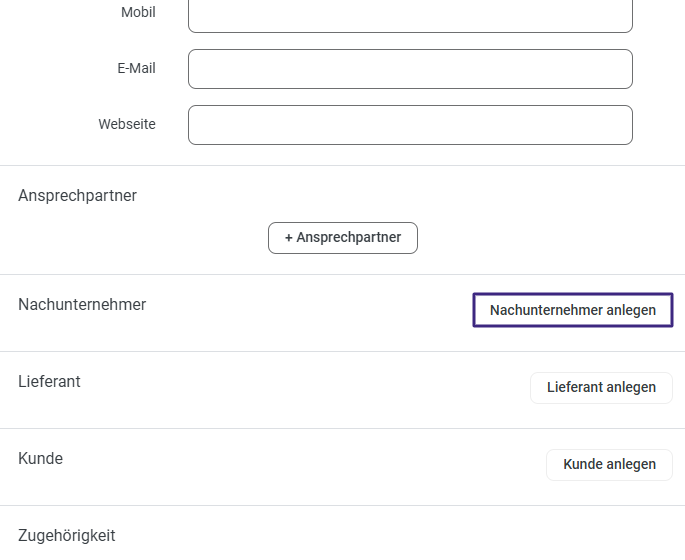
In addition to the existing contact details and address information, you can now fill out the Subcontractor section.
In the Personnel Types field, specify the type of employees provided to you by the subcontractor or that you obtain from the subcontractor. To learn how to define your own personnel types, see here.
In the Activities field, enter the activity or activities that the subcontractor performs for you.
To learn how to create activities in 123erfasst, visit here.
Finally, link the projects for which you use this subcontractor.
To learn how to create projects, visit here.
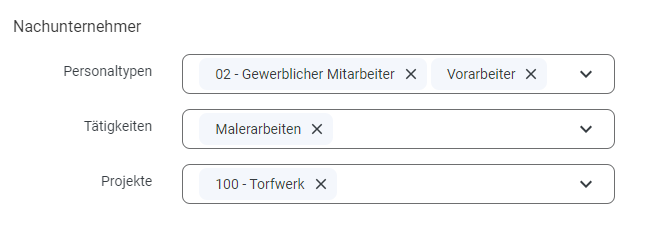
Complete your entry by clicking Save.
The subcontractor will now also be displayed in the Subcontractor field in the master data of your linked projects.

Suppliers
When you click the Create Supplier button in the entry screen, you’ll set up your contact as a supplier.
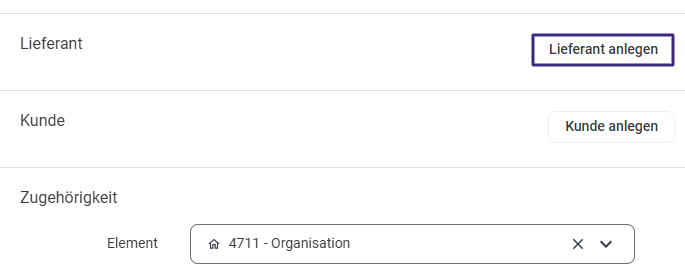
In addition to the existing contact details and address information, you can now fill out the Supplier section.
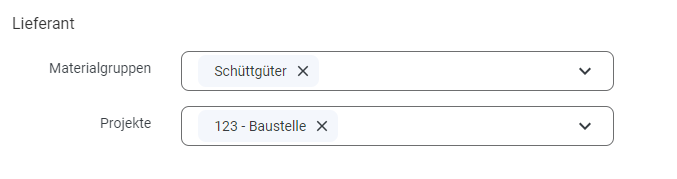
In the Material Groups field, enter the materials that this supplier provides to you.
To learn how to create materials, visit here.
Finally, link the projects for which you use this subcontractor.
To learn how to create projects, visit here.
Complete your entry by clicking Save.
The supplier will now also be displayed in the Supplier field in the master data of your linked projects.

App/Web Entry
The Contacts tile is available in the 123erfasst app.
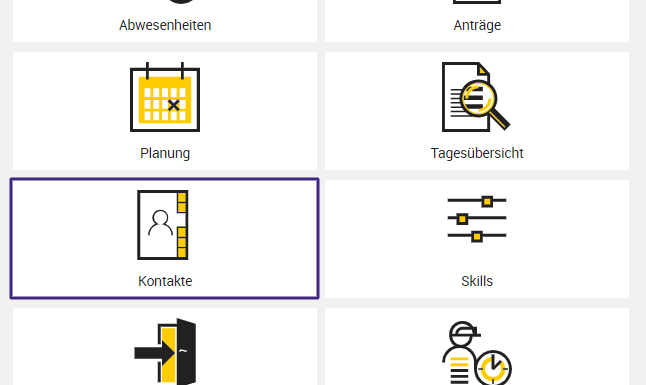
In this tile, first select the project for which you want to view the created contacts/subcontractors/suppliers.
In the Address Groups field, you can choose between the predefined address groups Suppliers and Subcontractors.
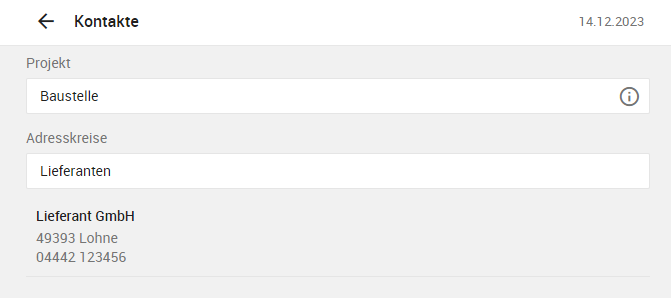
The respective contacts for the project will be displayed.
Clicking on a contact will display additional information about that contact.
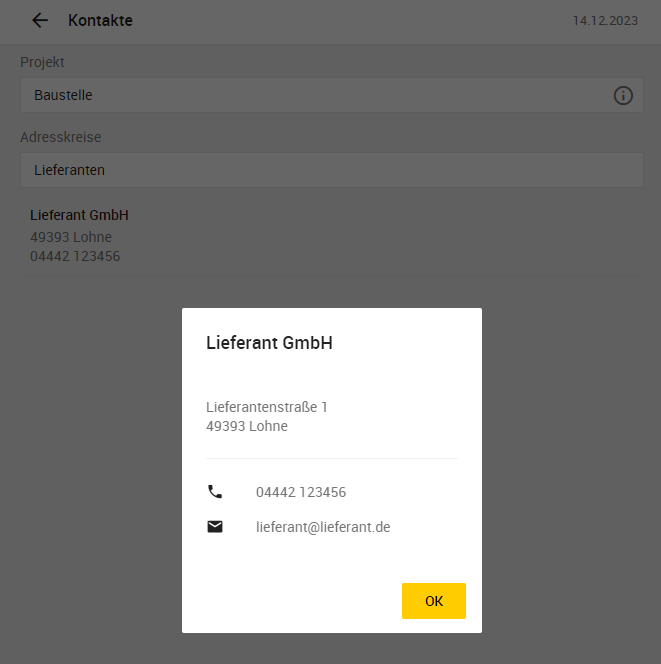
By clicking on the phone number, you can call the contact directly from the 123erfasst app.