Activities
Written By knollp
Last updated 6 months ago
When recording time and tasks, you must specify the tasks so that you can later track what your employees have done on the project.
New tasks can be created in 123erfasst under the menu items More -> Admin -> Personnel -> Create Tasks.

Click the +Activity button in the top-right corner of the page to create a new activity.

The corresponding entry form will open.
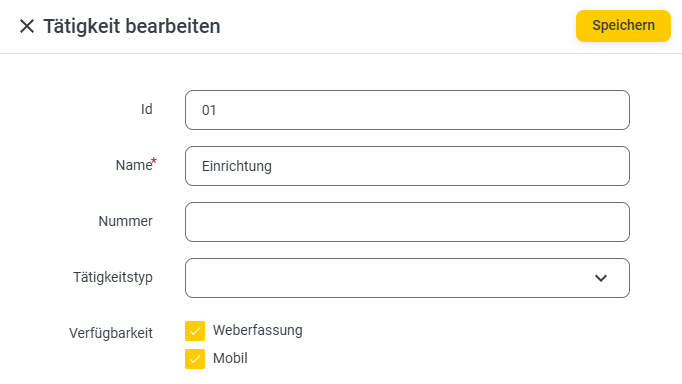
In the upper section, you can enter an ID and a name as required fields.
You can assign your activities to so-called activity types. These activity types make it easier for you to assign activities, e.g., within a project.
Additionally, you can define whether the activity should be available both in the web interface and on mobile devices.
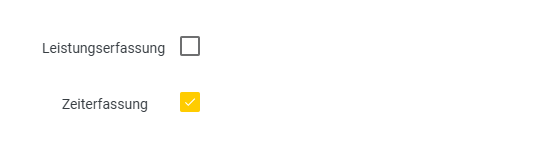
In the second section, you specify whether your activity is available for time tracking and/or service tracking.
Note: These are the "Times" and "Services" tiles in the 123erfasst app/web entry.
In the next section, you specify how the recorded data associated with the activity should be transferred to your payroll program via an interface.
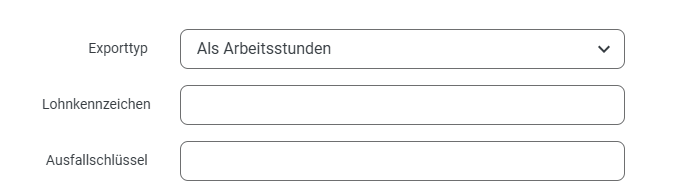
In the Export Type field, you determine whether and how the recorded times are transferred with this activity. You can choose between As Work Hours, Paid Absences, Do Not Export, and Unpaid Absences.
Using the Payroll Code, you uniquely assign the recorded times to the activity’s payroll or time type in your payroll program. The Absence Code also serves for precise assignment and further processing in your payroll program.
In the following section, you can define some basic settings for the activity.
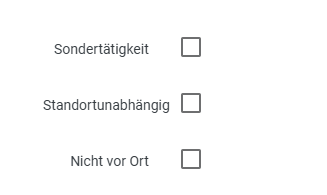
In addition to standard activities, you can also record special activities such as bad weather. These special activities can then only be recorded by the user during a fixed, predefined period, e.g., from December to March of each year. The selection of individual months opens when you check the box for Special Activity.
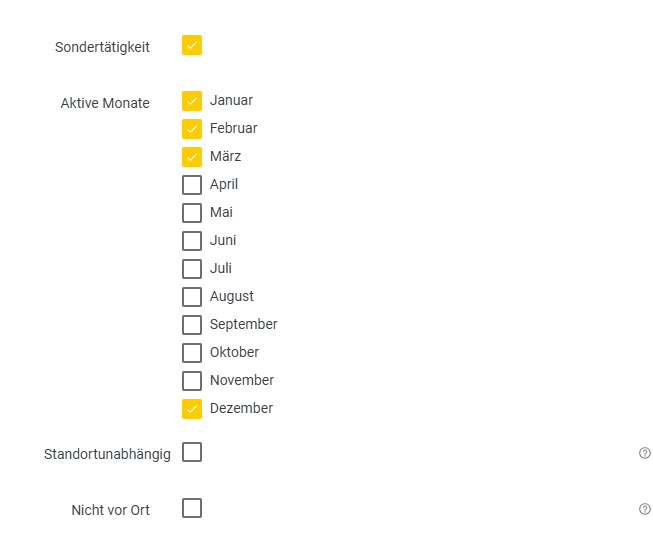
In addition, special activities are automatically made available for selection across all projects. They do not need to be assigned to a specific project.
Location-independent activities are frequently used for recording setup times (loading and unloading) as well as arrival and departure times. These activities generally take place outside the scope of the actual project. To still assign these activities to a project, enable the "Location-independent" option. This allows these activities to be recorded in the app/web interface even outside the project’s radius.
With the Not on-site option, you specify that recorded times for this activity are not performed on-site and are therefore not included, for example, in the calculation of the 3-month period (e.g., bad weather).
In the Projects field, you specify the projects to which your activity is relevant.
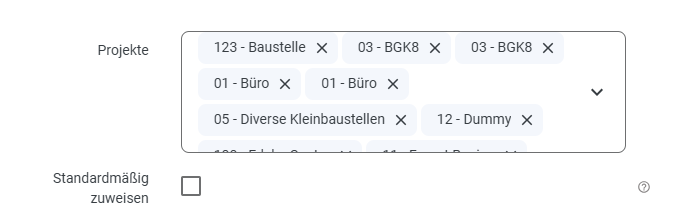
The activity will only be available for service and/or time tracking once it has been assigned to a project and/or employee. If you check the Assign by default box, the activity will be automatically assigned when a new project is created.
Alternatively, you can manually assign activities in the project master data. You can learn more about this at here.
If you want to assign your activity based on employees rather than projects, you can do so in the Employee field.

The assigned employees can then select the task independently of the project. As with projects, you can also manually enter tasks in the employee master data.
You can learn more about this at here.
By assigning a task to a subcontractor (staffing agency/subcontractor), this task can be used within the scope of time tracking for subcontractors.

Would you like to assign certain activities (e.g., demolition work) to a piece of equipment rather than a project? Then enter one or more pieces of equipment in the Equipment field to which you want to record this activity.
