Rulebook
Written By knollp
Last updated 4 months ago
You can define automatic rules and calculations in the rule set that are executed daily, weekly, or monthly for your employees in the "Monthly calendar."
For example, meal allowances, travel time compensation, overtime calculations, and any additional pay, such as Sunday, holiday, and night shift premiums, can be configured there.
Note: Setting up the rulebook is generally a paid service and is performed by our Professional Service team. Please contact dienstleistung@123erfasst.de with your specific requirements to receive a quote and a proposed date for setup.
However, with this article, we’d like to give you the opportunity to add simple and frequently used rules to your rulebook yourself.
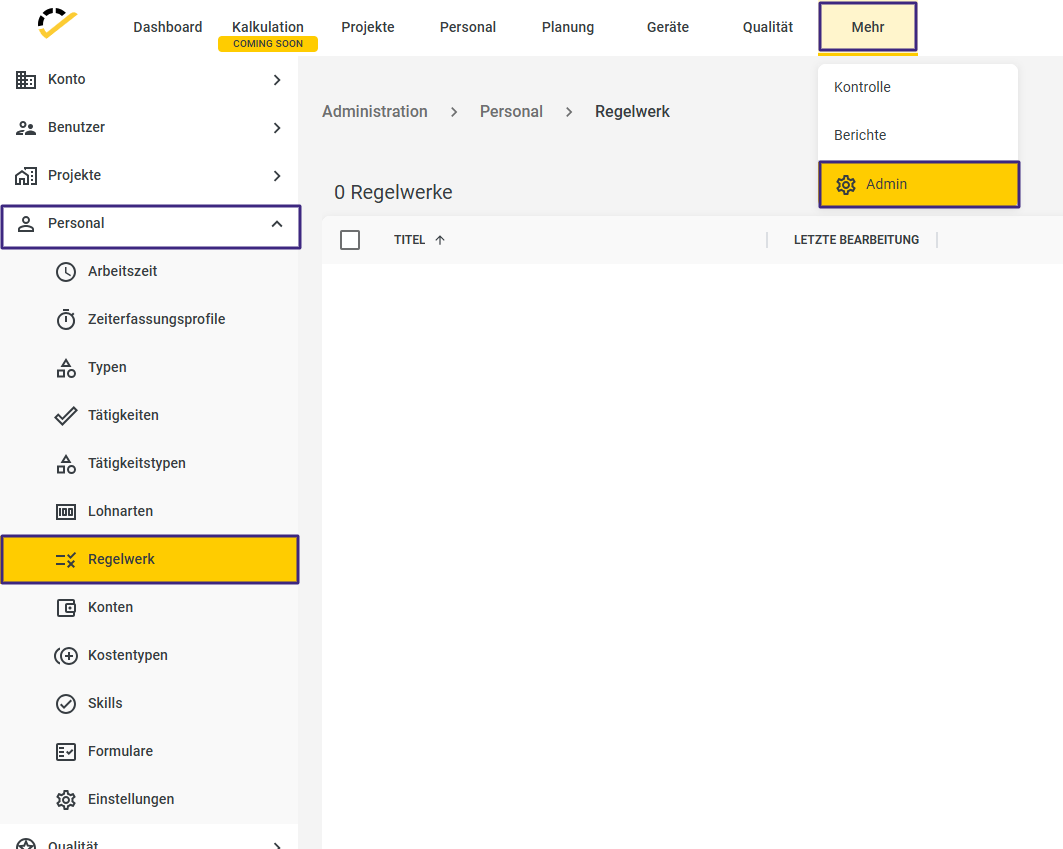
You can find the rule set under More -> Admin -> Personnel -> Rule Set.
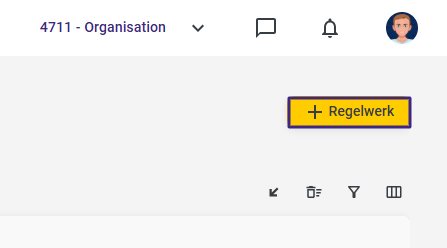
Click the +Rulebook button in the top right corner of the page to create a new rulebook.
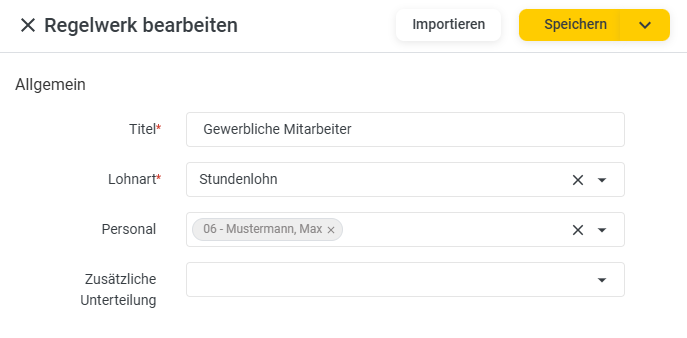
Assign a title to your rule set, select the wage type on which your employees’ working hours paid at an hourly rate should be displayed in the monthly calendar.
To learn how to create a wage type, visit here.
Next, in the Personnel field, select the employees to whom this rule set should apply.
In the lower part of the rule set, you now define the rules.
By default, an empty rule block is always displayed.
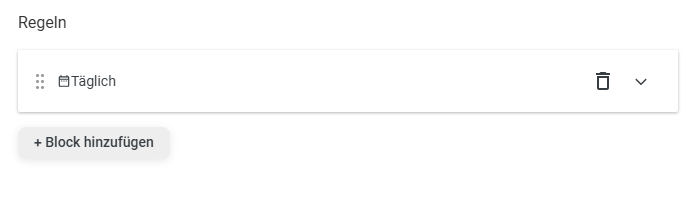
Click the arrow to open this empty rule block.
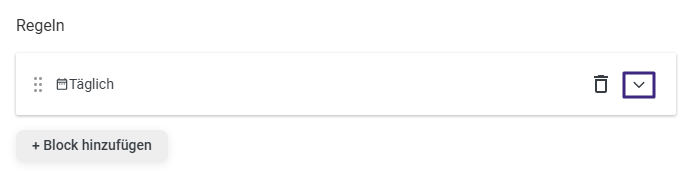
In the expanded rule block, assign a name to the rules. This is not mandatory, but it helps you keep track of various rules later on.
In the first step, we will now create the rule that calculates overtime and negative hours and displays them in the monthly calendar (AZK Setup and Teardown).
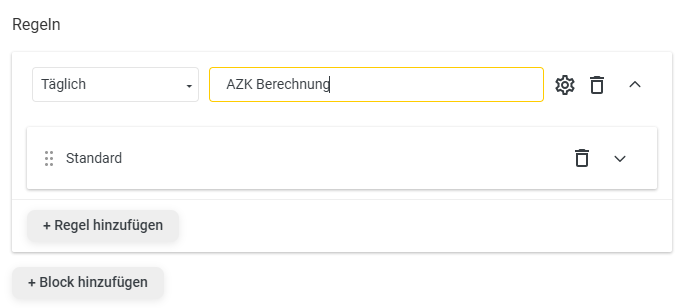
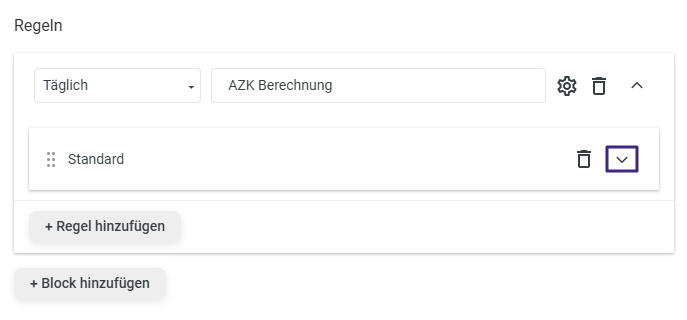
In the rule block, we now expand the subrule again using the arrow.
Set the type of this rule to AZK Calculation.
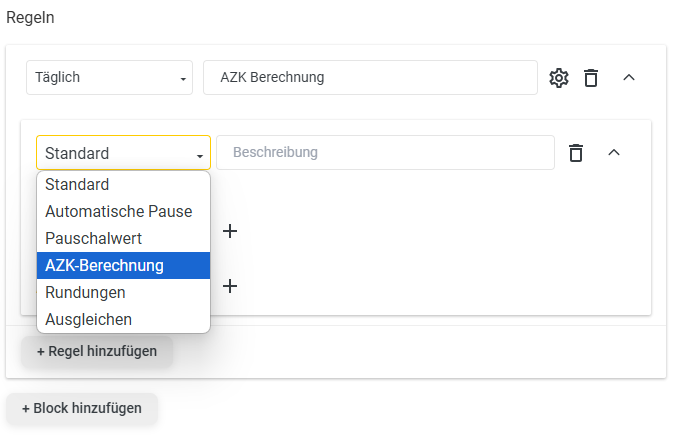
This changes the structure of the rule block.
In the Setup Wage Type and Breakdown Wage Type fields, enter the wage types on which your employees’ overtime and negative hours should be displayed in the monthly calendar.
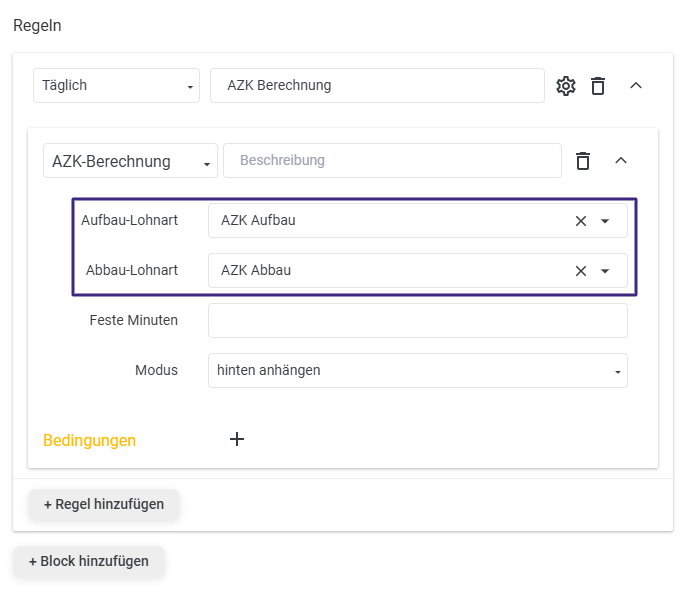
In the Fixed Minutes field, you can enter a value in minutes.
Overtime or negative hours are then calculated based on this value, and the actual target hours from the employee’s working time are ignored. If the Fixed Minutes field is empty, overtime or negative hours are calculated based on the stored target working time from the employee’s working time.
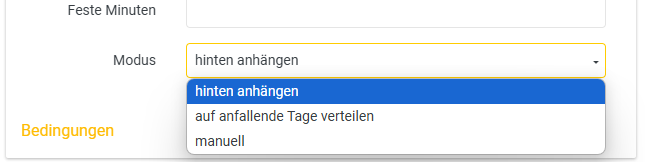
The mode describes how overtime or negative hours are displayed in the monthly calendar.
Append at the end = Overtime or negative hours are appended at the end of the month (applies only if overtime or negative hours are calculated monthly. If the calculation is set to daily, overtime or negative hours are displayed on the days they occur.
Distribute across applicable days = Overtime or negative hours are displayed in the monthly calendar on the days they occur.
Manual = Here, overtime is calculated manually, and you can set specific conditions for when overtime or negative hours are calculated and when they are not.
At the top of the rules block, you can choose whether the AZK calculation should be performed daily, weekly, or monthly.

After you save your rule set with the AZK calculation, the AZK calculation is automatically performed in the monthly calendar for the employees to whom you have assigned this rule set.
The working hours the employee worked on that day that fall within their target hours are reported under the "Hourly Wage" wage type.

As an additional rule, we will now add an automatic bad weather calculation to the rule set, which automatically transfers negative hours to the "Bad Weather" wage type during the winter months.
To do this, open the AZK calculation you just created in your rule set.

Now, within this expanded rule, click on +Add Rule.
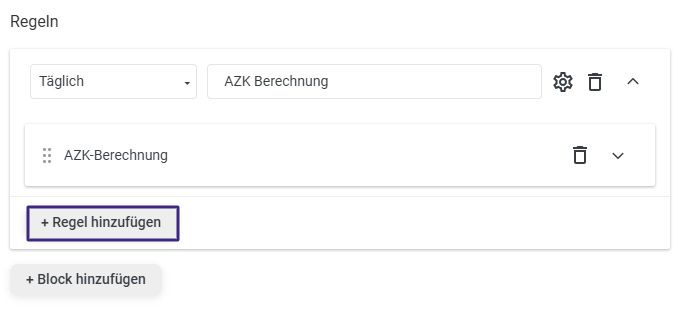
Expand this new rule block using the arrow and name it "Bad Weather."
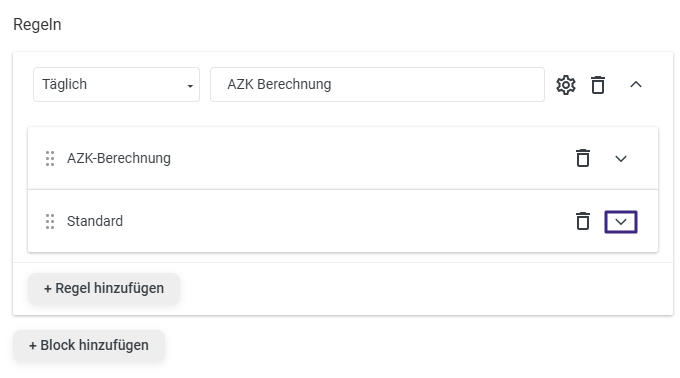
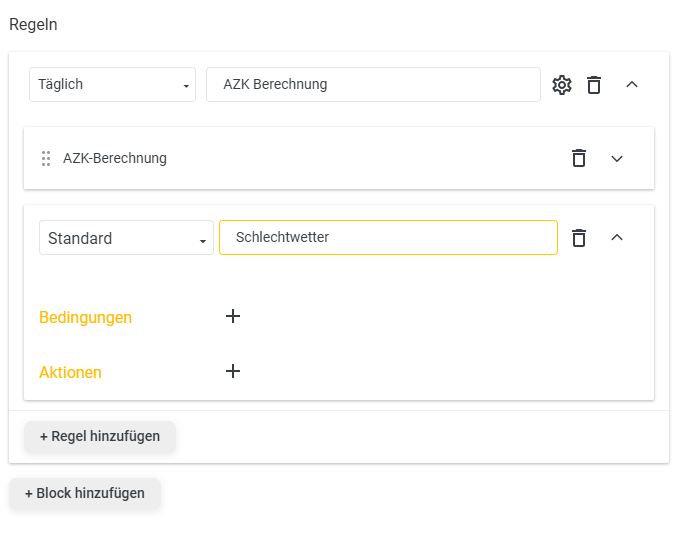
Unlike with the AZK calculation, leave the type of this rule set to Standard.
Now, consider the conditions that must be met for "Bad Weather" to be displayed for the employee in the monthly calendar.
One condition could be, for example, that they should only receive "Bad Weather" if they worked negative hours on that workday.
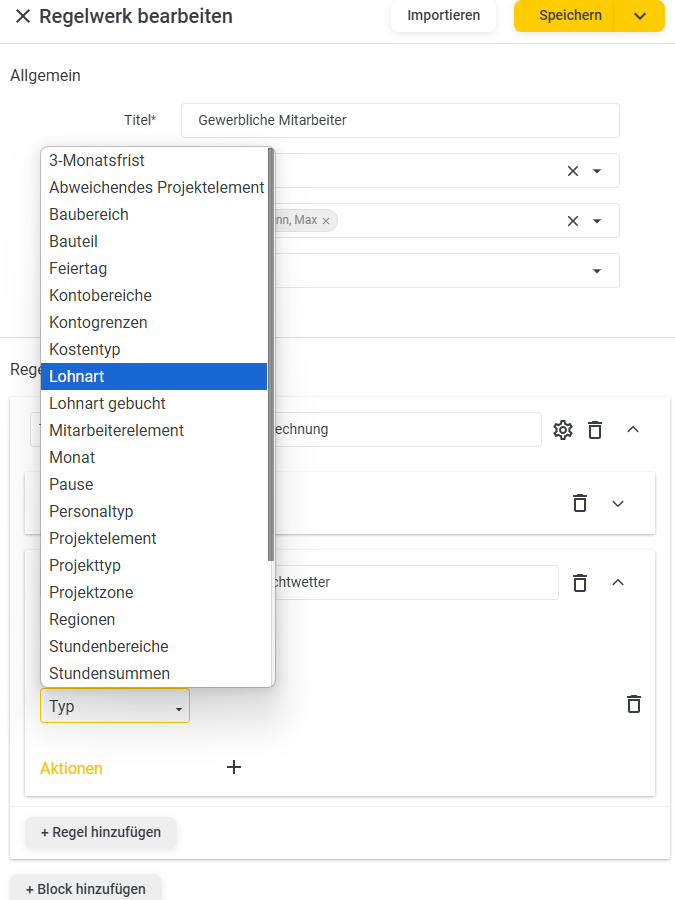
Click the + next to "Conditions."

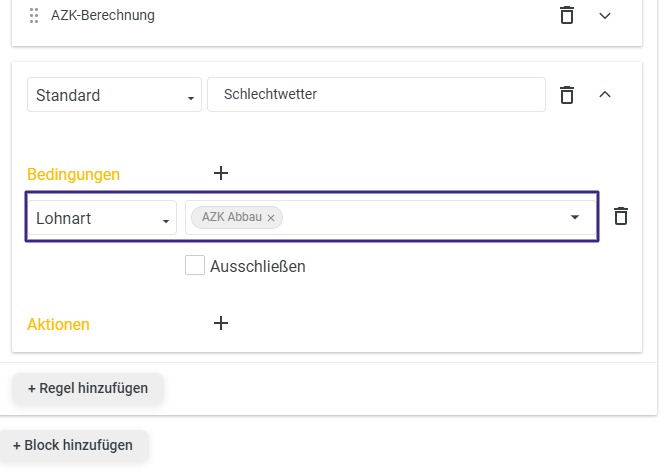
In the "Type" field, select the condition type "Wage Type," and then select the wage type "AZK Reduction" in the field to the right of it.
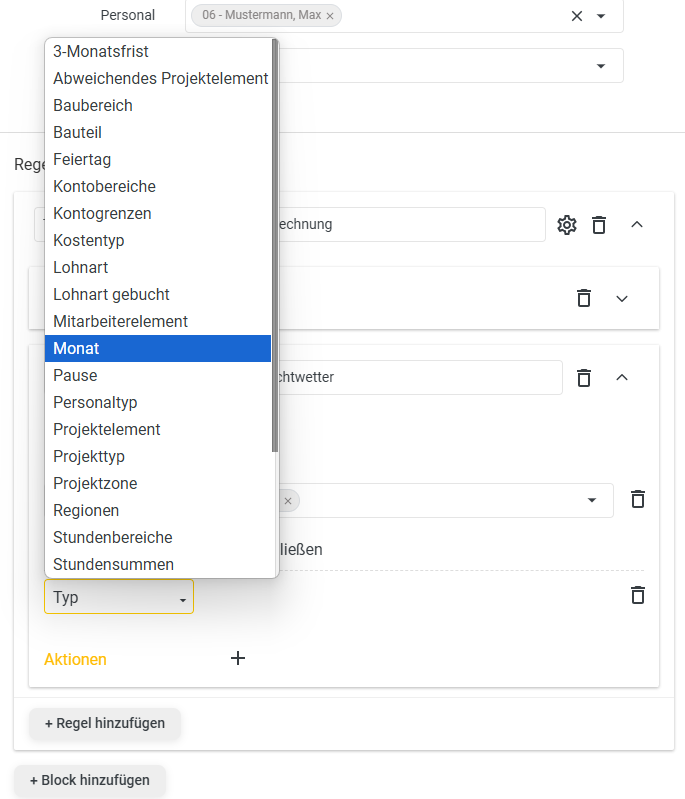
Another condition for the bad weather calculation would be that this rule is only applied during the winter months.
To do this, select another condition of the type "Month" and activate the months for which this rule should apply.
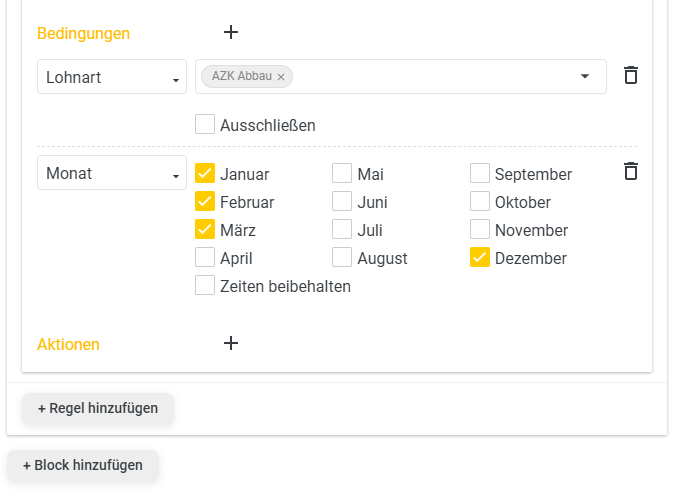
Under "Actions," you now specify what should happen when these two conditions are met.
In this case, we want the negative hours to be transferred to the "Bad Weather" wage type.
To do this, click the + next to Actions.
In the Type field, select Wage Type, and then enter the wage type "Bad Weather" in the field to the right of it.
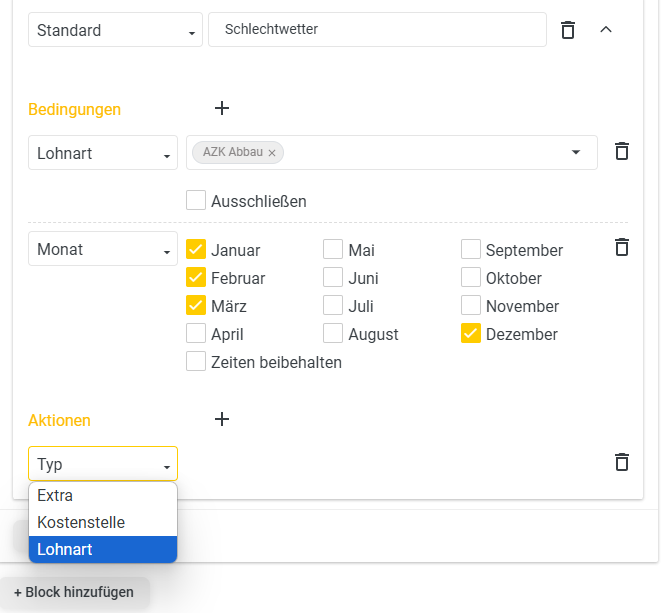
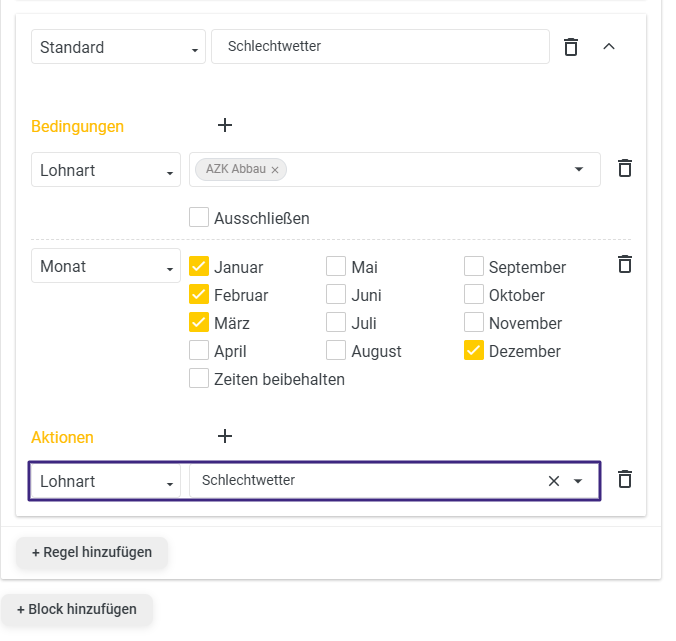
Save the rule set and view your employee’s monthly calendar.
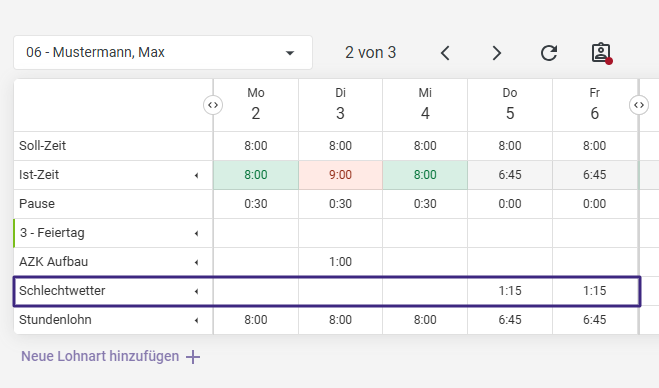
In my example, we are currently in the month of December, so the "Bad Weather" rule applies. The AZK reduction is therefore automatically transferred to the "Bad Weather" wage type.
Another rule I’d like to explain in this article is the reallocation of hours booked to a specific activity.
This rule can be applied, for example, if you want to grant your employees a bonus when they perform certain tasks on the construction site.
To do this, create a new block in your rule set by clicking +Add Block.
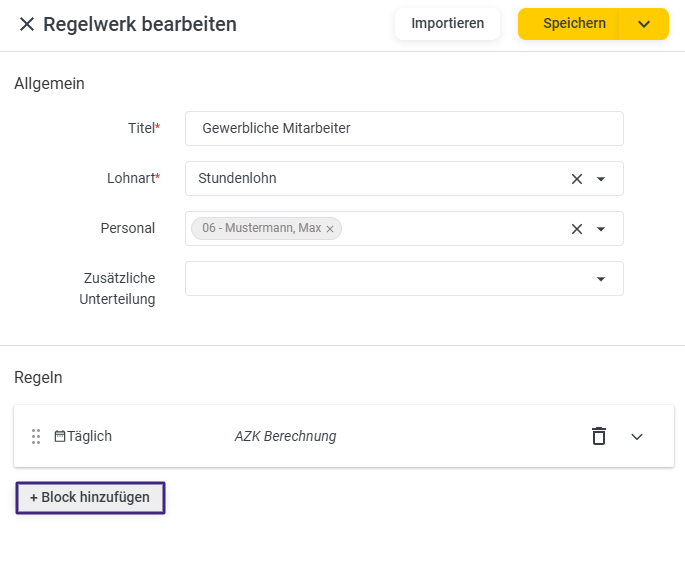
Now click on the arrow in the newly created block.
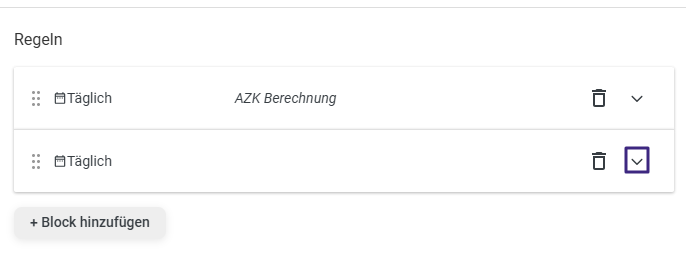
Again, assign a name for the entire block.
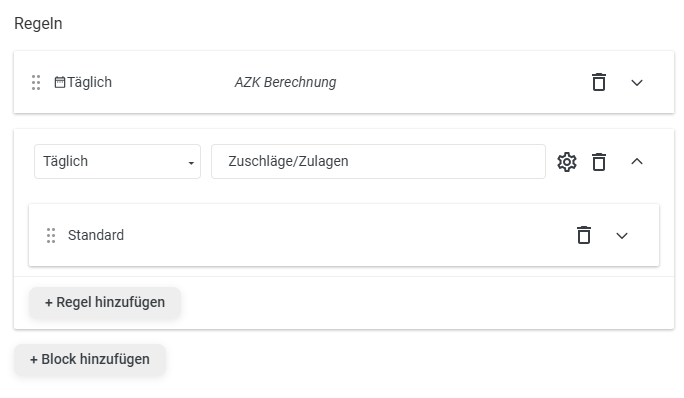
Expand the sub-rule using the arrow and enter the conditions that must be met for the employee to receive the bonus.
If the employee is to receive a bonus as soon as they perform a specific task, select that task as the condition. In my example, the employee should receive a chiseling bonus when they perform the "chiseling" task on the construction site.
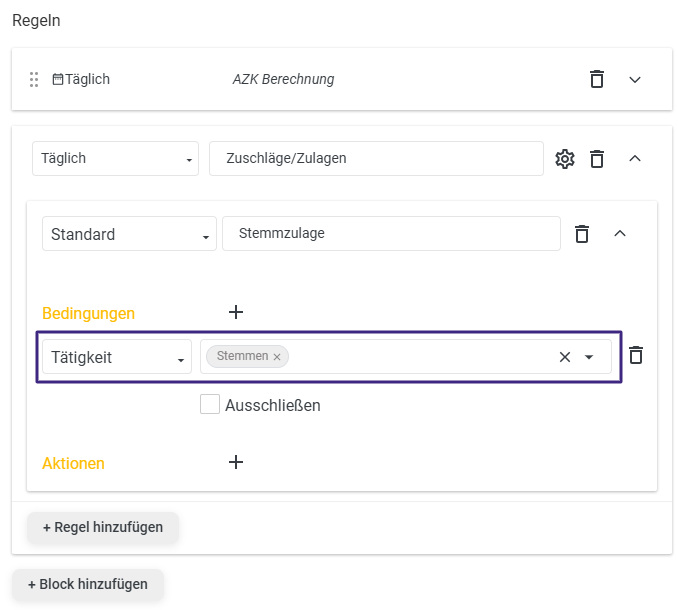
The action should be to report the wage type "Chiseling Allowance" with a euro amount.
To do this, select the "Extra" type as the action.
In the Wage Type field, select the wage type on which the bonus is to be posted.
Checking the "Use Cost Center" box automatically applies the project cost center to which the employee recorded the activity.
Set the Type to Value and enter the euro amount the employee is to receive in the Value field below.
If the employee is only supposed to receive the allowance once a day, check the box for "Once per day."

Save your rule set and check the result in the monthly calendar for an employee who meets the conditions.
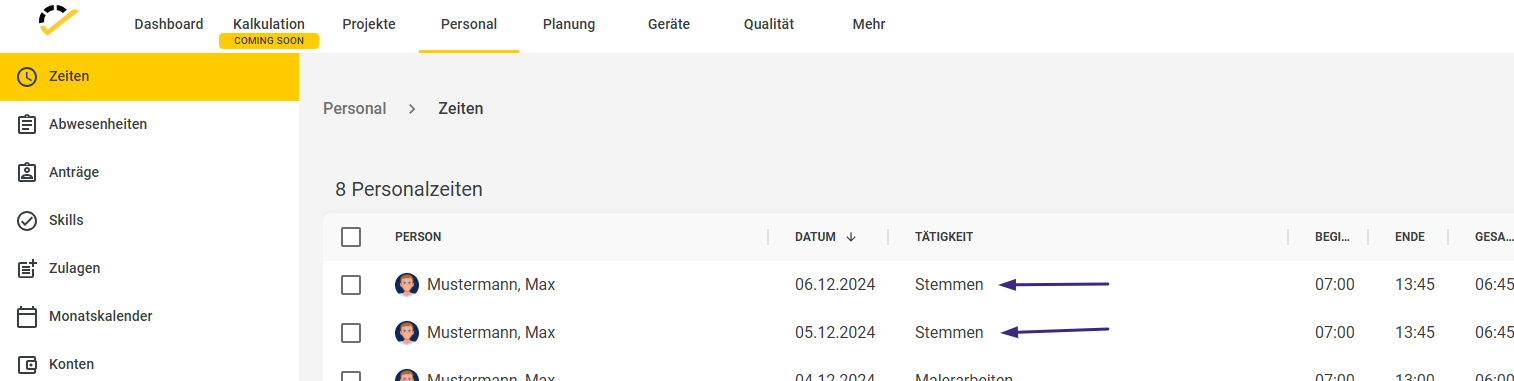

You’ll notice that the rule set is very complex and allows for a wide variety of rules.
Showing you all the possibilities here would go beyond the scope of this guide.
If you have any questions about the rule set or specific rules, please feel free to contact our support team at support@123erfasst.de.
If you need basic assistance setting up the rule set or would like to have us set up a rule set for you according to your specifications, please contact our Professional Service at dienstleistung@123erfasst.de.