Wage types
Written By knollp
Last updated 6 months ago
Payroll types are required for payroll processing and for recording absences, among other things.
You use the settings to determine which values are transferred to the payroll processing program and in what format.
Navigate to More -> Admin -> HR -> Payroll Types.

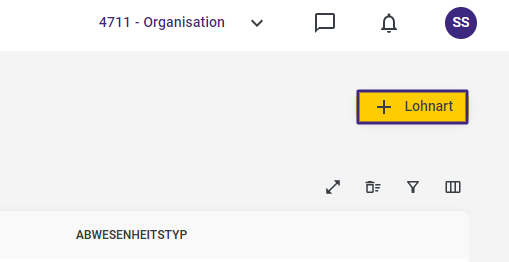
Click the +Payroll Type button in the top-right corner of the page to create a new payroll type.
The corresponding entry screen opens.
General

If necessary, assign an ID to your wage type.
Name: A custom name to identify the wage type within 123erfasst (required field).
Payroll Code: This is the reference for the wage type in the downstream payroll program.
Abbreviation: Here you can enter an abbreviation consisting of letters to identify the wage type. The abbreviation serves as an additional reference for the wage type in the downstream payroll program.
Type: This determines whether the created wage type records hours, amounts, or quantities. By default, wage types are grouped in the monthly calendar based on their type (hours, amount + quantity). For hours and amounts, a value is entered directly via the monthly calendar. For the Quantity type, a base value can also be entered. During calculation, the base value is multiplied by the entered value to determine the final result. This can be used, for example, for mileage allowance, by specifying the kilometers and using the amount as a mileage flat rate as the base value. The base value can also be overridden on a daily basis in the monthly calendar.
Absence

Duration: The duration specifies whether absences posted via this wage type can be used as units of hours and/or days. Additionally, you can specify whether a time period may be defined.
Availability: The availability specifies where the wage type for absences may be used. If the wage type is to be selectable for absences in web entry and on mobile devices, the checkboxes can be selected here. If the wage type is to be selectable via an absence request, the checkbox next to 'Request' must be selected.
Account Impact - Leave Account: If set to "Neutral," the leave account is not affected; "Positive" posts the entered hours/days directly to the leave account; "Negative" deducts the hours/days from the leave account
Export

Payroll: Determines whether data recorded under this wage type is also transferred to the payroll program for further processing. If the checkbox is selected, all data recorded under this wage type is transferred to the payroll program.
Paid: Here you can specify whether the times posted to this wage type are paid or not.
Monthly Calendar 4.0

Account Impact - Time Account: This option determines how the hours posted to the wage type affect the time account. "Neutral" has no effect on the time account; "Positive" posts the entered hours to the time account; and "Negative" deducts the hours from the time account. Together with corresponding settings in Rulebook 4.0, you can, for example, specify that at certain times of the day (e.g., at night), the recorded hours are posted to the time account. You can also set it so that the employee can offset their time with overtime for certain activities.
Account Impact - Vacation Account: If set to Neutral, the vacation account is not affected; if set to Positive, the entered hours/day are posted directly to the vacation account; if set to Negative, the hours/day are deducted from the vacation account. Important: If you have already defined the impact on the vacation account in the upper section under Absence, this selection does not need to be made here, as otherwise double deductions will occur.
Account Impact - Actual Time: If set to "Neutral," the working time account is not affected; if set to "Positive," the entered hours are posted directly to the working time account; if set to "Negative," the hours are deducted from the working time account.
Assignment
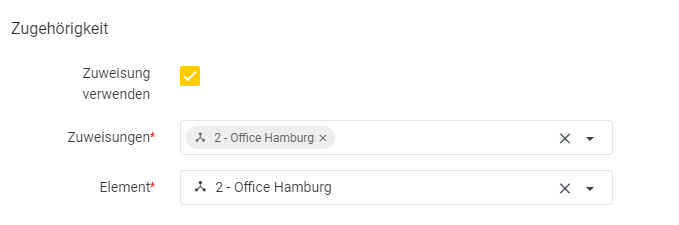
Use Assignment: Check this box if the wage type should only be available for a specific branch.
Assignments: Here you select one or more of these branches for which the wage type should be visible.
Element: Here, you select the branch under which the wage type should be available.