Time recording profiles
Written By knollp
Last updated About 1 month ago
You use the time tracking profiles to specify the work schedule according to which employees record their hours.
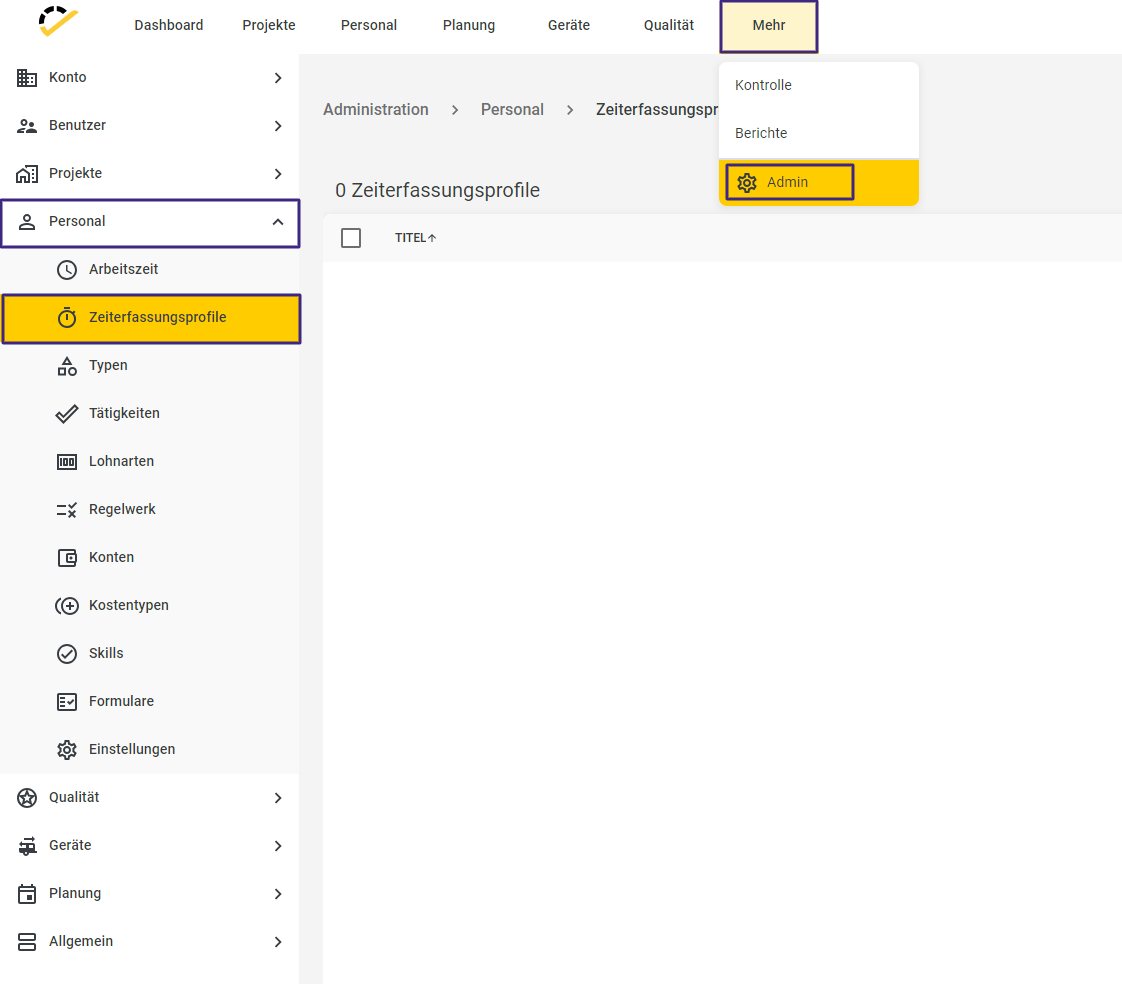
Go to More → Admin → HR → Time Tracking Profiles.
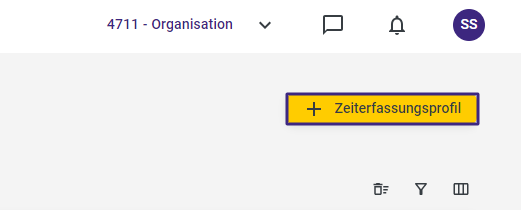
Click the +Time Tracking Profile button in the top-right corner of the page to create a new time tracking profile.
The following entry form opens.
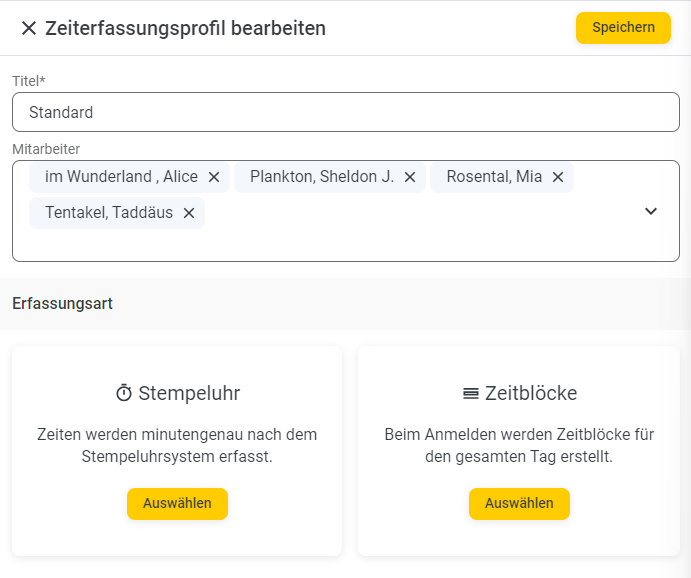
In the first field, Title, enter a name for the profile. Directly below that, assign the profile to the desired employees.
Then, in the "Entry Type" section, you have two options for configuring the profile. These two profile types are explained in more detail below.
Time Clock
Times are recorded to the minute using the time clock system.
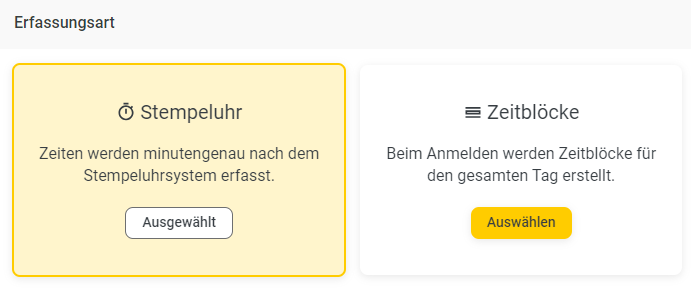
If you select this entry type, additional settings for this time tracking profile will open.
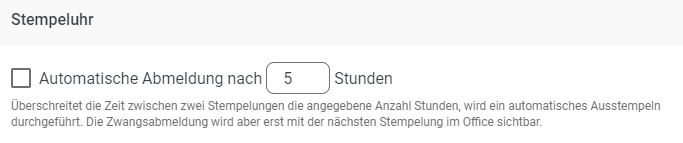
If the time between two clock-ins exceeds the specified number of hours, an automatic clock-out is performed (provided the checkbox is selected).
Note: The forced logout will only be visible in the Office upon the next clock-in.
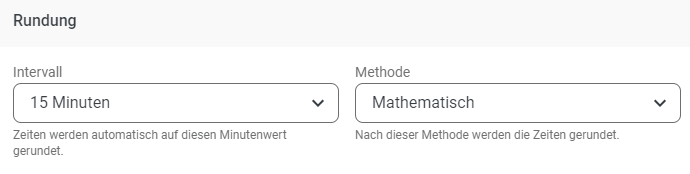
In the Rounding section, you specify an appropriate interval for rounding working hours. Next to that, you select the rounding method. You can choose between Mathematical, Always Round Up, Always Round Down, Employee-Friendly, and Employer-Friendly.
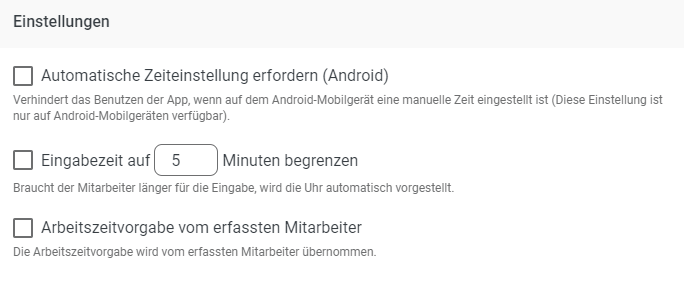
Under Settings, you’ll find some general settings for time tracking.
Require automatic time setting (Android) prevents time from being logged with the 123erfasst app/web entry as soon as the time on the smartphone has been manually changed.
"Limit entry time to ... minutes" means that the app automatically updates to the current time after the specified number of minutes has elapsed. This prevents the time in the app from freezing if an entry takes longer than expected or, for example, if the time tracking app is opened at 7:00 AM but the time isn’t saved until 7:30 AM. After the 5 minutes specified above, the time always updates to the current time.
You activate the working time specification for the employee being tracked when you assign this profile, for example, to a foreman or site manager who logs in multiple employees. With this setting, the working time specification is not taken from the person logging the time, but from the employee being tracked.
Time Blocks
When recording time, time blocks are automatically created based on the specified target time and breaks from the working hours.
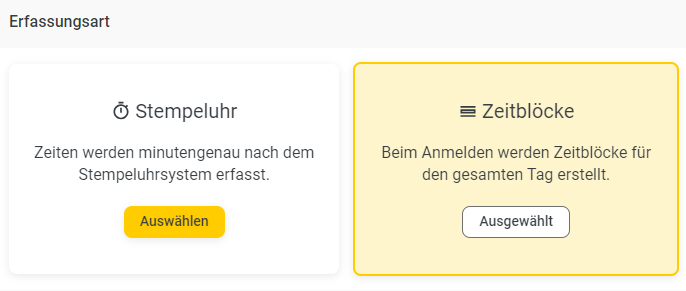
When you select this recording type, additional settings for this time recording profile become available.
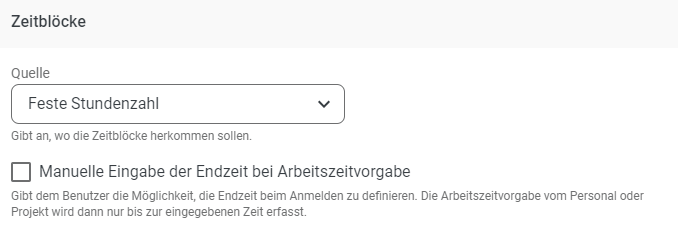
There are various options for the source.
Fixed Number of Hours - When logging in, a time block is created with the number of hours specified in the global settings. Learn more about global settings at here.
Personnel time only - Time blocks are created upon login based on the working hours assigned to the employee. You can learn more about working hours at here.
Project Time Only - Times are created based on the working hours stored for the project.
Project Time Before Employee Time - If working hours are assigned to the selected project, those working hours take precedence. Otherwise, the working hours stored for the employee are used.
Check the "Manual entry of end time when working hours are specified" box if you want to allow your employees to set an individual end time for this time block when they clock in.
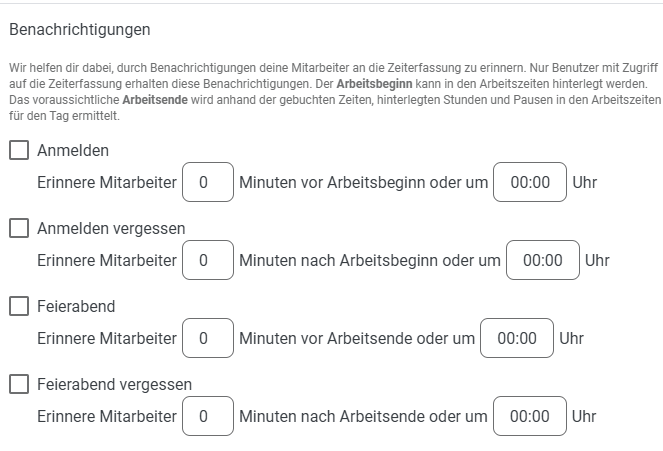
With the notification feature, you can automatically remind your employees to clock in.
You have the option to send reminders before the start of the workday or after a missed start time. The same applies to the end-of-day clock-out—here you can choose whether employees should be reminded before the expected end of the workday or after a missed end-of-day clock-out. These notifications are sent exclusively to users who use time tracking in 123erfasst.
The start of the workday is stored in the work schedule.
The estimated end of the workday is calculated automatically based on the recorded times, the scheduled hours, and breaks in the respective work schedule model.
Note: To receive the notification on their smartphone, the employee must enable notifications on their smartphone.