Settings
Written By knollp
Last updated 4 months ago
In 123erfasst, there are several settings that you can configure globally for the entire company or for the entire 123erfasst account.
Go to More -> Admin -> Account -> Settings.

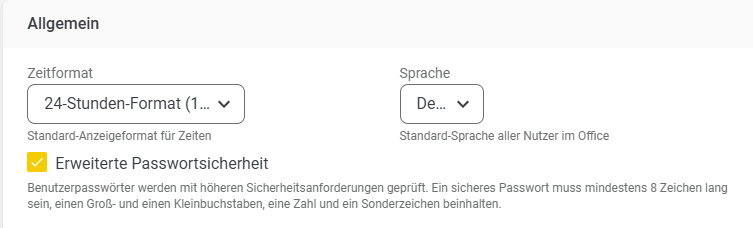
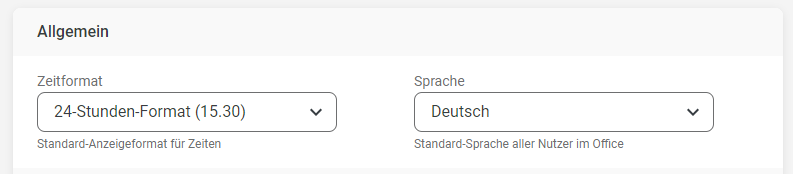
In the General section, you can set the time format, language, and password security for the 123erfasst Office.
For the time format, you can choose between the classic 24-hour format and a 12-hour format. If the checkbox for Enhanced Password Security is selected, passwords will be checked against stricter security requirements.
The Display section covers basic display settings.
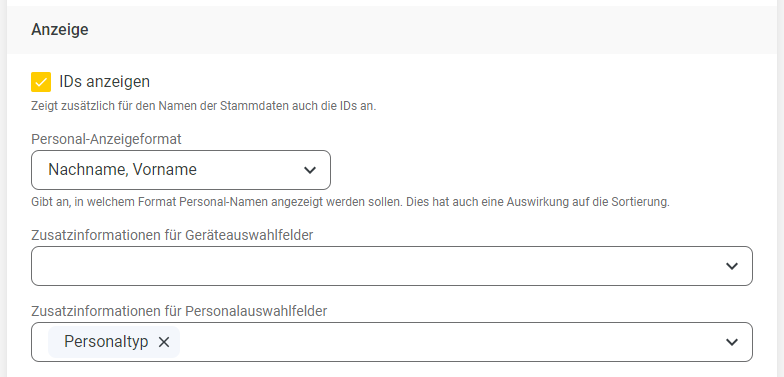
Check the box next to "Show IDs" if you want the ID to be displayed next to the name of the respective master record in selection fields.
Example:

In the Display Format section, choose how your employees’ names are displayed in the records.
You can choose between
First Name Last Name
Last Name First Name
Last Name, First Name
Example:


In the "Additional Information for Device Selection Fields" dropdown, you can choose which additional information about a device is displayed in the selection fields. Multiple selections are allowed in this field.
The following information is available to you:
Loaned
Device type
Alternative name
Identifier
Example:


Directly below this setting, you will find the Additional Information for Employee Selection Fields field.
Here, you can select which additional information about an employee will be displayed in the selection fields. Multiple selections are also possible in this field.
The following information is available to you:
Loaned
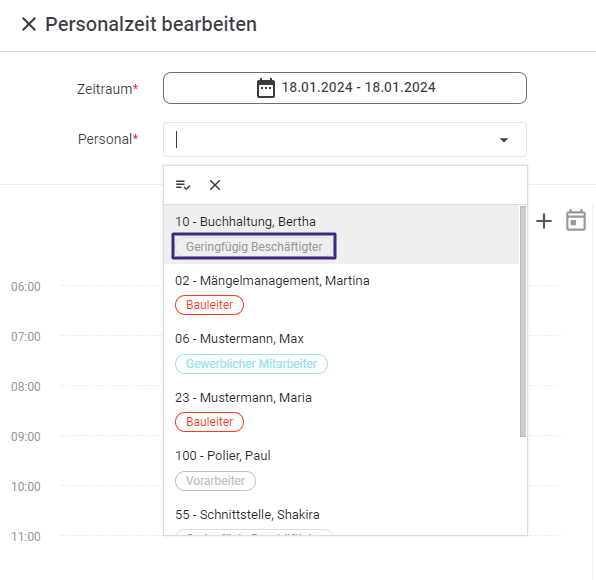
Personnel type
Example:

Next is the Master Data section.

With the Suggest IDs function, for example, the next higher ID is automatically suggested when creating a material.


Make the Region field in the project master data a required field by checking the Region required in projects checkbox.

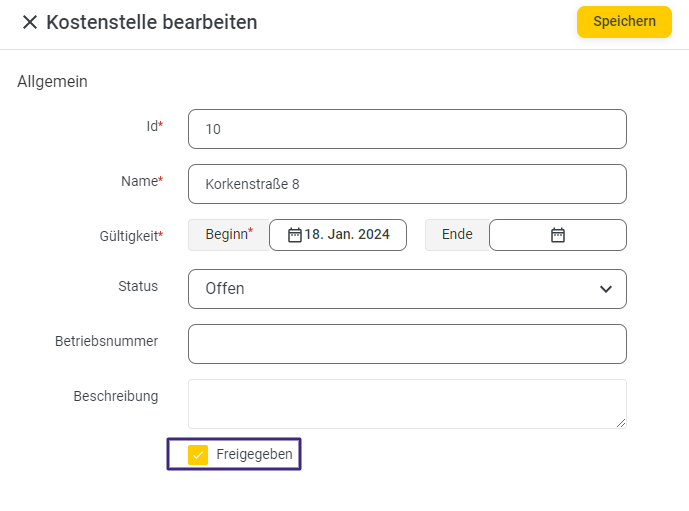
When the "Automatically approve cost centers when creating new projects" checkbox is selected, the "Approved" checkbox is automatically checked for a new cost center created when a project is created.
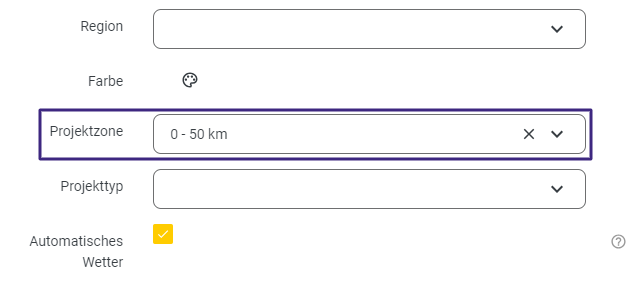
With the "Automatically set project zone" setting, the appropriate zone is automatically assigned when a new project is created.
This requires that you have created the project zones in your 123erfasst Office and that your company headquarters is stored in your client with the corresponding geo-coordinates.
To learn how to create project zones, visit here.
To have the geographic coordinates stored in your 123erfasst client, please contact our support team at support@123erfasst.de.
If the requirements are met, the project zone is saved in the project based on the automatic calculation of the distance from the entered project location to the company headquarters.
The "Standard Radius in Meters" function specifies the standard radius that is automatically set when a new project is created.


Of course, the radius can be adjusted individually for each project.
The last section in the global settings relates to the app.
Check the "Background Synchronization" box if you want master data to be synchronized even when the app is not open in the foreground on your smartphone. Under "Maximum Height/Width for Captured Photos," you can set the size of your captured images.
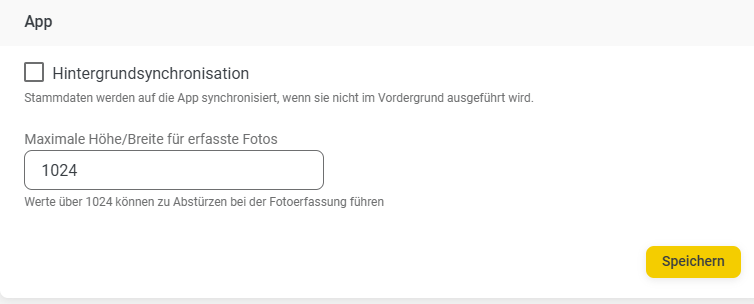
Save your settings by clicking the Save button in the bottom-right corner.