Personnel - Recruitment
Written By Greta Wulf
Last updated About 1 month ago
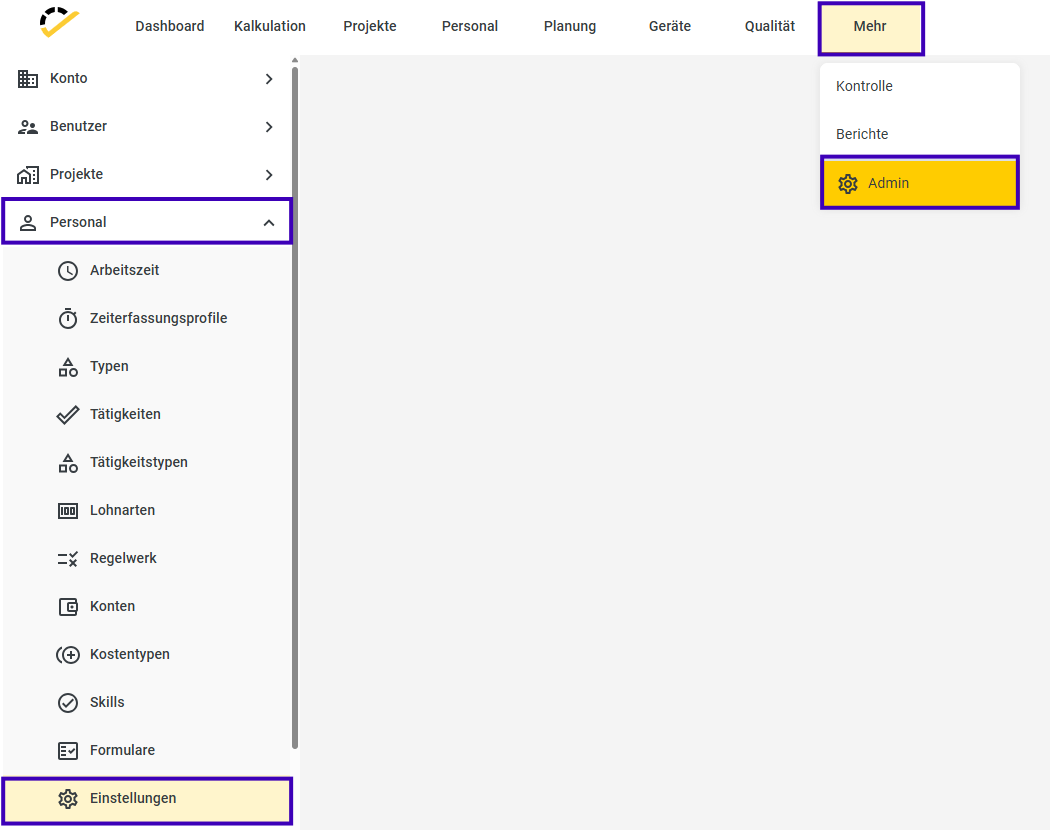
Under More → Admin → Personnel → Settings, you'll find basic settings for personnel.
Time Tracking
In the Time Tracking section, you can configure the following settings:
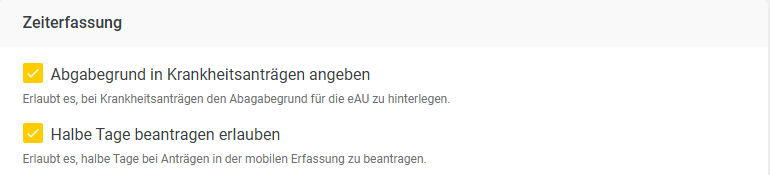
First, you can configure the settings for sick leave requests. If you check the box next to “Specify reason for submission in sick leave requests,” you can enter the reason for the eAU in sick leave requests.
Next, by enabling “Allow requests for half-days,” you allow users to request half-days in their requests.
Learn here how to record requests via the 123erfasst app and approve or reject them in Office.
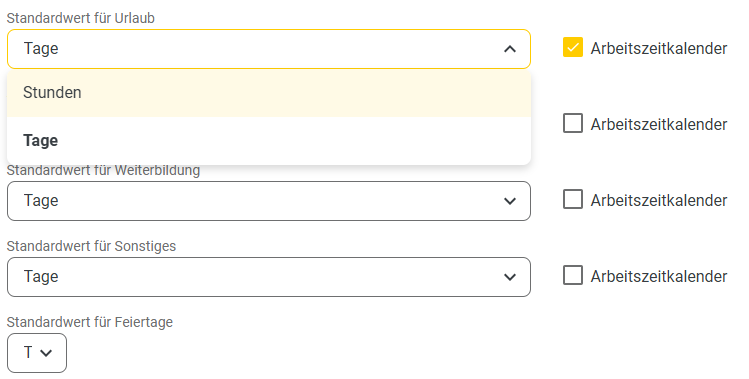
Select a default value for vacation, sick leave, training, other, and holidays.
You can choose between hours or days. This setting affects the default settings when creating an absence. For example, if the default value for vacation is set to days, the time type will be suggested in days in the absence entry.
If the checkbox for "Work Time Calendar" is selected, the additional option "Work Hours" will be available as a time type in the absence entry.
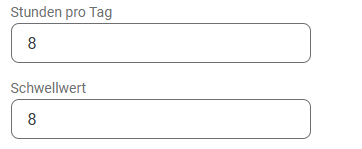
The "Hours per Day" field specifies the number of hours to be used for converting days to hours in 123erfasst.
The "Time Limit" field specifies how many hours ago times from the previous day may be recorded in the time clock entry to still be considered.
Monthly Calendar
In the Monthly Calendar section, you can make the following settings:
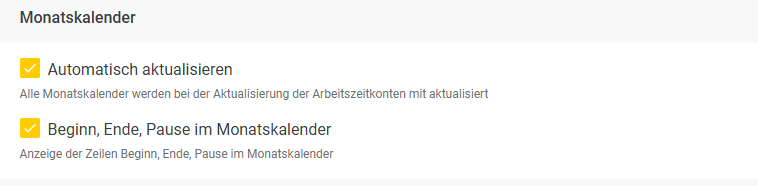
If you check the box next to "Update automatically," all monthly calendars will be updated automatically when the time accounts are updated. The accounts and monthly calendars then update automatically once a night and are current by morning.
If you check the box for Start, End, Break in the monthly calendar, these rows will be automatically displayed in the monthly calendar. If the checkbox is unchecked, you can expand and view the corresponding rows using the arrow next to Actual Time.
Herelearn more about the monthly calendar.
Terminal
In the Terminal section, you can configure the following settings:
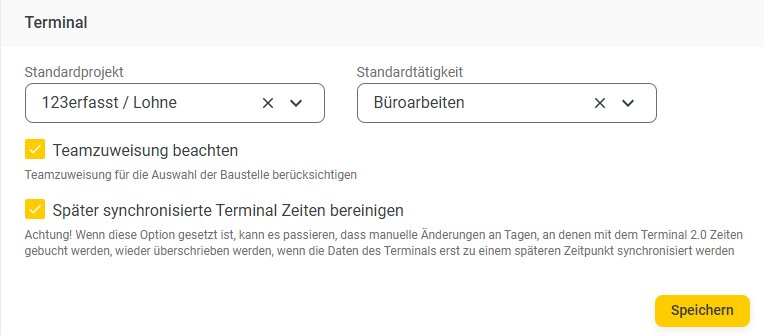
Under "Default Project" and "Default Activity," you can specify a project or activity that should be booked by default when recording time via a terminal.
If the "Consider Team Assignment" checkbox is active, the team assignment from the personnel master is included in the selection of projects/construction sites.
With the option "Clean up terminal times synchronized later," all entries for a given day are recreated when new data arrives, ensuring the order is correct. Times already edited in the office may be overwritten in the process. This setting applies only to new terminals where entries are saved offline and later sent to the server.
Finally, you can save your settings by clicking the Save button.