Control
Written By Greta Wulf
Last updated 6 months ago
You can view, review, and edit all recorded data under the "Control" menu item. First, select the desired time period using the date field. Then choose whether to group the data by project, employee, or data entry user.
If you select grouping by project, all recorded data for that project within the selected time period will be displayed. Clicking on the respective entry allows you to view the individual entries for the construction site.
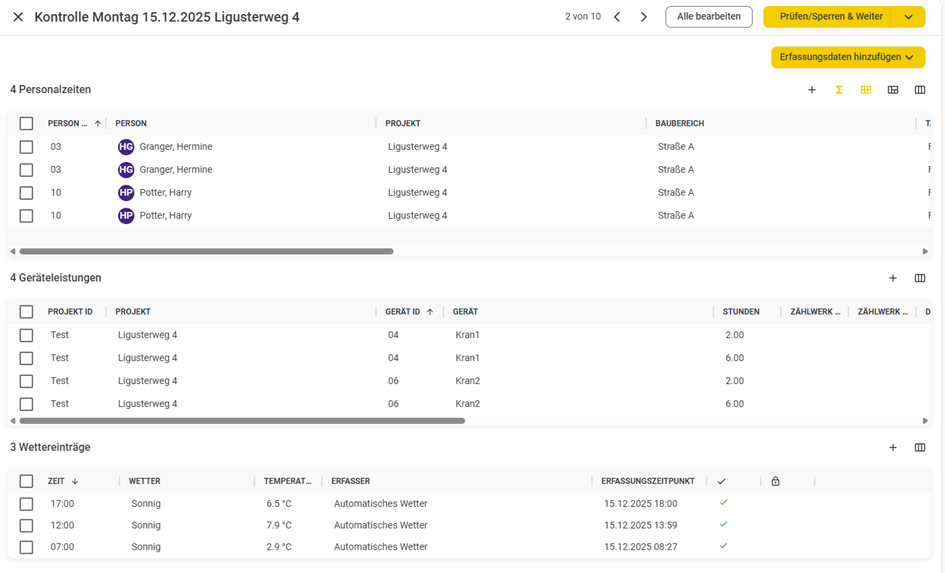
Fig. 1: Grouping by Construction Site
When you hover your mouse over a row, a pencil icon appears on the right, among other things, which you can use to edit the record.
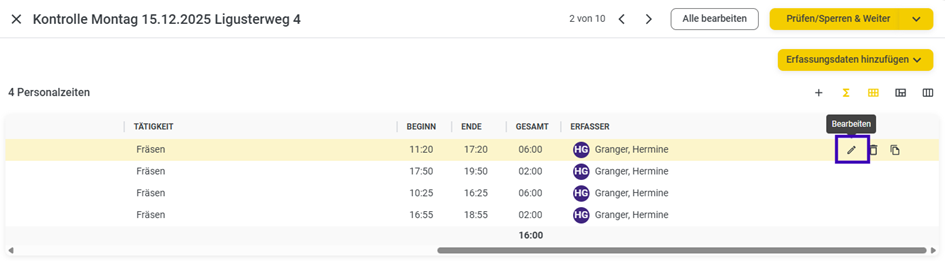
If necessary, you can also delete the data using the trash can icon.
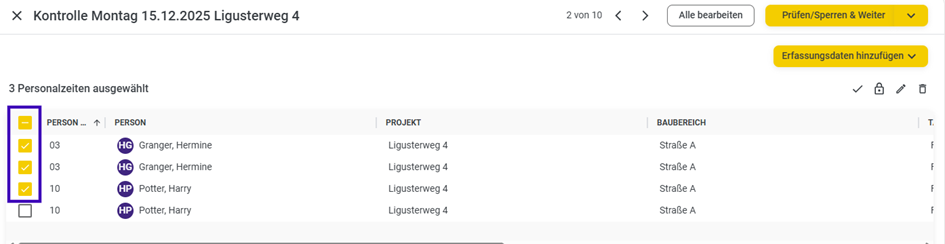
If you want to make a change to multiple records at once, select those records.
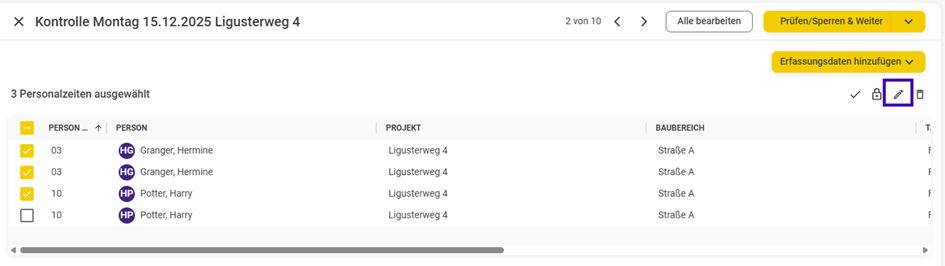
Click the pencil icon in the top-right corner of the selected records and modify the corresponding entry.
Click Save to apply the changes to all selected records.
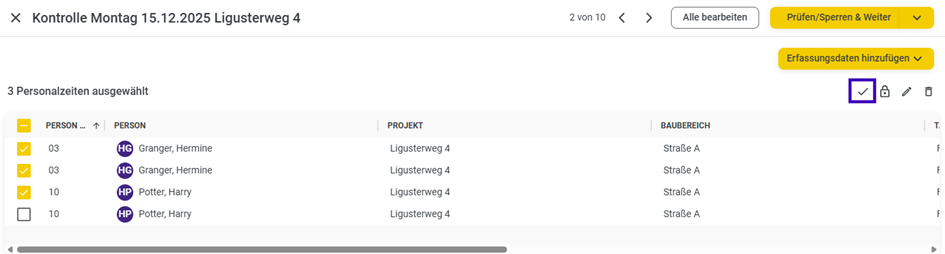
Additionally, the data entered for a project can be marked as verified and/or locked. To do this, select the data you want to mark as verified and/or locked.
Then click the checkmark in the top-right corner to mark the data as verified.
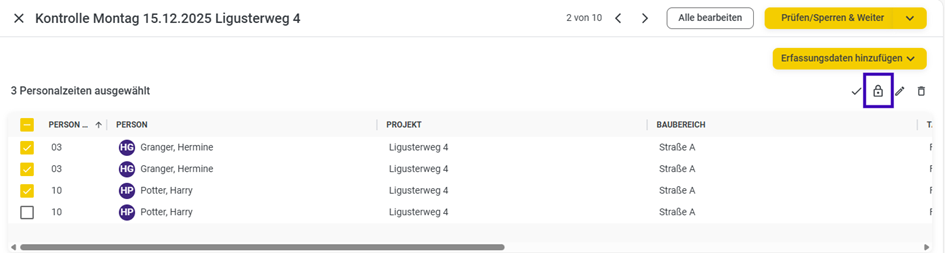
Repeat the selection and click the lock icon to lock the data.
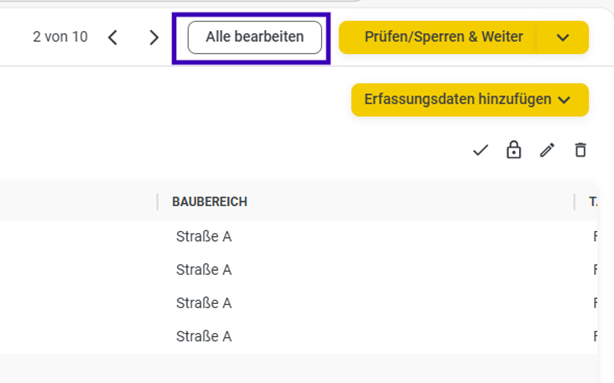
Using the Edit All button, you can move all the recorded data for this inspection entry to a different date and/or to a different project.
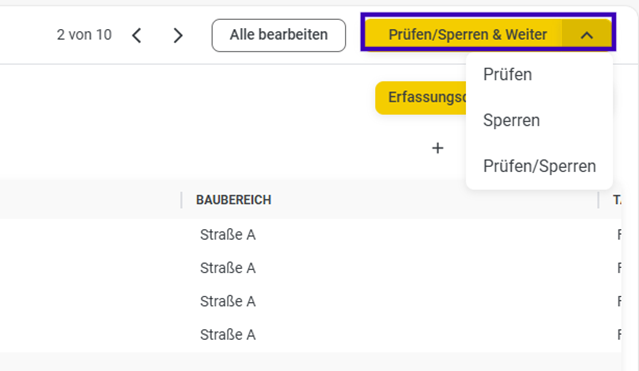
You can also review and lock all data records for this project within the open inspection entry at once.
To do this, click the small arrow in the yellow button in the top right corner. There, you’ll find options to either just verify all data for this entry, just lock it, or first verify and then automatically lock it, as well as jump directly to the next inspection entry.
You can also add entries for a specific day retroactively. To do this, click the "Add Entry Data" button.
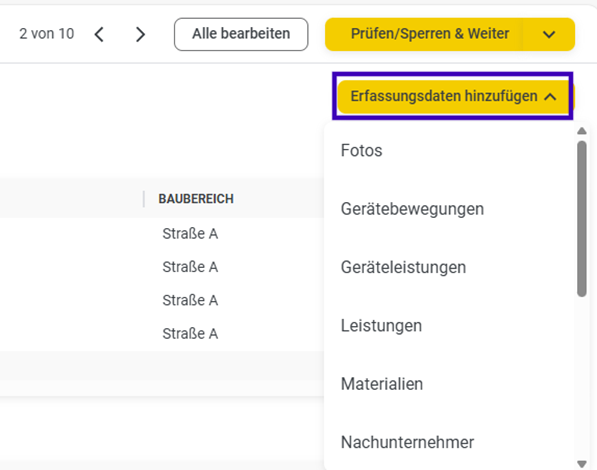
Clicking on the individual functions opens an editing window. There, you can select and add the desired data for the respective entries.