Bids
Written By Greta Wulf
Last updated 4 months ago
Under Estimates→ Bids, you'll find an overview of your Bids. It doesn't matter whether the quote is still a draft, has been finalized, or has already been accepted.
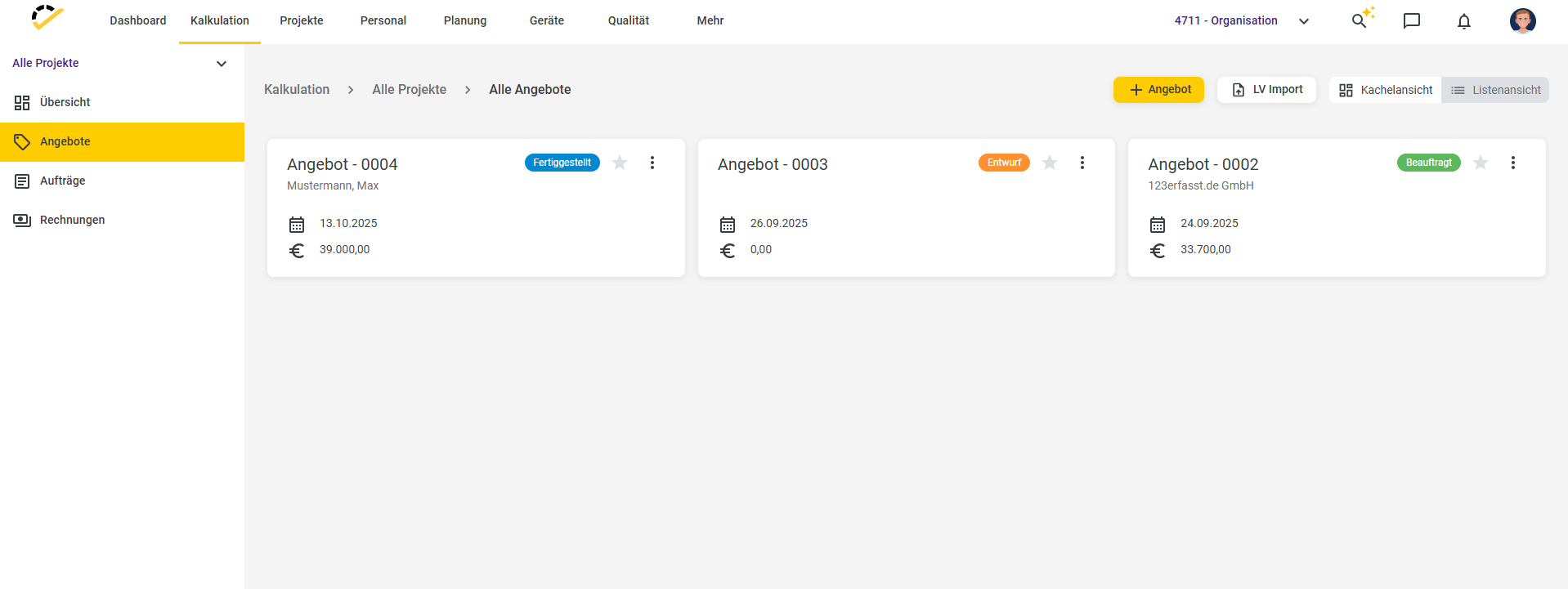
To create a new quote, click the yellow + Quote button in the top right corner.
In the Project and Customer Details section, start by filling in the customer’s information.
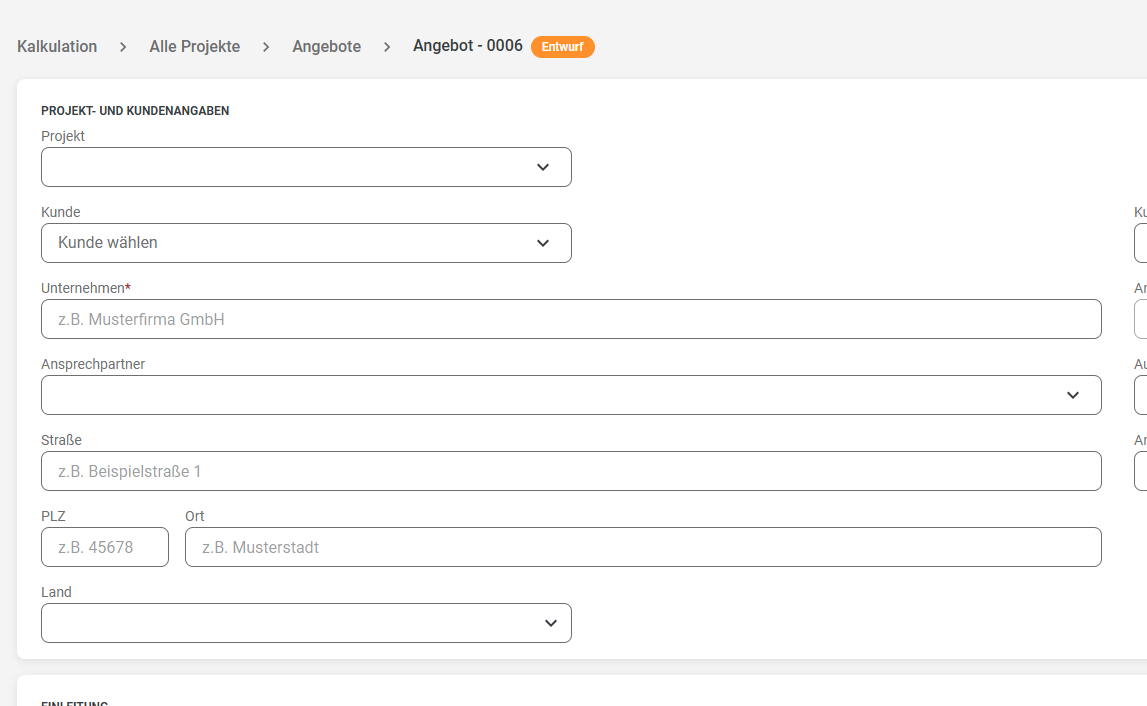
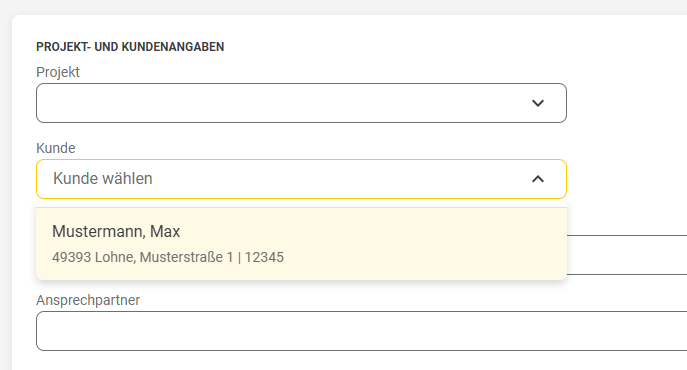
Here, you can either enter the data directly into the fields or select an existing customer contact in the “Customer” field. To learn how to create contacts in 123erfasst, visit here.
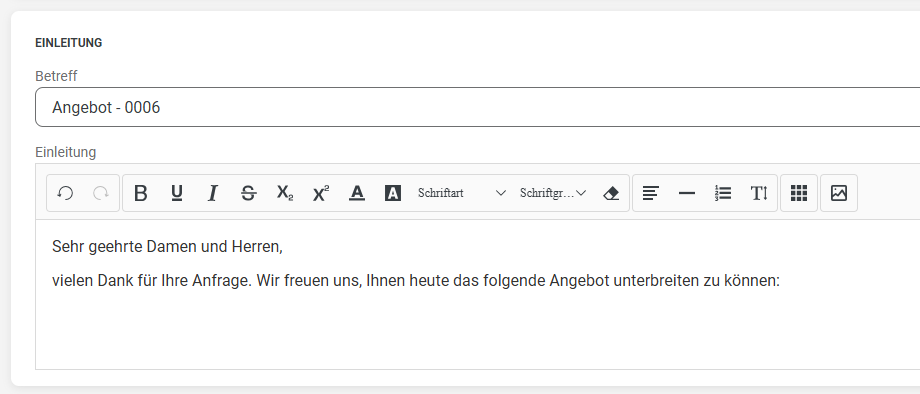
In the Introduction section, enter the title/subject of the quote and define an introductory text. We provide pre-filled information here by default.
You create the actual quote or the content of your quote in the “Specifications” section.
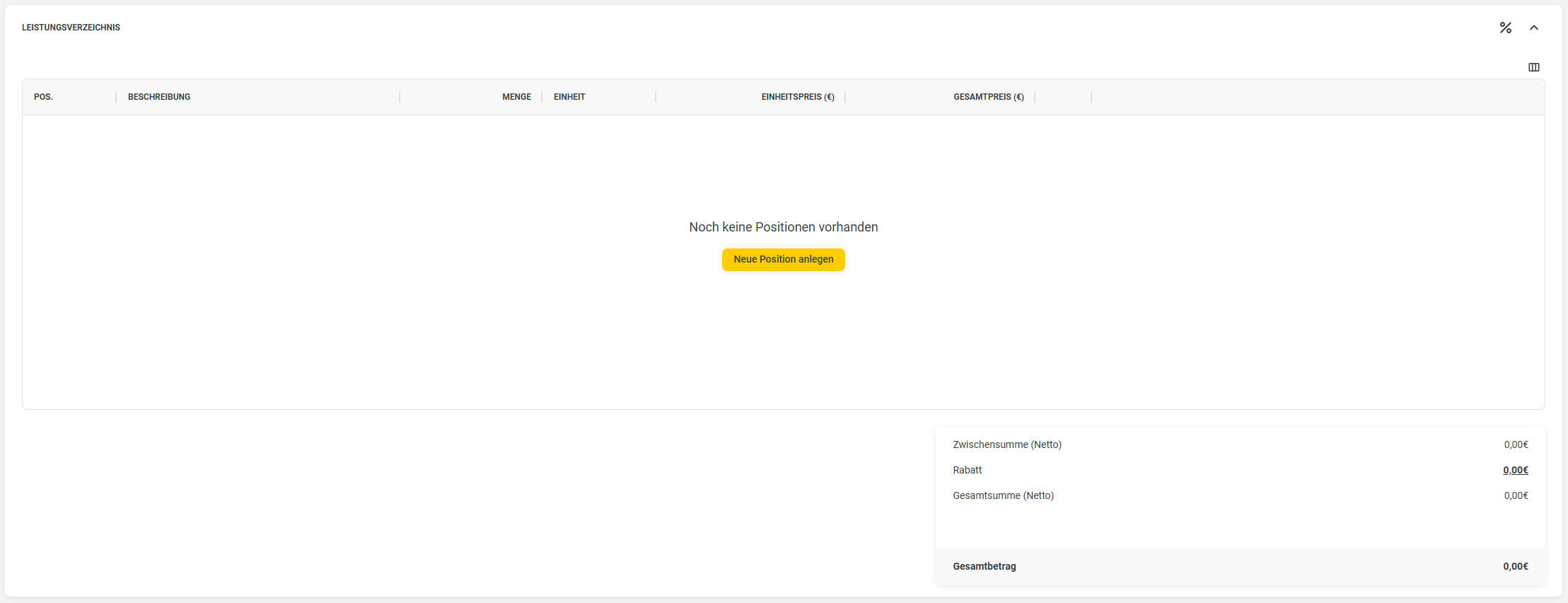
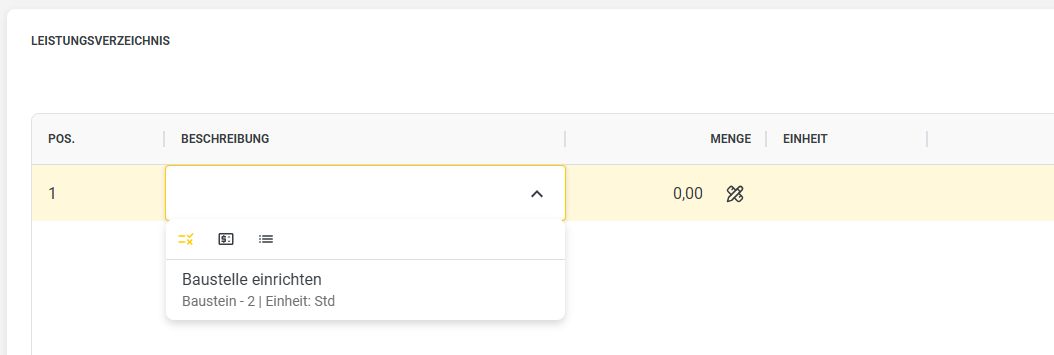
You can enter your items using the Create New Item button. You can either enter the items individually in this quote or select them from predefined modules. To learn how to create modules, visit here.
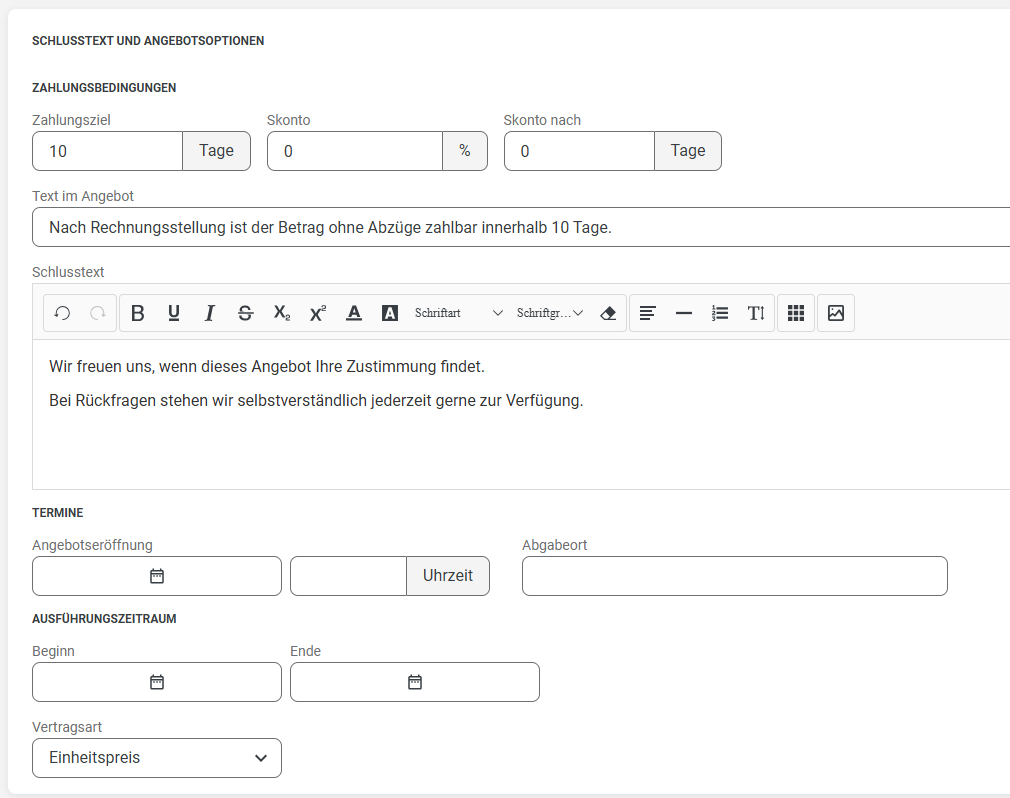
In the “Closing Text and Quote Options” section, you can specify the payment terms and add a closing text.
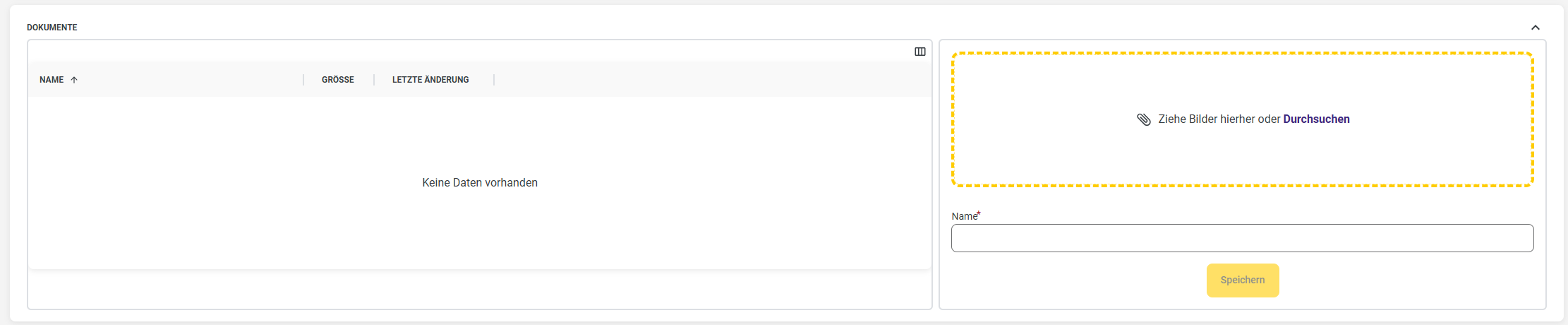
In the final section, "Documents," you can upload documents you wish to link to this quote. You can either drag and drop the documents into the yellow-highlighted field or select a file using "Browse."
Once you have finished entering your quote, you can view a preview in the upper section.
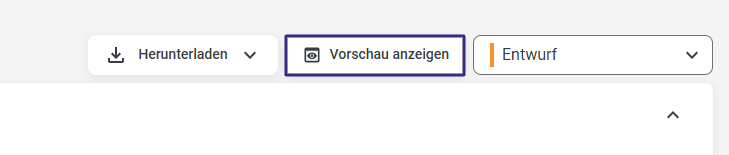
The preview will then display, for example, the letterhead and information about your company that you’ve entered in the settings. You can learn how this works at here.
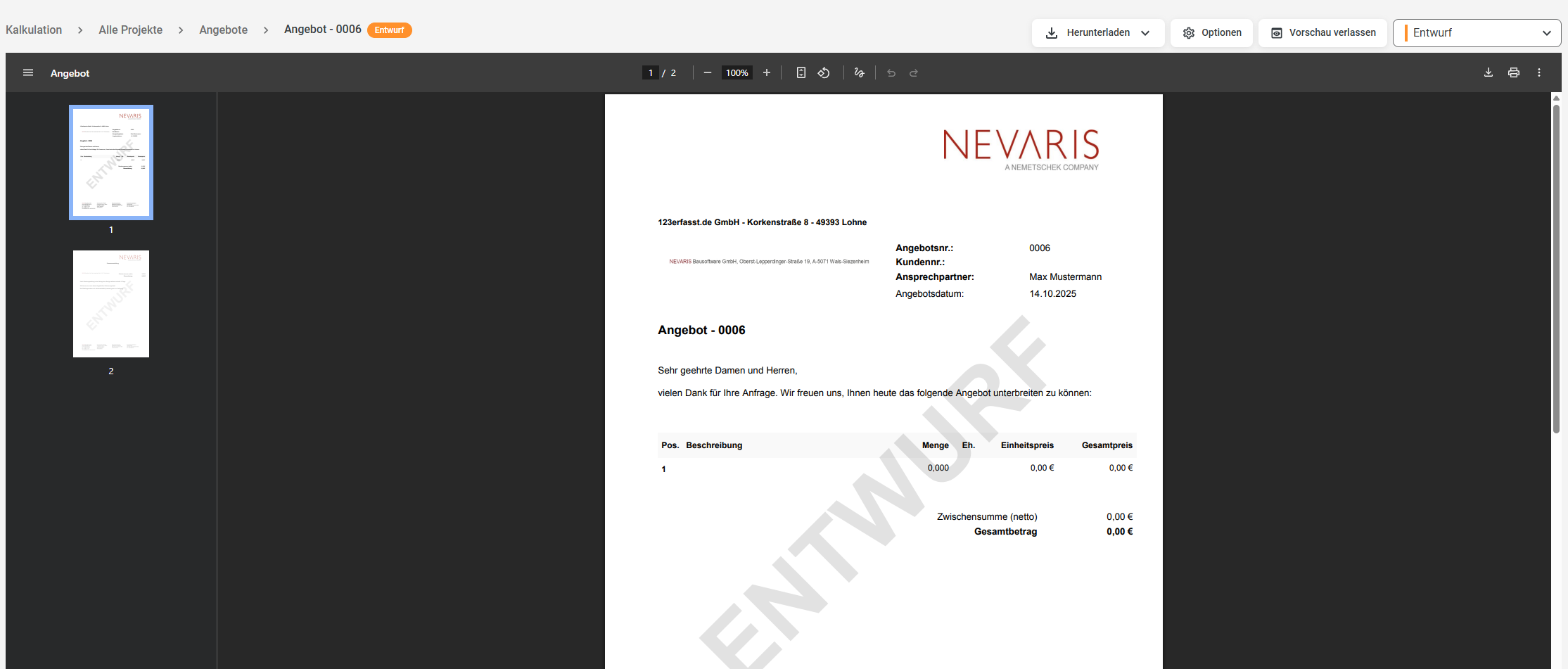
Using the Download button, you can download the quote as a PDF, for example, and then send it to the customer via email.
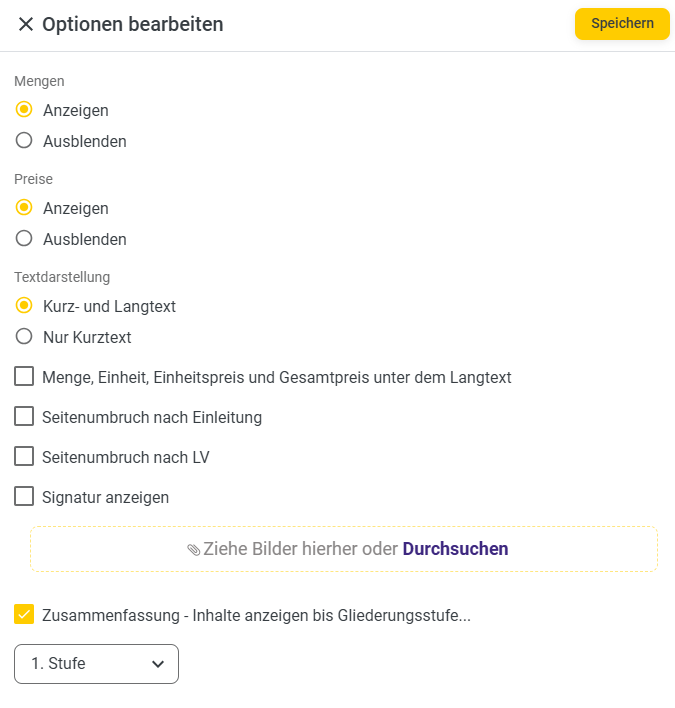
Using the Options button, you can change the PDF layout (e.g., show or hide certain information) or add images.
Once the customer has accepted your quote, you can convert it into an order by changing the status to “Assigned” in the top-right corner of the quote.
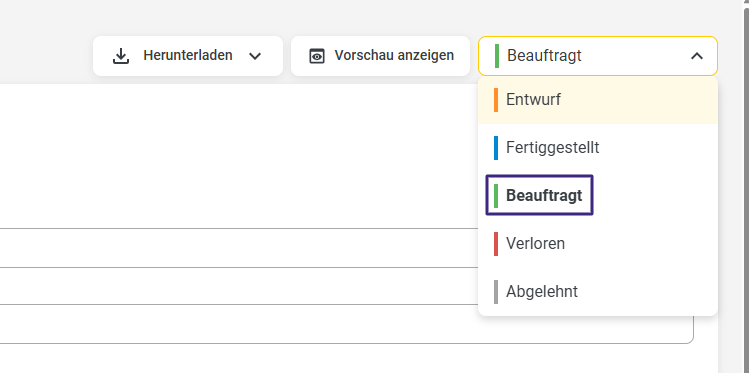
The quote will then automatically appear as an order under Calculation → Orders. You can learn more about orders at here.