Hourly evaluation of personnel
Written By knollp
Last updated About 1 month ago
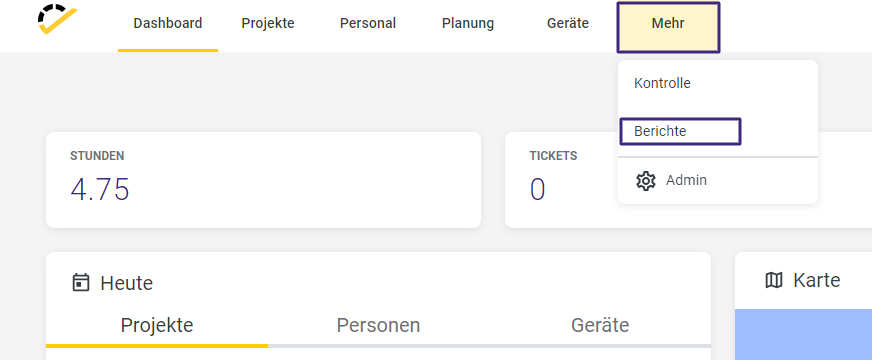
To view your employees' time entries in the appropriate report format, go to More -> Reports in the 123erfasst Office.
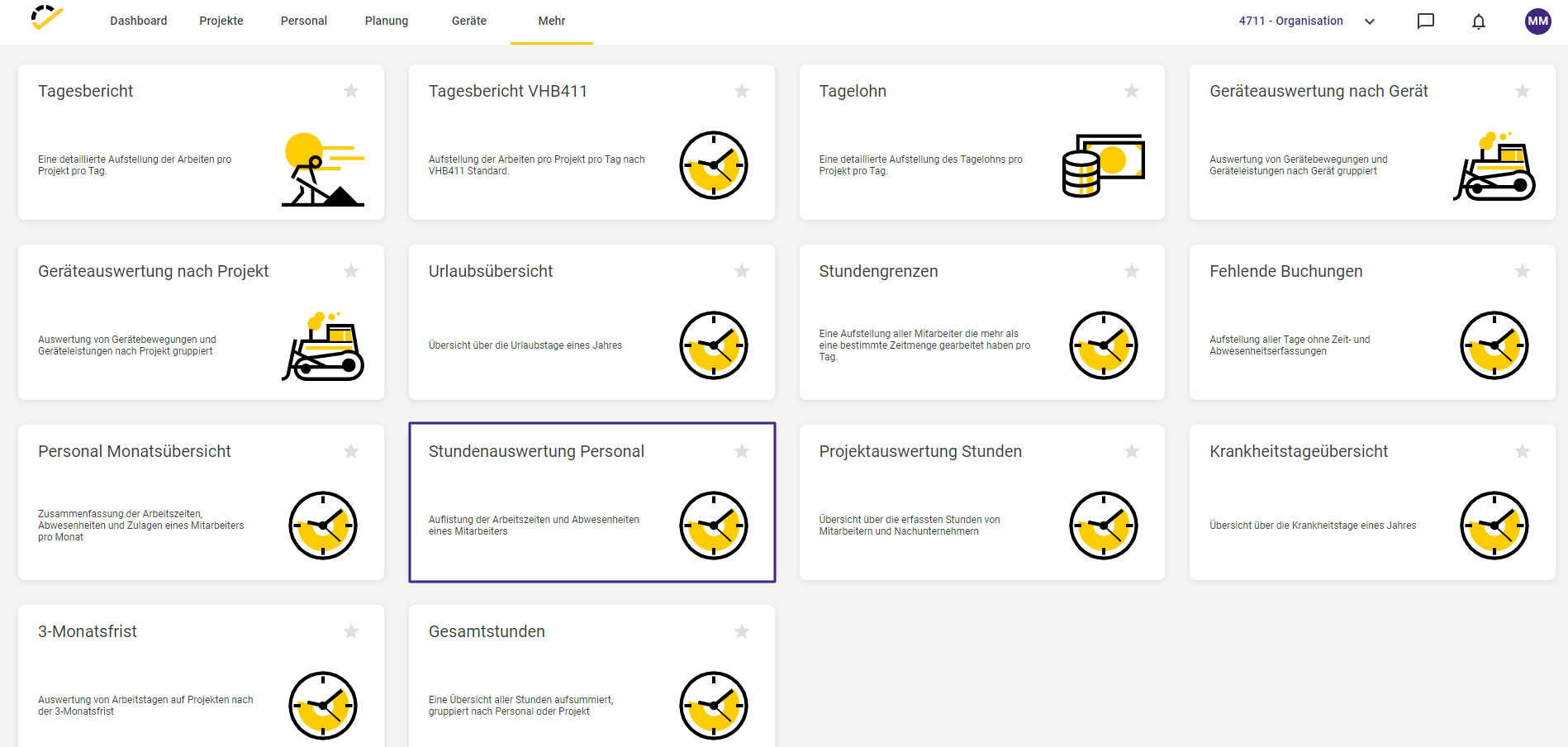
In the report overview that opens, select the "Hourly Evaluation for Staff" report.
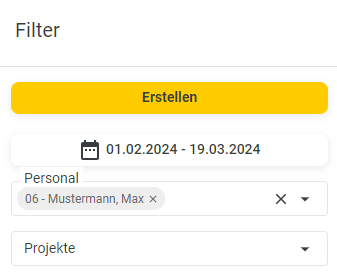
In the report, you can set filters on the right-hand side that affect the data displayed in the report.
For example, select the employees for whom you want to generate the report.
Also, specify the date range for which the data should be displayed.
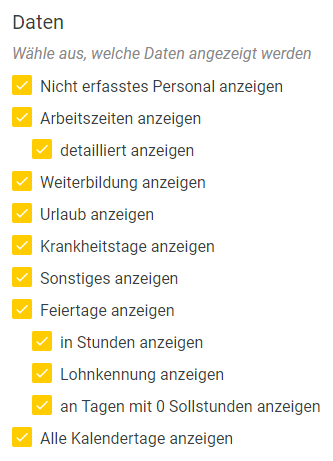
In the Data section, select which data should be included in the report.
Finally, click the yellow "Create" button to generate the report.
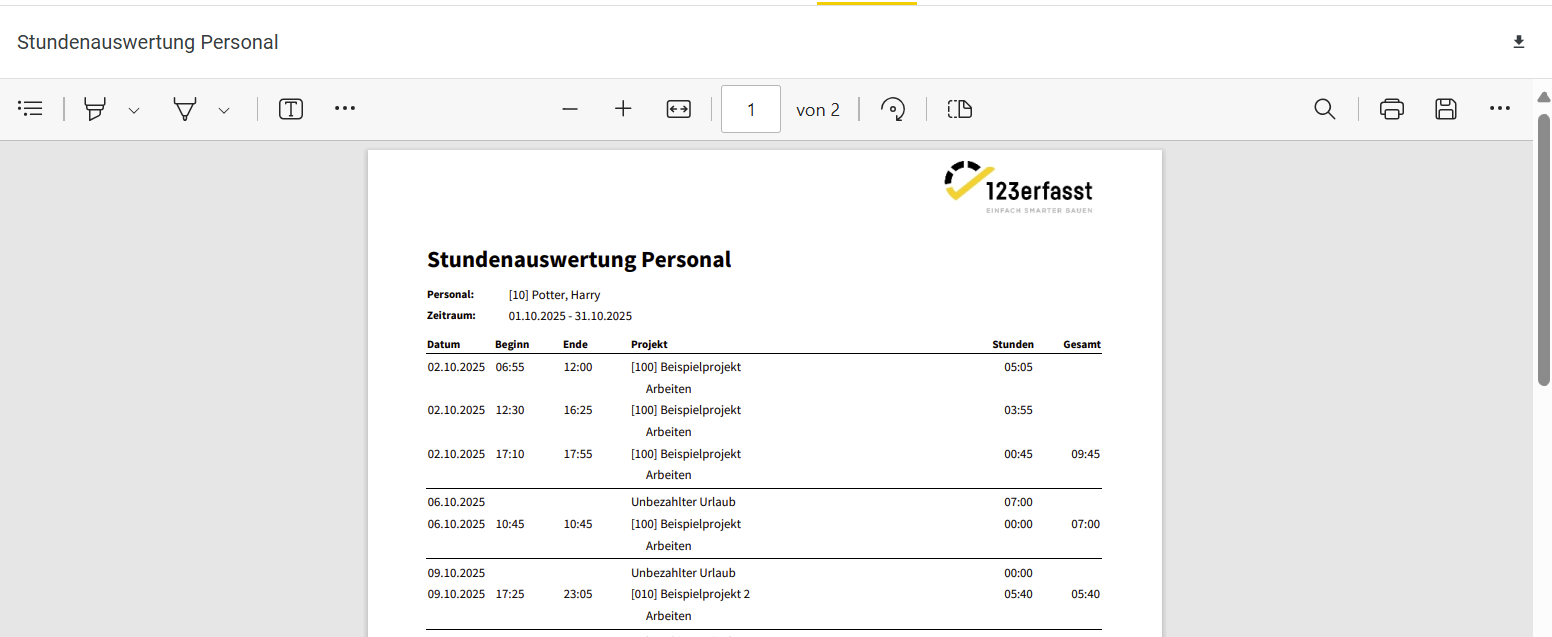
You can now print the report by clicking the printer icon.

Alternatively, you can download the report using the download icon.

The report export window will open, where you can specify a file name for your report.
Here, you can also select the format in which you want the report to be provided.
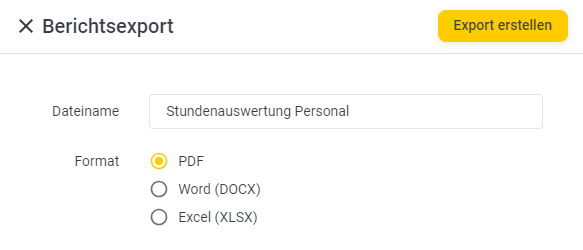
Clicking "Create Export" will convert the report to the selected format and download it. You will receive a corresponding notification via the "Download Complete" message at the bottom right of the page.
