Photos
Written By knollp
Last updated 6 months ago
Office
Click the Projects -> Photos buttons to view all uploaded photos.
Use the date input field in the top right corner to select the time period for which you want to view the photos. Use the "Configure Columns" function for additional filter settings.
Clicking on a photo opens the photo view.
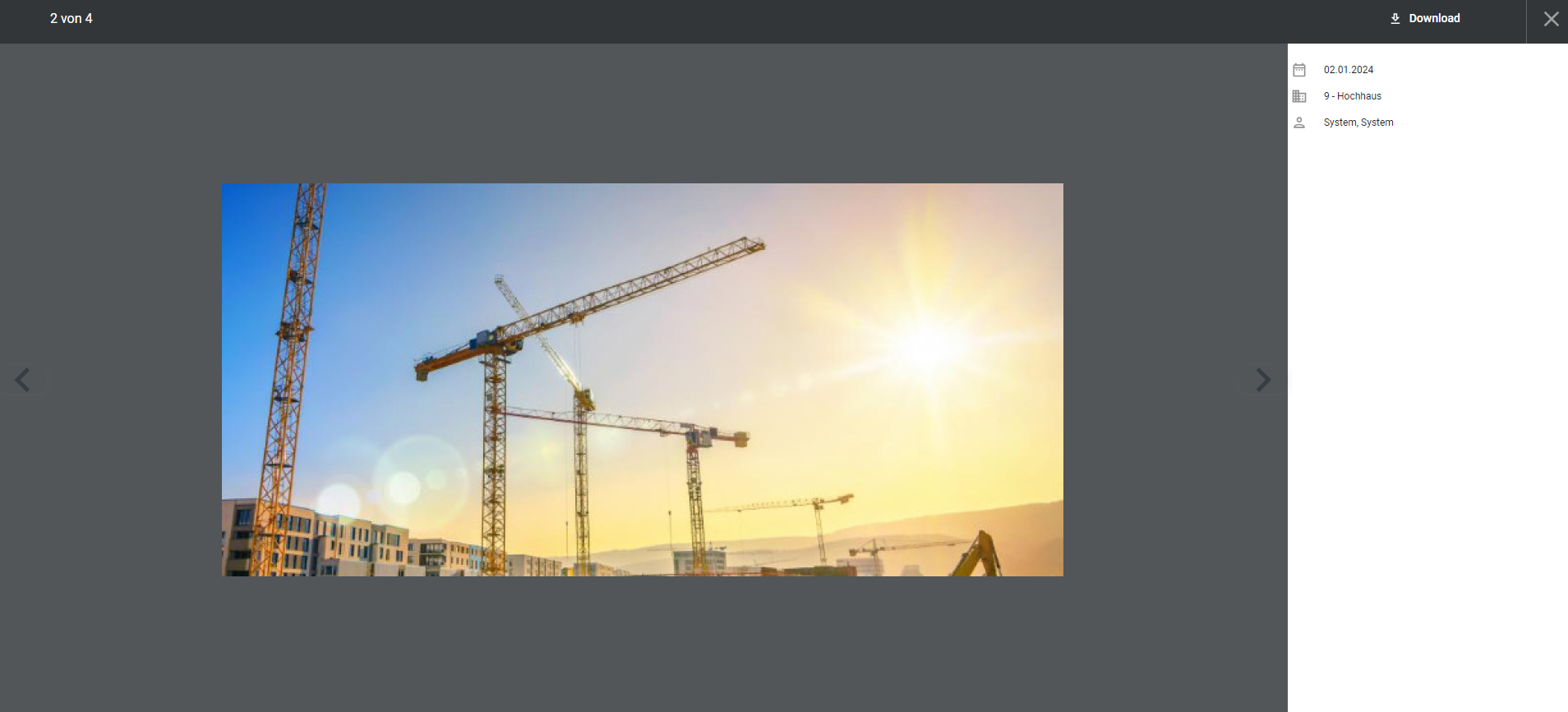
Use the arrows to the left and/or right of the photo to navigate back and forth between photos.
Important information about the photo, such as the date taken, the project, and the person who took it, is displayed to the right of the photo. Additionally, the employee can add a text note to the photo.

Above this information, you’ll also see the map section showing where the photo was taken.
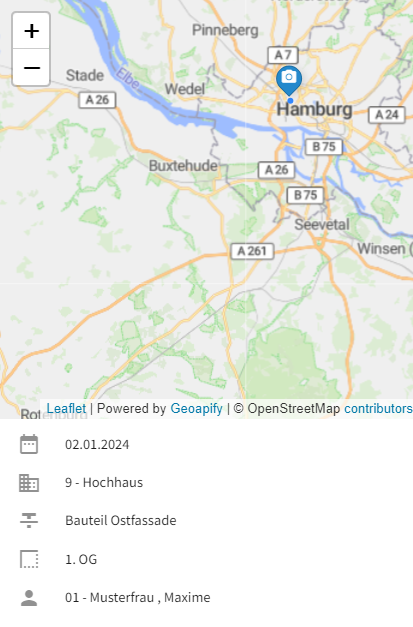
Note: When you upload a photo from your smartphone’s gallery, the date, time, and GPS location of your current position are transferred.

To edit the data for a photo, click the pencil icon at the end of the respective row in the table view as usual.
You will automatically be taken to the edit window, where you can make changes or additions to the data.
By checking the "Show in report" box, you decide whether the photo is displayed in the daily report or not.

If you want to add photos via the entry data, click the +Photo button at the top of the photo overview, enter the photo details, and upload the photo via the file manager.
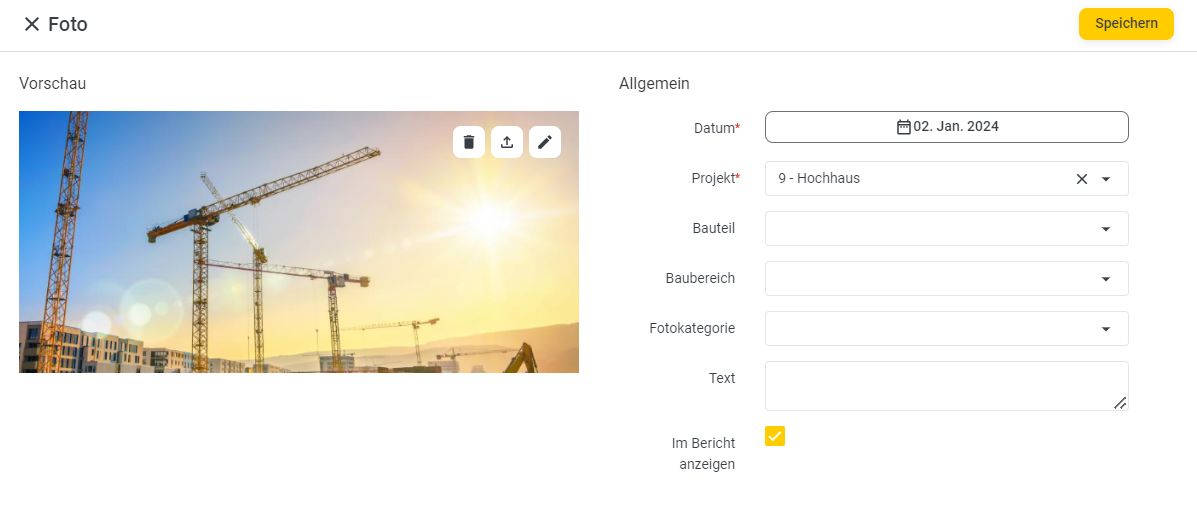
Select the project for which you want to add the photo.
You can also specify a component and construction area and assign the photo to a photo category.
To learn how to create photo categories, visit here.
To download photos, select the photos you want to download in the list view.
Once you’ve selected a photo, the familiar context menu appears on the right, displaying the download icon, among other options.

Use the download icon to download the selected photos as a ZIP file to your computer’s Downloads folder.
App/Web Entry
In the 123erfasst App/Web Entry, the Photos tile is available to you.
The entry is then transmitted wirelessly directly to 123erfasst Office and can be viewed there, as described above, under Projects -> Photos.
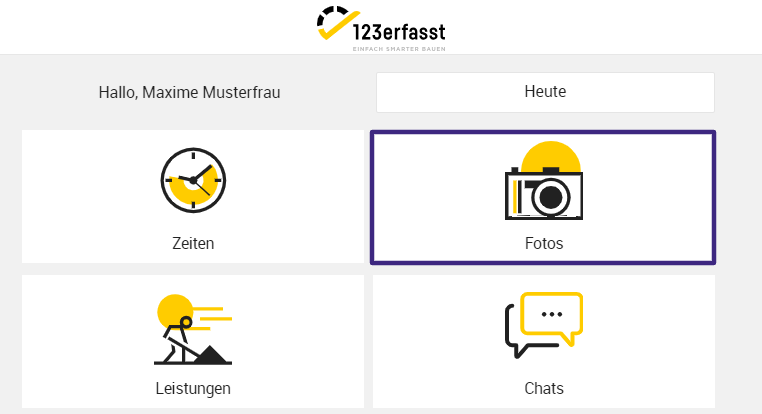
Click the + in the Photos tile to start a new entry.
The fields to be filled out are the same as those shown above in the entry form in 123erfasst Office.
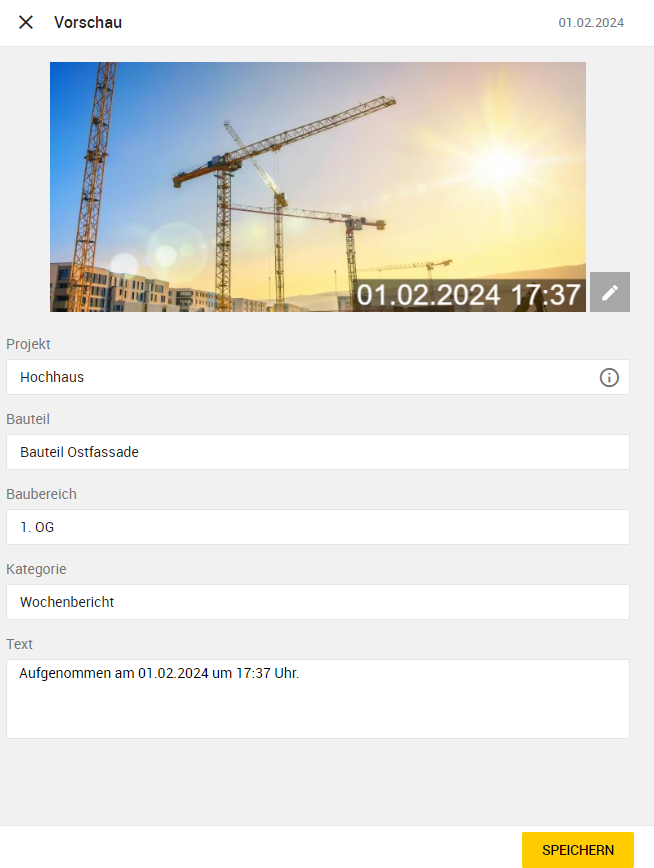
Click the Save button to complete your entry.
The recorded photo will now be displayed in 123erfasst Office under Projects -> Photos.