Allowances
Written By knollp
Last updated 6 months ago
Office
1. Create Cost Type
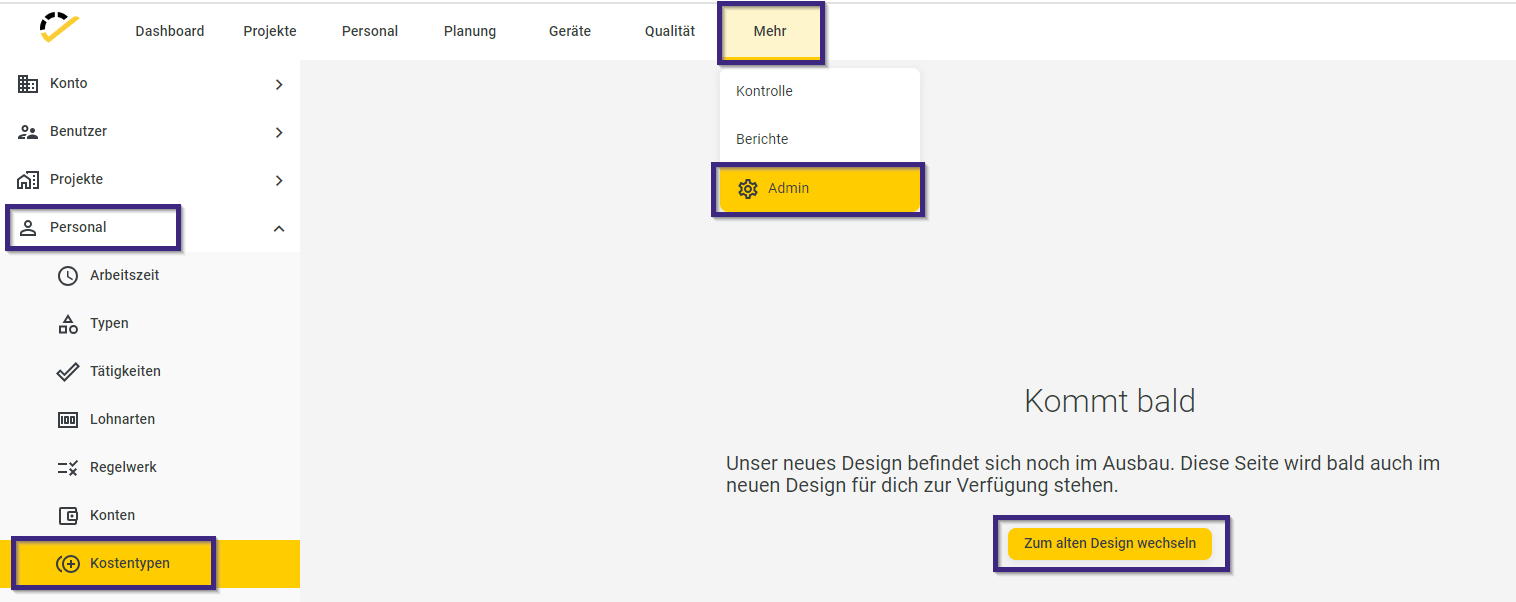
To allow your employees to record various allowances and expenses, you must first create the corresponding cost types. You can access the creation option via the menu items More -> Admin -> Personnel -> Cost Types. Cost types currently still need to be maintained using the old design, which is why the Switch to old design button takes you directly to the input screen in the old design:
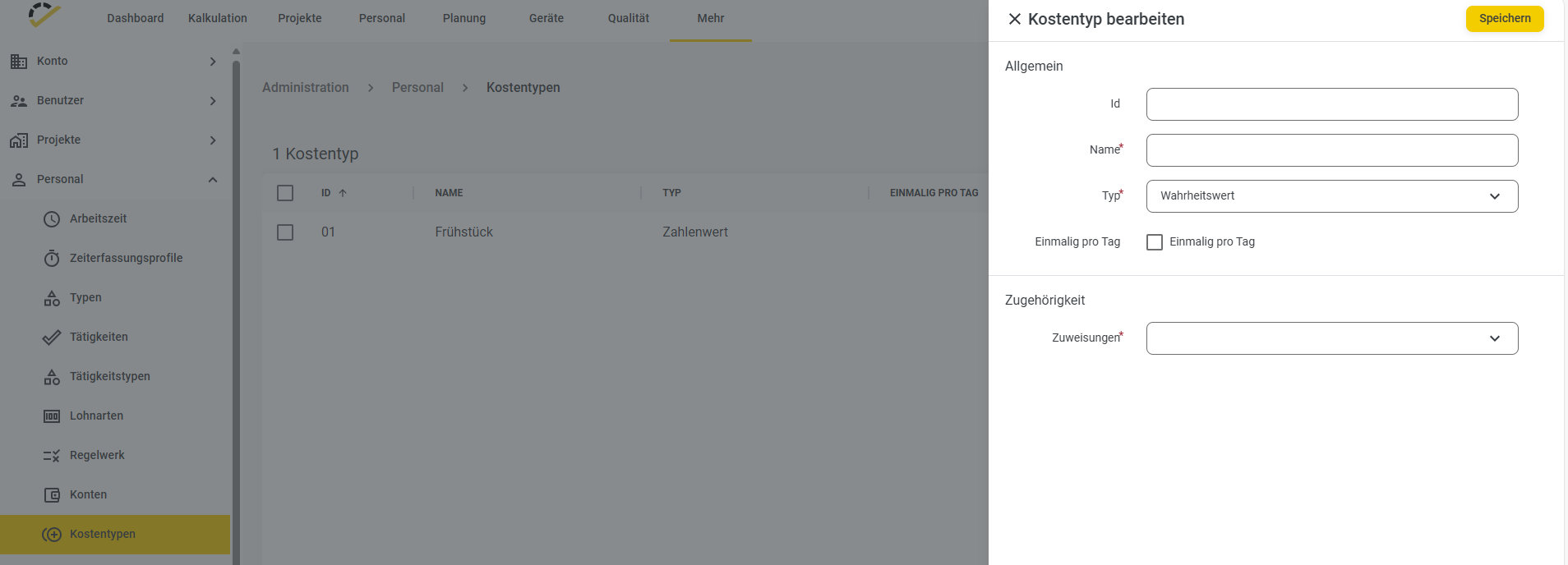
Use the +Cost Type button to create the corresponding cost types:
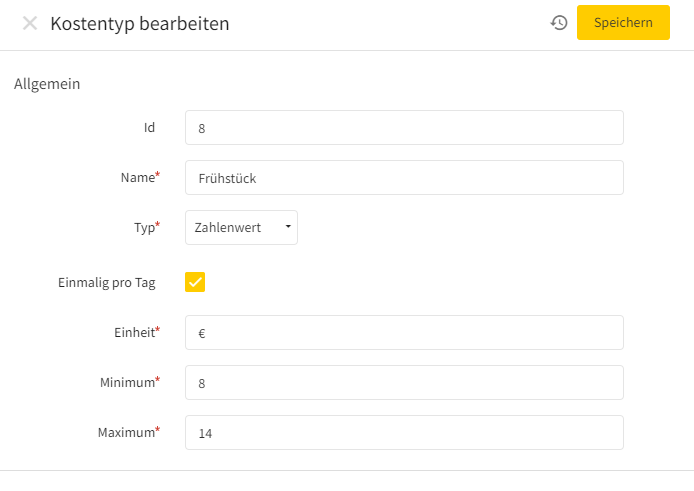
In the input screen, you can choose between the types Numeric Value, Boolean Value, and Time Period. As an example for the breakfast expense, select the Numeric Value type and enter the desired unit (e.g., €) in the Unit field. You can specify the value that the employee should enter in the "Minimum" and "Maximum" fields. In this example, the employee can enter a value between €8 and €14 for this expense:
Click the Save button to complete the entry for the expense type.
2. Entering Allowances/Expenses via the Office
Under the menu item Personnel -> Allowances, all data entered in the app or in the web interface under the Allowances tile is listed. You can also enter new entries or retroactive entries using the +Allowance button:

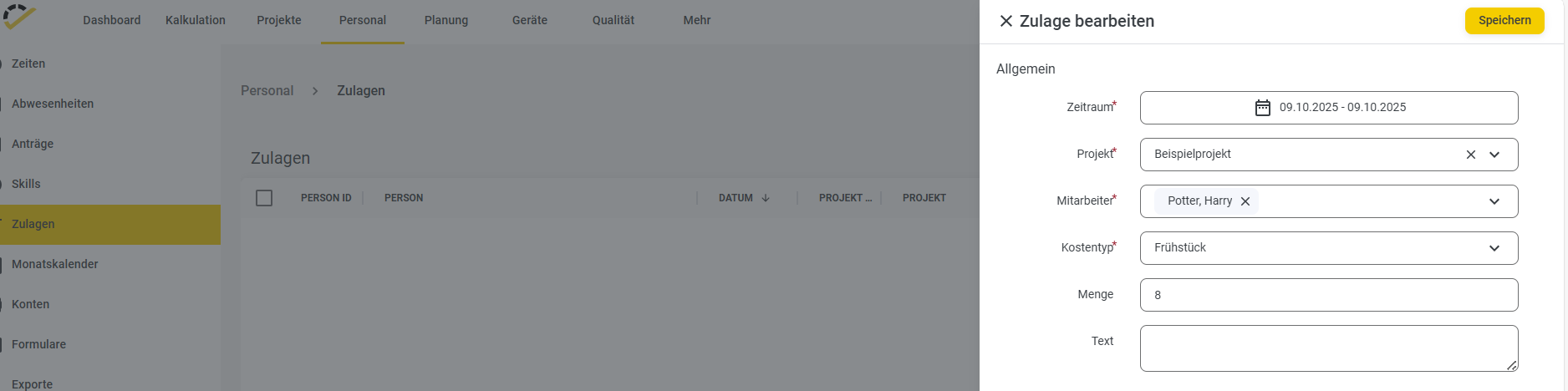
The entry form looks like this, where you can enter the desired values:
App/Web Entry
Log in to the 123erfasst app with your credentials and then tap the Allowances tile.

After tapping the Allowances tile, this overview page opens:

At the bottom of this overview, tap the +.
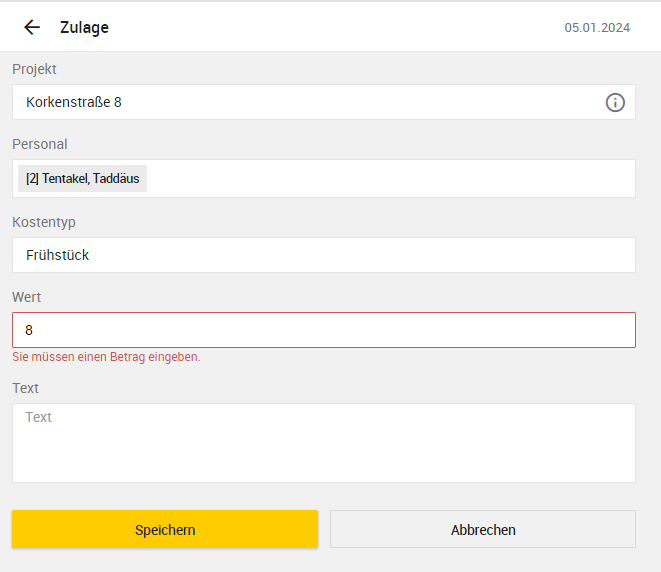
Just like when entering data via the Office, you’ll find the same fields here for entering your allowance: