Project Forms
Written By knollp
Last updated 4 months ago
Office
With the forms, you can design custom data entry screens tailored to your needs and use them on mobile devices.
Unlike, for example, time tracking on mobile devices, where the fields are fixed and cannot be changed, the forms allow you to customize your own screens at any time.
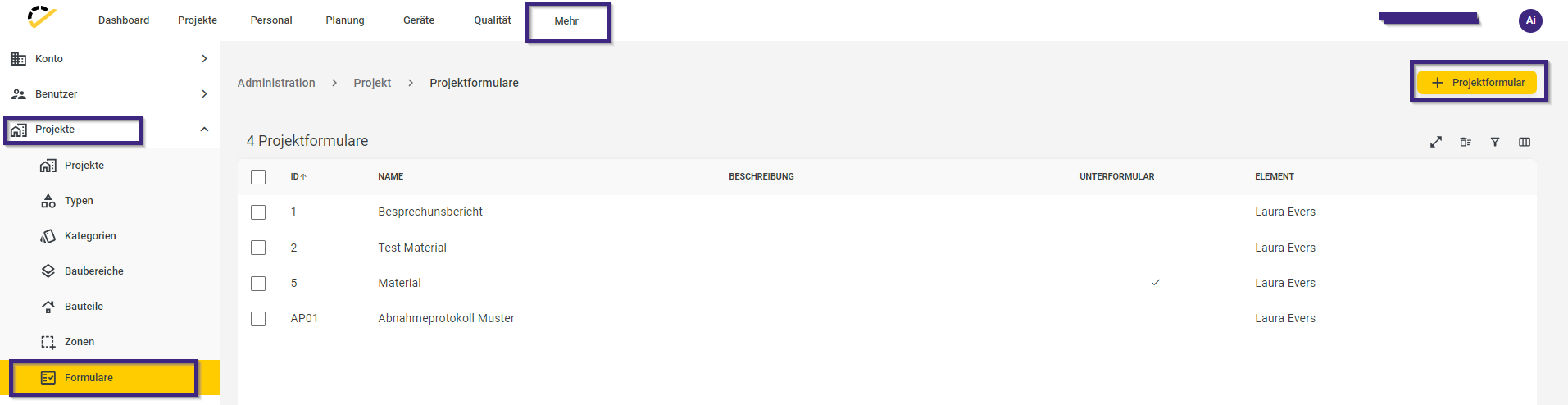
To create a new form, click on the menu items More -> Admin -> Projects -> Forms and create a new form using the +Project Form button in the top right corner.
Note: Forms are either project-, device-, or person-specific. Depending on the area for which you are creating a form, selecting a project, device, or person is mandatory. The respective required field is automatically included in the form and does not need to be added separately.
The structure of the forms is always the same:
Under General, you assign an ID and a name for the form. These two fields are required.
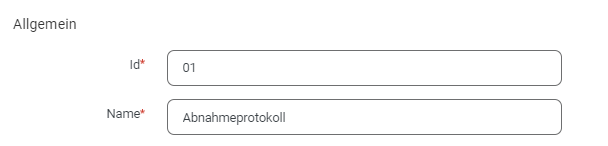
The form description appears under the form’s name when the form is opened in the app or web interface.

By checking the "Subform" box, this form will not be offered for selection in the app/web interface. It can then be embedded as a subform within another form.

You can pin the form to your app’s home screen. This allows the form to be selected directly as its own tile in the app, rather than having to select it via the “Forms” tile.

For example, with project-related forms, you can choose whether employees are allowed to select all projects when filling out the form, or only the projects to which they are assigned in the master data.

In the Form Preview section, you design the actual form. You can add new fields to the form using the small plus icon in the bottom right corner.

A new window opens where you can edit the form element.
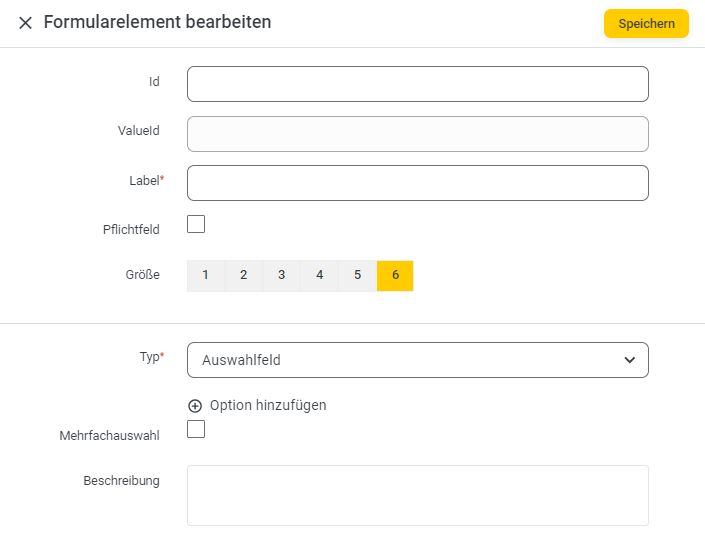
The ValueId field fills in automatically—either with the value from the Id field or the Label field (depending on which of the two fields you fill in first).
In the required Label field, you enter the name for the field. Use the Required checkbox to make this a required field.
Use the Size option to define the width of your field. The maximum width is 6, which takes up the entire width of the form. With a width of 1, you can display up to 6 fields side by side.
The following options are available for the Type:
Dropdown:
Select an option from the choices you have defined.
you can create your own dropdown list.
The Multiple Selection checkbox allows you to select multiple values from your listCheckbox
The checkbox is used to enter and display Yes/No valuesPhoto: On
mobile devices, the Photo field opens the camera app (in web mode, it opens the file manager)Master Data Selection:
Use the Master Data Type option (Project / Device / Person / Cost Type) to specify the master data from which values should be selected. By enabling multiple selection, you can select multiple values from the listText input/Text field
Use this field to enter free-form text in the form. The fields differ in their display:
Text input = 1 line;
Text field = starts with 4 lines and expands with each additional lineNumber input: The numeric keypad
opens automatically in the app for entering numbersDate
Enter a date in this fieldTime
Enter a time hereDivider
Add a divider to your form to visually separate individual sectionsQR Code / Barcode
Scan QR or barcodes directly from the form.
QR codes for employees and devices must have been created in 123erfasst.
For more information, visit hereTraffic light rating
Use the traffic light function (red / yellow / green) to rate situationsSignature
Have the creator or other relevant parties sign the formGrades
Assign grades (1–6) to evaluate situationsSubform
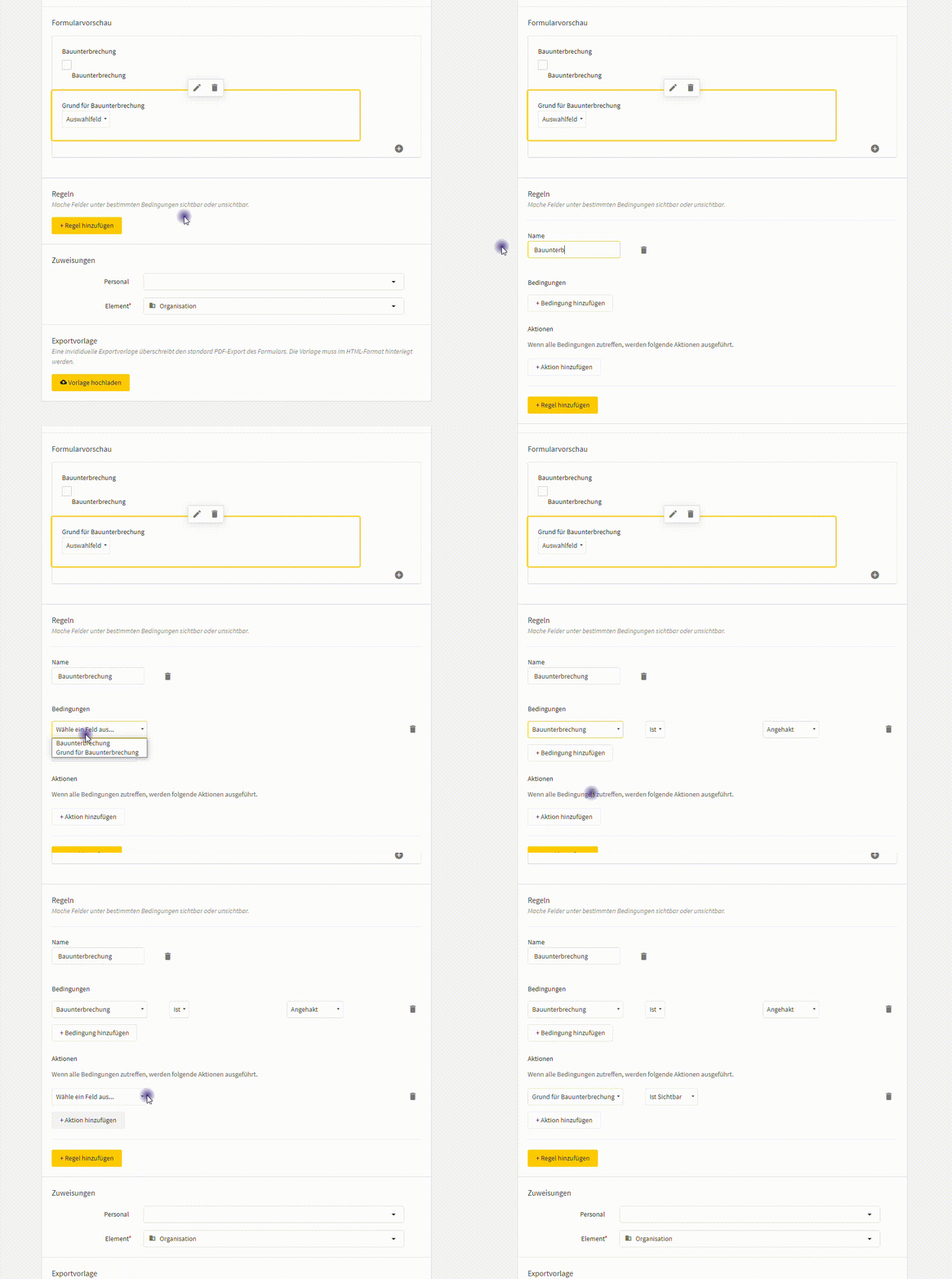
Select the subform you want to include in your formDefine rules to make fields in the form visible or hidden.
Whether a field is visible or hidden currently depends on the result of a checkbox or a dropdown menu.

To create a rule, click the +Add Rule button. Give the rule a name or accept the suggestion. Define the condition(s) for a checkbox or dropdown menu. Define the action(s) to be taken if all conditions are met.
Note: The conditions are linked with an AND operator. This means that all specified conditions must be met for the action(s) to be executed.
You can find a list of the operations we support in the following overview:
Standard operations:
+ Addition
- Subtraction
* Multiplication
/ Division
% Modulo
^ Exponentiation
Other operations:
-x Negation
+x Unary plus. Converts the operand to a number but has no further effect.
x! Factorial (x * (x-1) * (x-2) * ... * 2 * 1). gamma(x + 1) for non-integer values.
abs x Absolute value (modulus) of x
acos x Arc cosine of x (in radians)
acosh x Hyperbolic arccosine of x (in radians)
asin x Arc cosine of x (in radians)
asinh x Hyperbolic arcsine of x (in radians)
atan x Arc tangent of x (in radians)
atanh x Hyperbolic arctangent of x (in radians)
cbrt x Cube root of x
ceil x Ceiling of x - the smallest integer that is >= x
cos x Cosine of x (x is in radians)
cosh x Hyperbolic cosine of x (x is in radians)
exp x e^x (exponential/antilogarithm function with base e)
expm1 x e^(x - 1)
floor x Floor of x - the largest integer that is <= x
length x Length of the string x
ln x Natural logarithm of x
log x Natural logarithm of x (synonym for ln, not base 10)
log10 x base-10 logarithm of x
log2 x base-2 logarithm of x
log1p x Natural logarithm of (1 + x)
not x Logical NOT operator
round x x, rounded to the nearest integer using "elementary school rounding"
sign x Sign of x (-1, 0, or 1 for negative, zero, or positive)
sin x Sine of x (x is in radians)
sinh x Hyperbolic sine of x (x is in radians)
sqrt x Square root of x. The result is NaN (Not a Number) if x is negative.
tan x Tangent of x (x is in radians)
tanh x Hyperbolic tangent of x (x is in radians)
trunc x Integer part of x; behaves like floor(x), except for negative numbers
As well as:
Additional functions:
random(n) Generates a random number in the range [0, n). If n is zero or not specified, the default is 1.
fac(n) n! (factorial of n: “n * (n-1) * (n-2) * ... * 2 * 1”) Deprecated. Use the ! operator instead
min(a,b,...) Returns the smallest (minimum) number in the list.
max(a,b,...) Finds the largest (maximum) number in the list.
hypot(a,b) Hypotenuse, i.e., the square root of the sum of the squares of its arguments.
pyt(a, b) Alias for hypot.
pow(x, y) Equivalent to x^y. For consistency with JavaScript’s Math object.
atan2(y, x) Arc tangent of x/y, i.e., the angle between (0, 0) and (x, y) in radians.
roundTo(x, n) Rounds x to n decimal places.
map(f, a) Array mapping: Applies the function f to each element of a and returns an array containing the results.
fold(f, y, a) Array fold: Folds/reduces the array a into a single value, y, by setting y = f(y, x, index) for each element x of the array.
filter(f, a) Array filter: Returns an array containing only those values from a for which f(x, index) is true.
indexOf(x, a) Returns the first index of string or array a that corresponds to the value x, or -1 if it was not found.
join(sep, a) Concatenates the elements of a, separated by sep.
if(c, a, b) Functional form of c ? a : b. Note: This always evaluates both a and b, regardless of whether c is true or not. Use c ? a : b instead if there are side effects or if evaluating the branches could be expensive.
You can assign the form to one or more employees. This allows you to limit the selection of forms for your employees and keep it manageable, since not every form may be necessary for every employee.
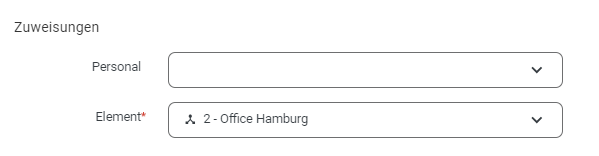
Note: For the assignments to take effect, you must activate the "Assigned" option in the respective employee’s role under the Time Tracking tab, in Functions -> Form Selection.

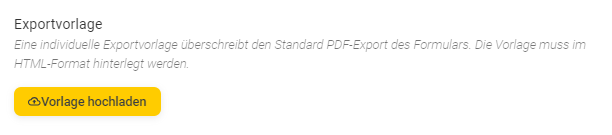
Form data can be individually arranged for printing or exporting. To do this, you need an export template, which our Professional Service Team can create for you for a fee.
If you are interested, please contact our Professional Service Team at: dienstleistung@123erfasst.de.
You can access the form entries in Office via the menu items Projects -> Forms.
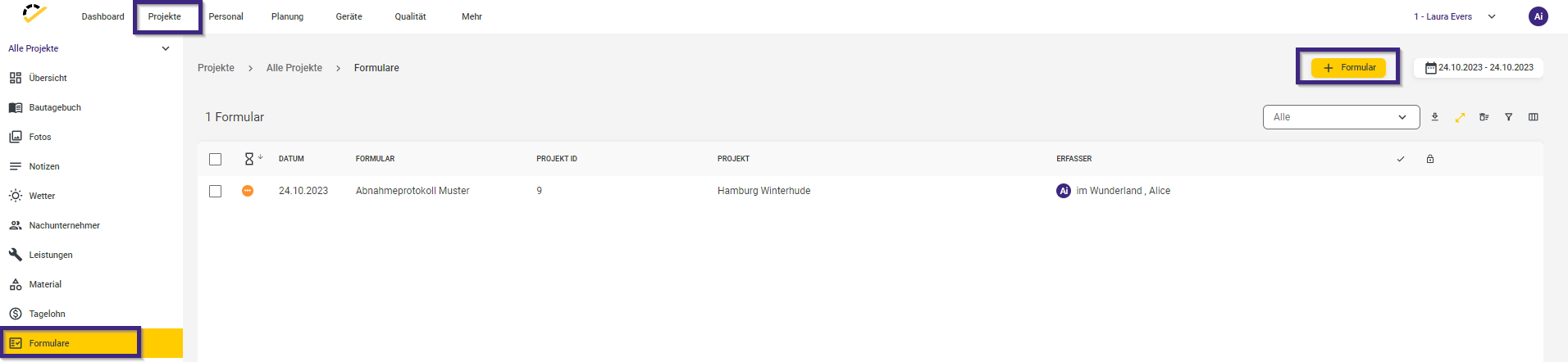
Using the +Form button, you can create additional form entries directly from the Office.
App/Web Entry
Log in to the 123erfasst app with your credentials. Then tap the Forms tile.
After tapping the “Forms” tile, all forms available for editing will be displayed:
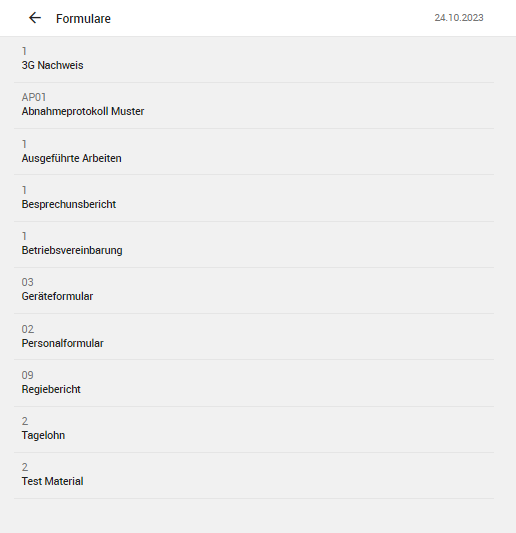
Here you can now select the desired form and start filling it out.
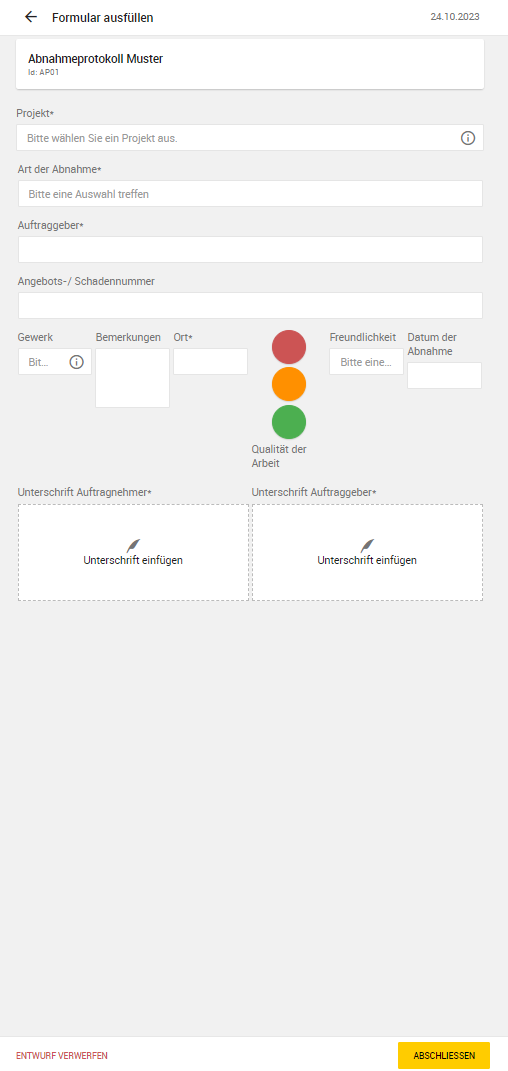
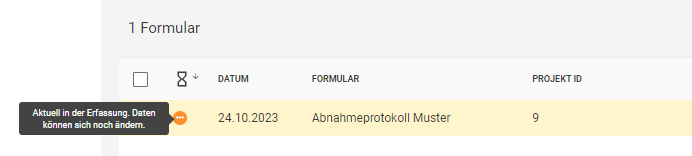
Finally, you can either complete the form directly, or if additional entries need to be made at a later time, save the form as a draft by simply exiting the form entry screen via the arrow in the top-left corner. Forms saved as drafts are marked with an orange button in Office.