Planning
Written By knollp
Last updated 6 months ago
In the schedule, you can see at a glance which of your employees have been assigned to which project and when. You can also see if there are any schedule conflicts, who is currently on vacation, or whether enough staff has been assigned to the project.
The schedule itself thus offers you another way to link employees and projects.
Open the schedule via the Schedule menu item.

By default, the "Scheduled" selection is always enabled in the schedule, so that only scheduled staff or projects are displayed.
Clear the selection and the filter to also display unplanned projects/employees.

We distinguish between four planning views.
- Projects
- Employees
- Teams
- Devices

Here, you select the basis on which your planning should be displayed. In our example, we will focus on employee planning.
You can then narrow down the time period for your schedule in the date field on the right.

Your employees are displayed on the left side of the schedule.
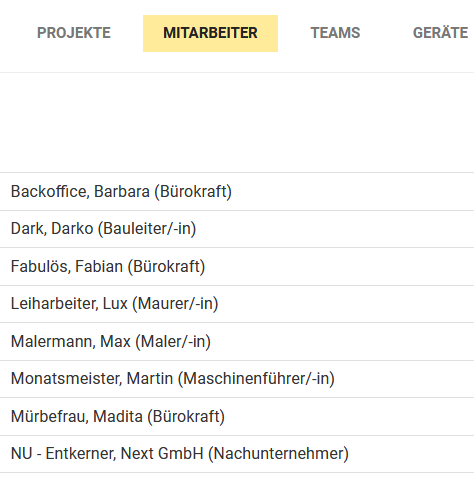
On the right side of the schedule, depending on which view you are currently in, the components to be scheduled will be displayed, and you can switch between components by clicking on the respective tab
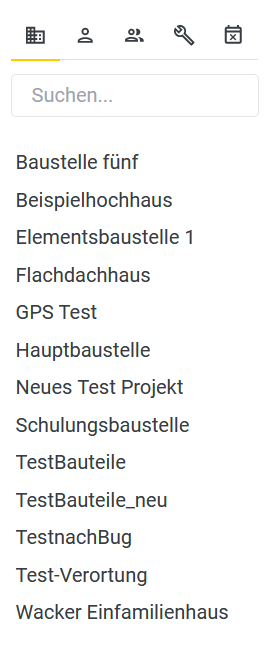
By dragging and dropping with the mouse, you can now drag a project, for example, from the component overview on the right into the schedule.
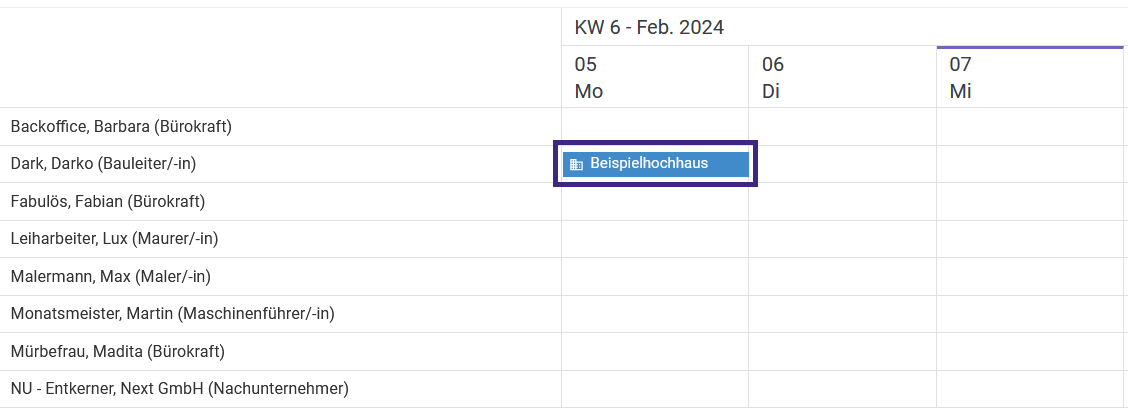
By clicking on the planning entry, you’ll see further details about the planning, and you can choose whether you want to copy, delete, lock, or edit the planning.

In the editing screen, you can, for example, manually change the time period of the planning entry
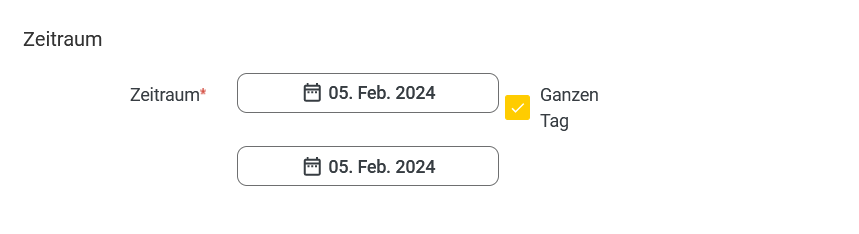
or add additional employees to the planning entry.

Click Save to finalize the changes to the schedule entry.
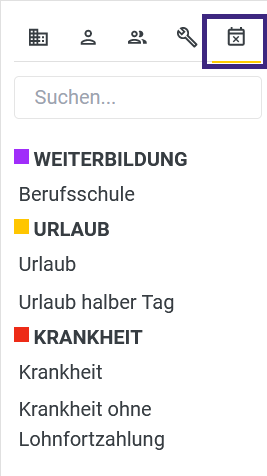
If you need to enter an absence, such as vacation, switch to Absences on the right side of the components and drag the vacation into the schedule using drag & drop.
You can create your own filters in the schedule if, for example, you are only interested in specific project or employee schedules.
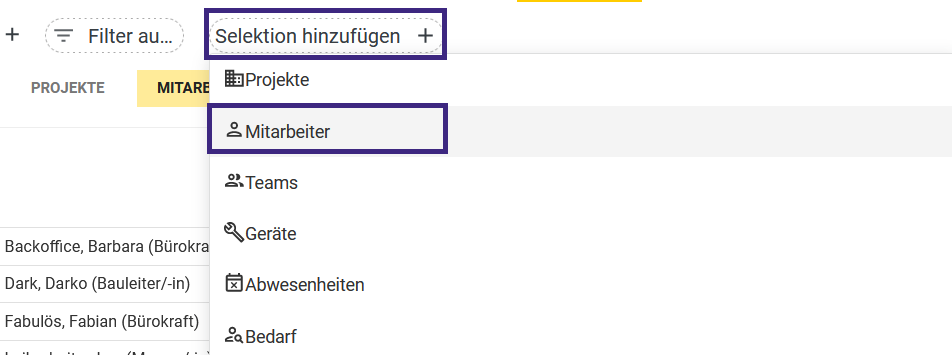
To do this, click Add Selection+in the top-left corner of the schedule.
Then select the component for which you want to create a filter. In this example, we’ll use “Employees.”
You can now choose whether to select employees, search by keyword, or display only the scheduled employees.

Example: Selection
Select the employees and then click the checkmark in the bottom right corner to finalize your selection.

Afterward, only the selected employees will be displayed in the schedule, and next to the selection, you’ll see that the filter is active. If you want to add another sorting criterion, you can use “Add Selection” to set additional restrictions for the schedule view:

If you are satisfied with the view, you can save it as a filter. To do this, click the + to the left of the selection, and you can save the view and assign it a name.
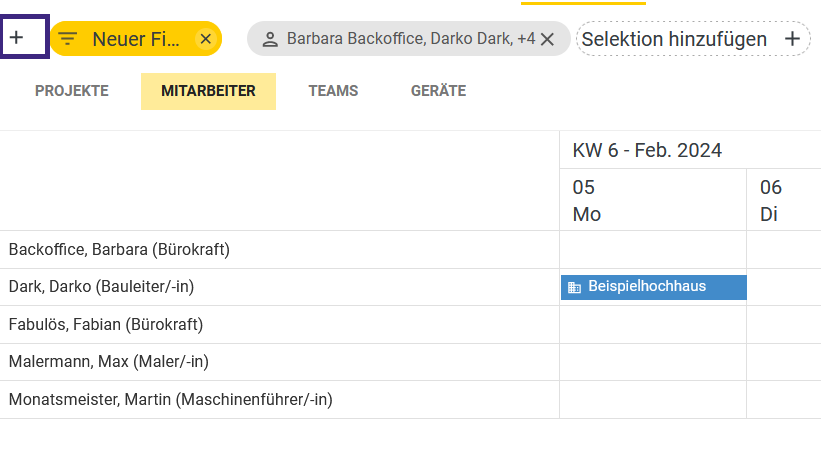
You can then switch between your previously created views by clicking on the filter.