General devices
Written By knollp
Last updated About 1 month ago
Under the "Devices" menu item and the "Overview" submenu, you'll find an overview of all your devices, machines, and vehicles.
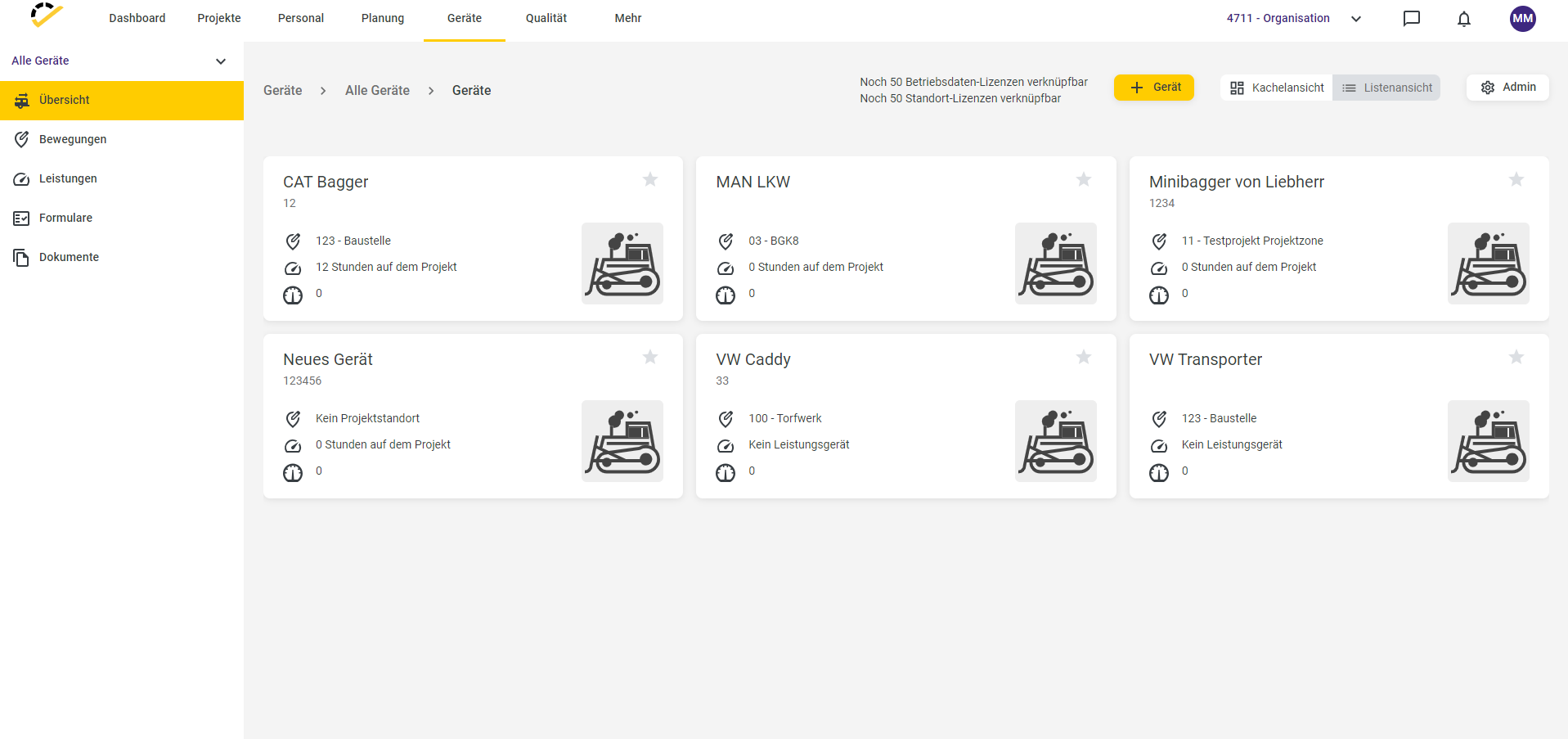
Clicking on a device in the tile view opens that device’s dashboard.
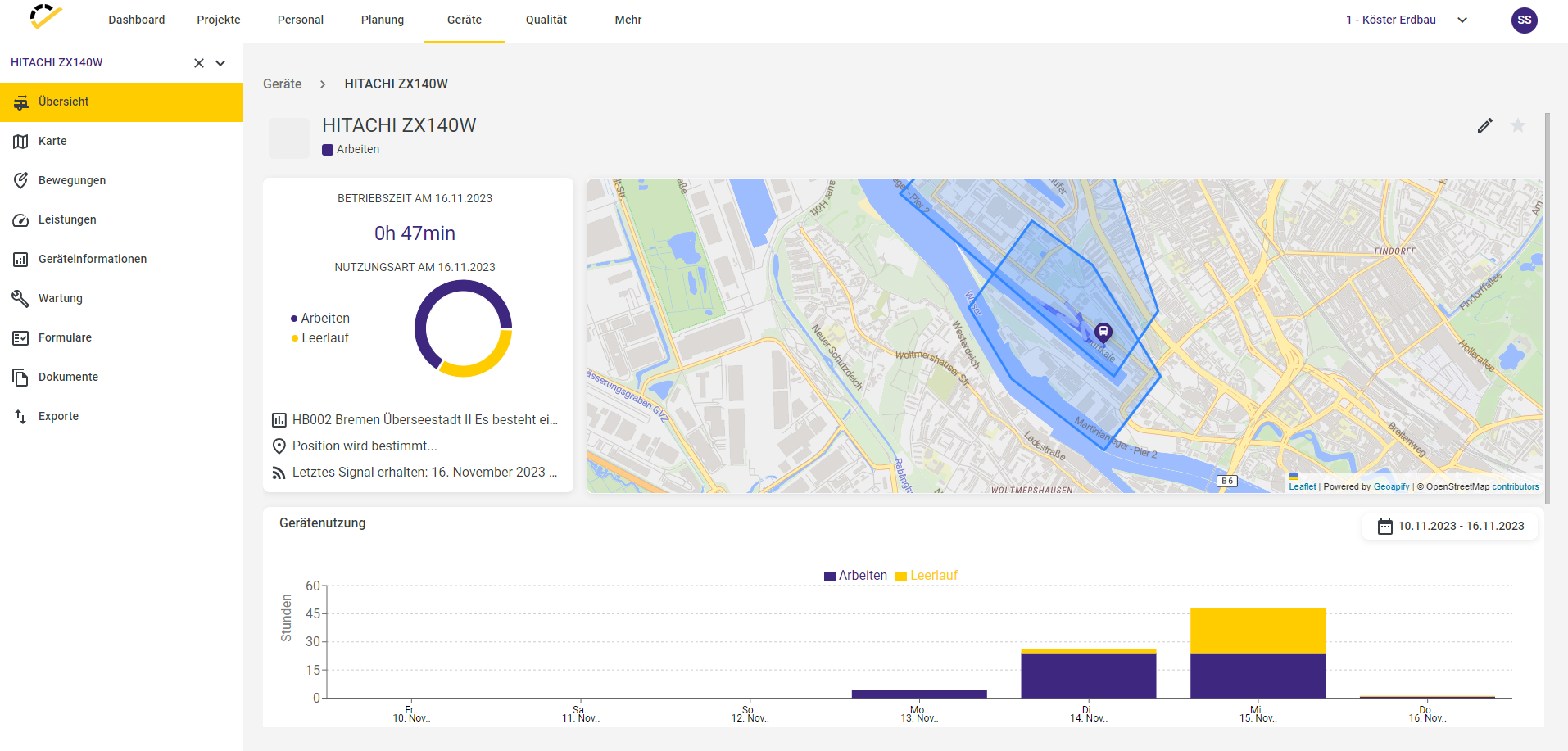
The device dashboard provides an overview of your device’s live location and the most recent hours worked.
You can edit the device’s master data using the pencil icon in the top-right corner.

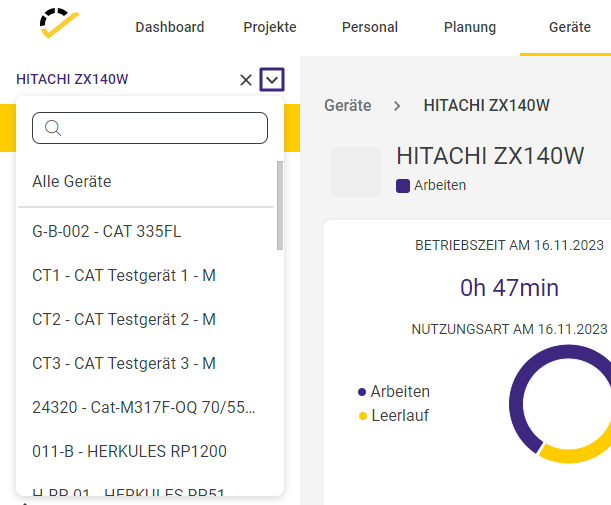
To switch to the device dashboard of another device, click the arrow in the top-left corner next to the active device and select the device you want to open next.
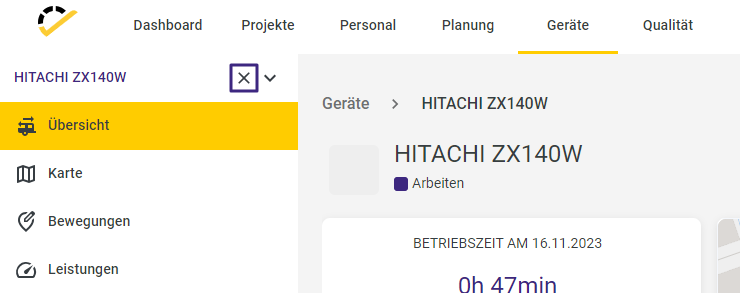
To return to the device overview, click the X in the top right corner next to the selected device.
To create a new device, click +Device in the device overview.
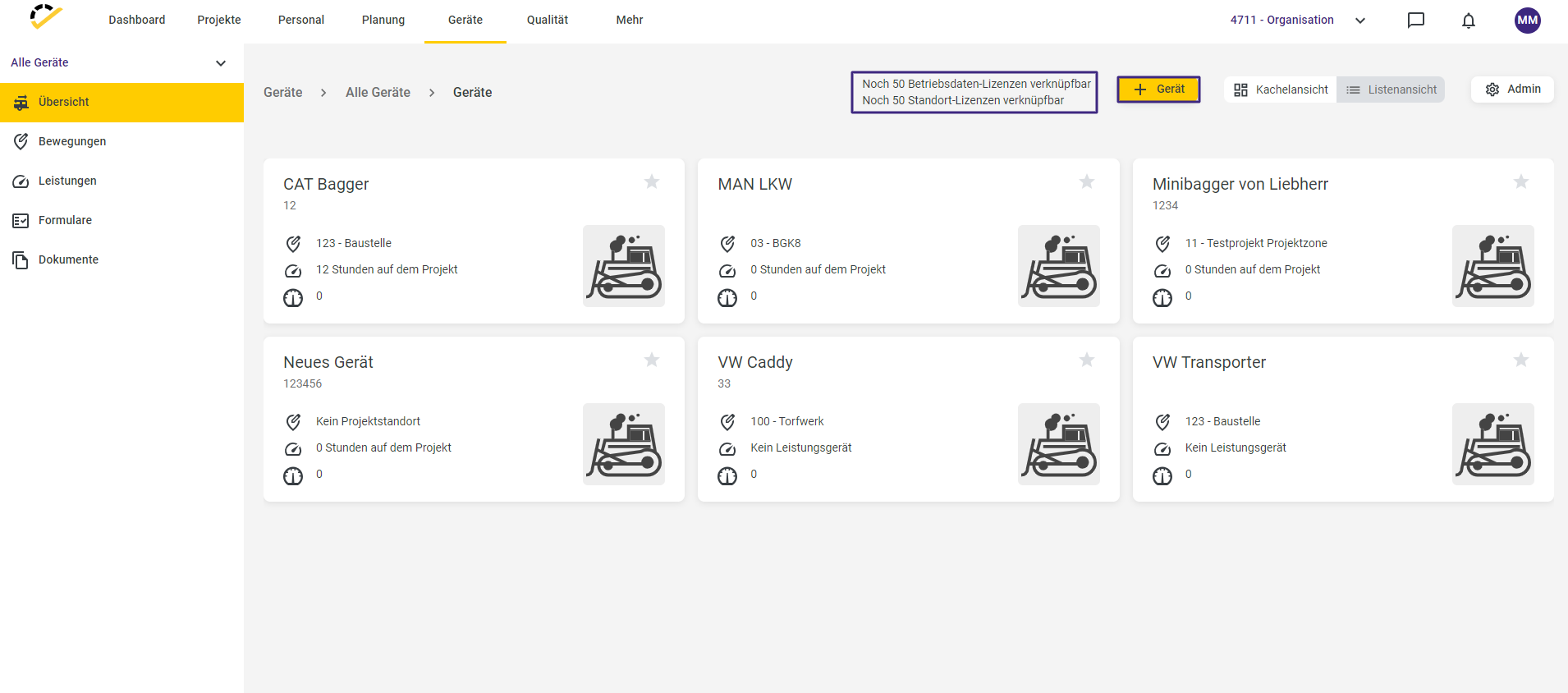
The number of location and operational data licenses still available is displayed to the left of the button.
Location license = Provisioning device
Operational data license = Power device
These two different device types are described in more detail later in this article.
After clicking on +Device, the following entry form opens.
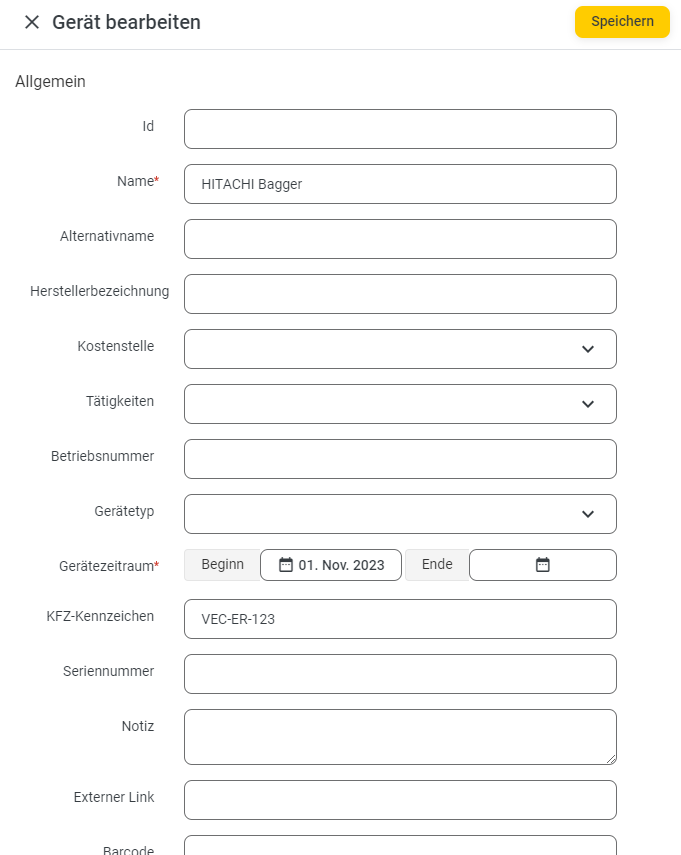
In the device setup, the Name and Device Period fields are required, though only the Start Date is a mandatory field. The Start Date is automatically set to the current day of the device setup and can be changed as desired.
As you continue setting up the device, you’ll come across the sections for Power Device and Provisioning Device.
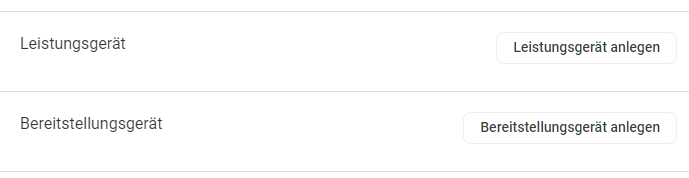
Service Devices
For service devices, the employee can post the actual services rendered to the device. These service devices are not location-specific; they can theoretically be posted to any project. Click Create Service Device to activate the service device.
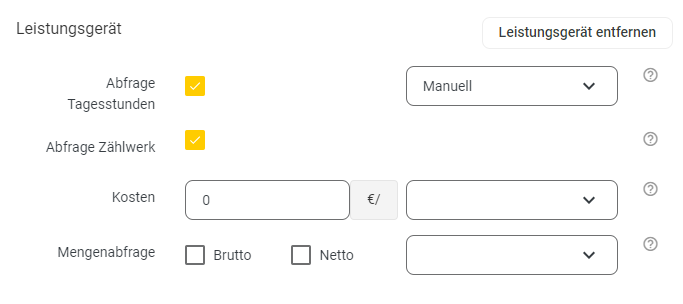
Use the dropdown menu next to the "Daily Hours" field to control the recording and display of equipment usage times. You have the following options:
Manual: Enter the device time manually in the app/web entry (required field)
Report Only: No entry required. It is reported that the equipment was in use on the project
Free: A combination of Manual and Report Only—you can record hours, but you can also leave the field blank
From Calendar: Times are taken from the assigned work time calendar
Provisioned Equipment
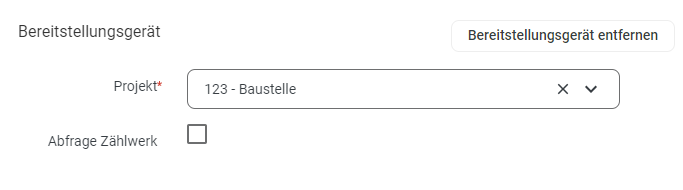
Provisioning devices are moved to a construction site. From this point on, the device is automatically charged to the project. By releasing the device or moving it to another project, the device is no longer charged to the project. Provisioning devices are automatically displayed in the daily report as soon as they are on the project.
Create the provisioning equipment using the Create Provisioning Equipment button.
Of course, it is also possible for a piece of equipment to be both a provisioning and a service device. However, equipment services can only be booked to a project once the equipment is also located on that project.