Times
Written By knollp
Last updated 6 months ago
Office
You can view the times recorded by your employees in 123erfasst Office under Personnel -> Times and adjust or correct them as needed.

You can switch between a weekly view and a list view.
Note: Times can only be adjusted in the Office the next day (after midnight) or after the end-of-shift entry.
Weekly View
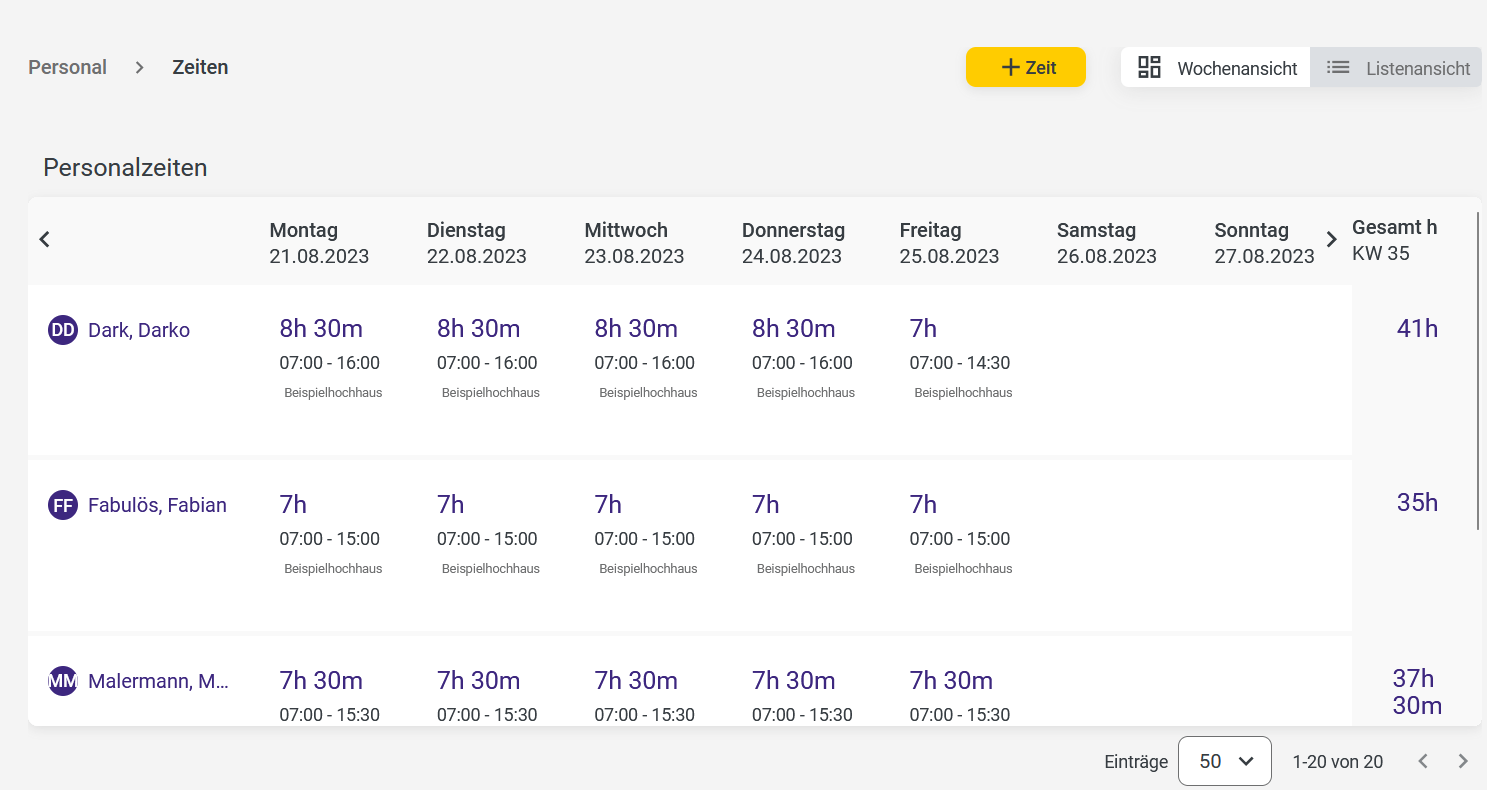
The weekly view provides an overview of your employees’ recorded times for the selected week. The total hours for each employee are displayed at the end of the row.
If you want to edit a recorded time in the weekly view, you can open the record by clicking the three dots next to it and choose from the following options.

Select "Edit" to open the record and make changes. You cannot change the date here.
If you select "Copy," the entries from the record for that day are copied, and you can select a new date in the window that opens to which the saved data should be applied.
With "Check," you can mark the record as checked.
With Lock, you can prevent the record from being edited.
With "Delete," you can delete the entry.
List View
In the list view, you can view your employees’ times in detail and choose which information should be displayed. Additionally, you can adjust the sorting by clicking on the respective column.

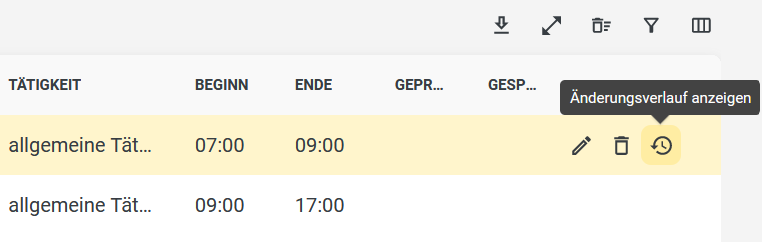
In the list view, unlike the weekly view, you can view the change history to track the history of a time entry.
If you want to record a new time entry for your employees via the Office, start by clicking on +Time.

The entry form opens in both the weekly view and the list view, where you can now enter the relevant information.
First, you must define a day or a time period for which a new time entry is to be created. Clicking on the date opens a selection field where you can specify the date.
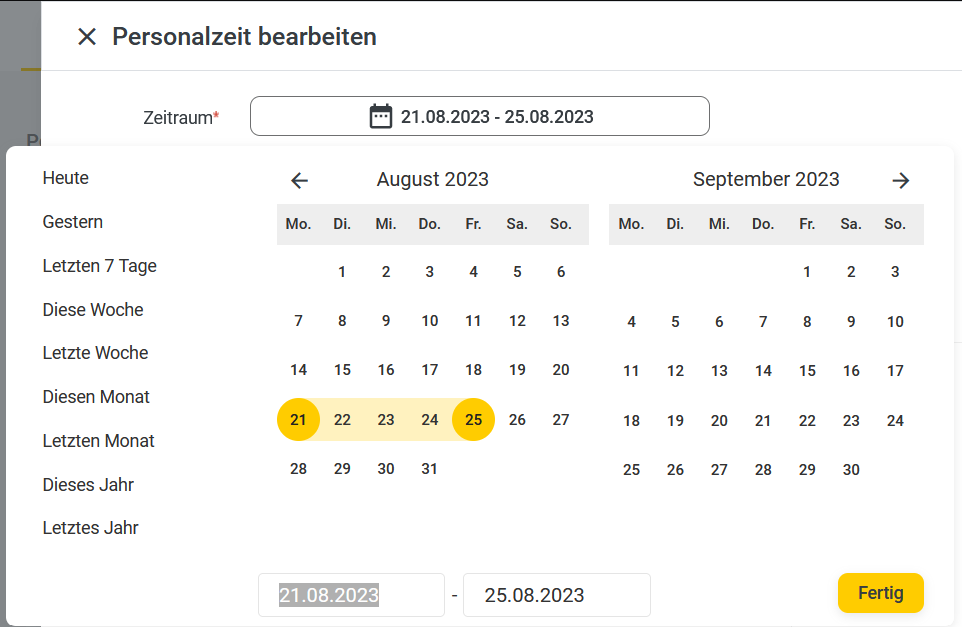
If your defined time period includes a weekend or a holiday, the system will ask you whether it should set exceptions for these days. If you check all the options, no time entries will be created on Saturdays, Sundays, holidays, and days for which an absence has already been recorded.

Next, specify which staff members you want to create a new time entry for during that period. To do this, simply click the empty selection field and choose one or more employees from the list.

There are several options available for entering work hours.
Create time blocks using the + button, directly with the mouse, or via the "Working hours" (Time blocks).
1. Create time blocks using the + button
Clicking the + opens the "Create Time Block" section. Enter the working hours for the time block using the Start and End fields, as well as the project or device and the activity(ies). These fields are required.

Alternatively, you can adjust the times by dragging the graphical time block (on the left side).
2. Create time blocks directly with the mouse
The fastest way to enter times is directly with the mouse. Click in an empty area to create a new time block. Click and drag the mouse to define the size of the first time block. Enter the project/device and the activity. When you click to create the next time block, the projects/devices and the activity are automatically carried over to it, and you can define the size of the time block again by clicking and dragging.
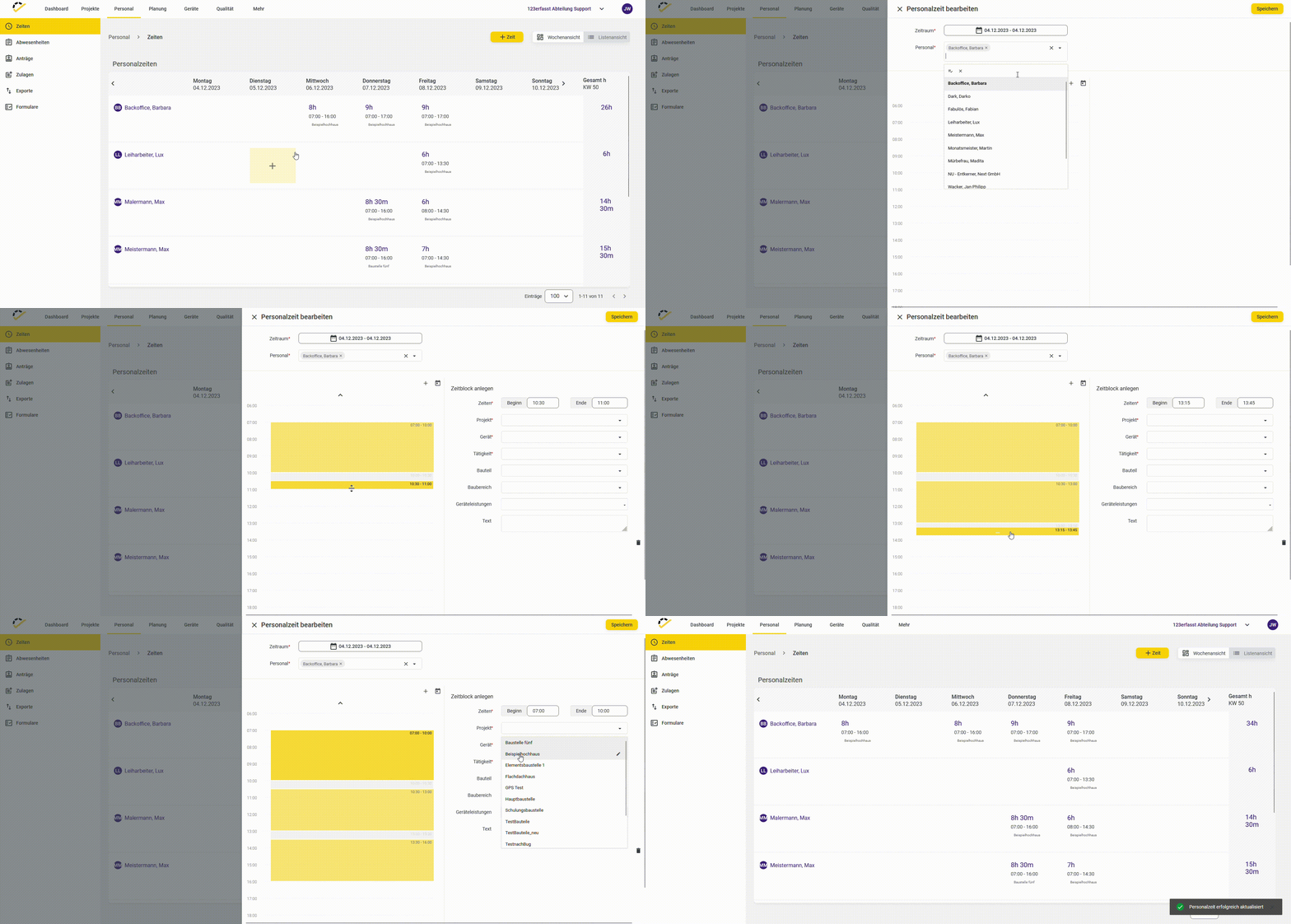
3. Entering times based on stored working hours Note: This option only works if you are entering times for an employee and working hours have been stored for them! To learn how to define working hours for your employees, visit here.
Use the calendar icon to create time blocks based on the working hours. For each time block, enter the data for the required fields Project or Device and Activity.

Click the Save button to complete the time entry.
Note: The required fields must be filled out for all time blocks; otherwise, saving is not possible!
App/Web Entry
The standard method is to record times using the 123erfasst mobile app or the Web Entry (PC app).
Start your time tracking by selecting the Times tile.

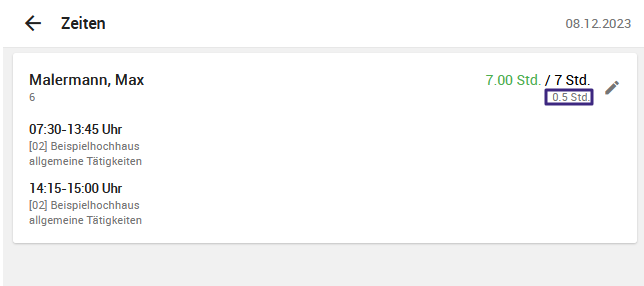
The following overview opens.

To record a time, start the entry by clicking the + at the bottom of the app.
In the entry screen that opens, enter the project, the staff member (employee), and the activity for the day you’re logging. Optionally, you can add a note to the entry.
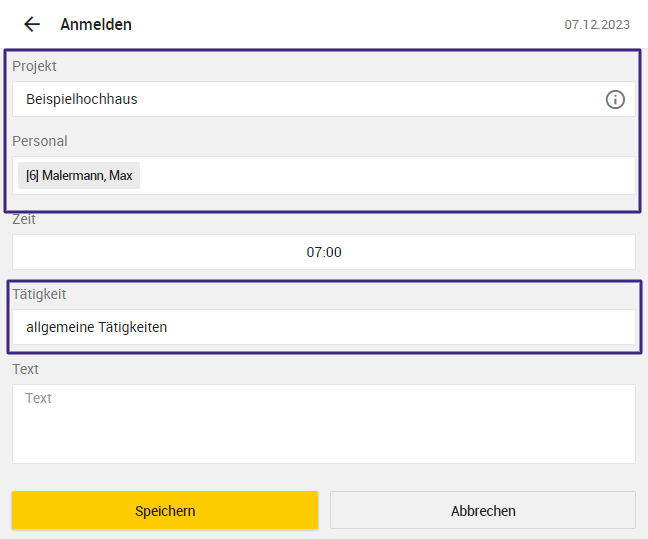
Click Save to complete the time entry. The app will then display your start time and the estimated end time of your shift, provided these are set in your saved work hours.

Tap the arrow next to "Times" to return to the app's home screen. If you want to clock out at the end of the day and enjoy your well-deserved evening off, tap the "Clock Out" tile in the app.
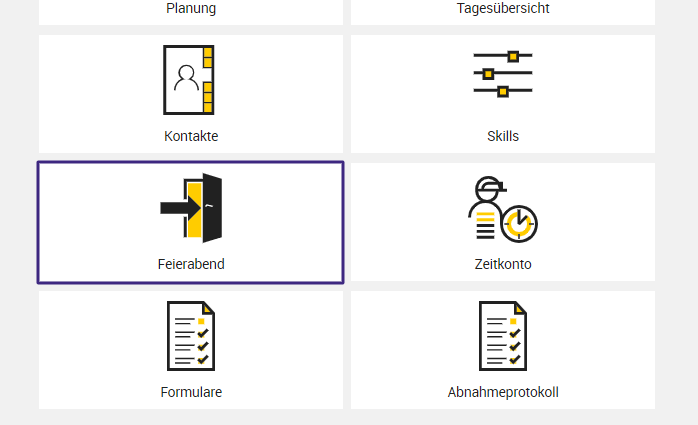
The following entry screen opens
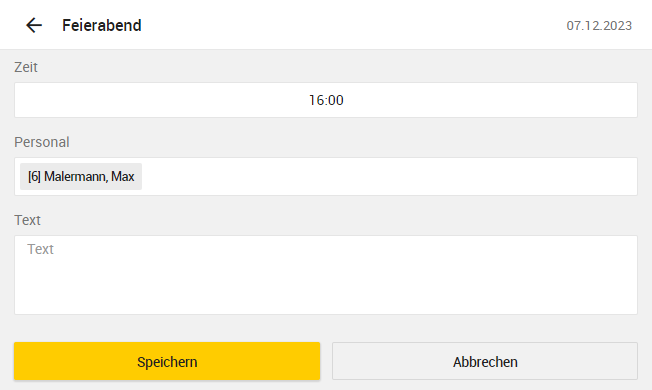
The current time and the employee are suggested for the end-of-shift entry. You complete the end-of-shift entry by clicking Save.
However, if you want to log out before the end of the workday or log out first to continue with another activity later, click the x at the bottom of the app in the "Times" tile.
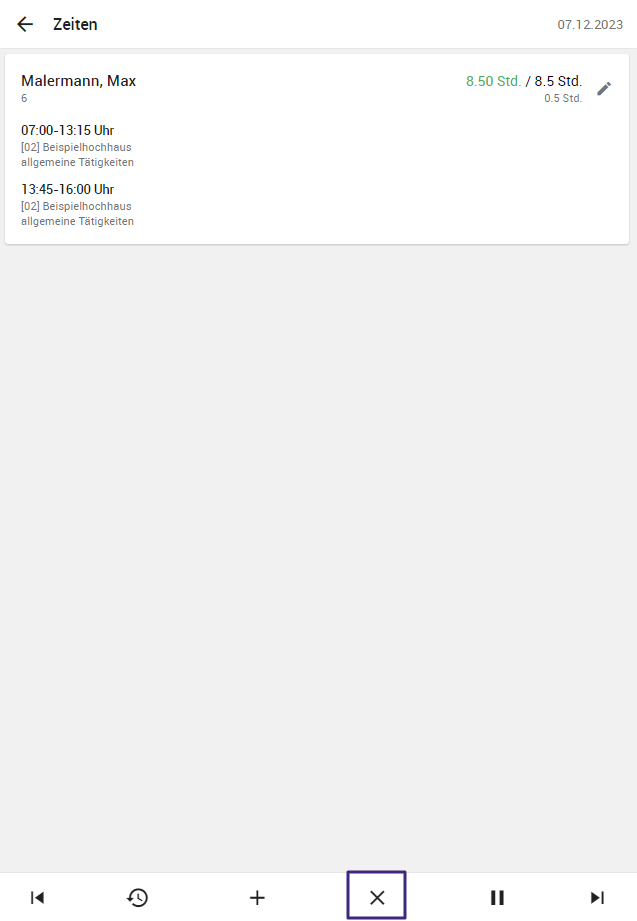
A new entry screen will open
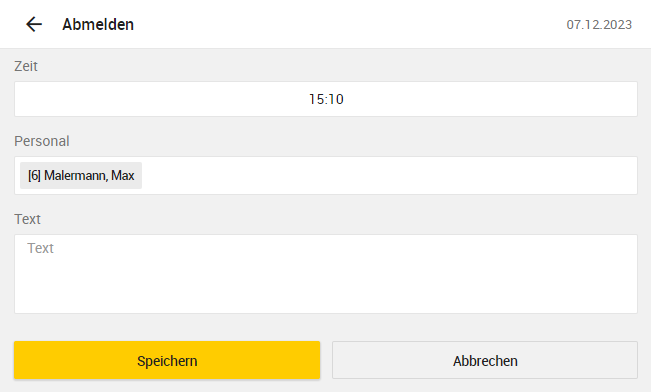
Confirm the logout by clicking Save. Afterward, log back in via the Times tile and the + on the new project and/or the new activity.
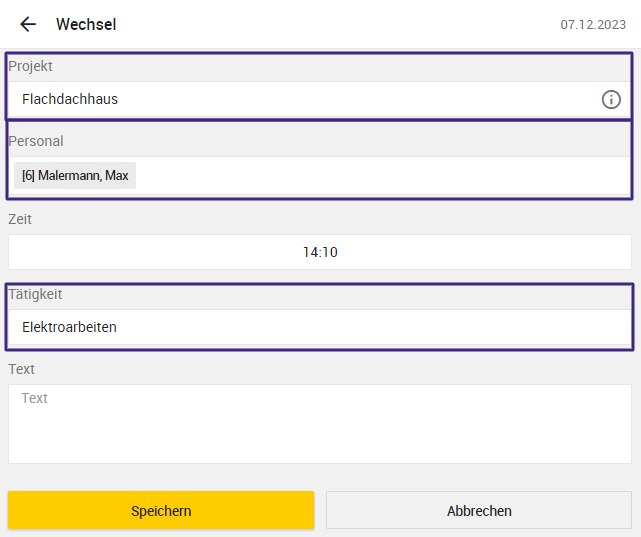
Alternatively, you can switch projects and/or activities by clicking on "Switch."

Here you can enter your new project, the changed activity, and/or the time at which you made the change, and complete the change by clicking Save.
If you want to record a break or edit the automatically recorded break, you can do so in the Times tile by clicking the break icon.
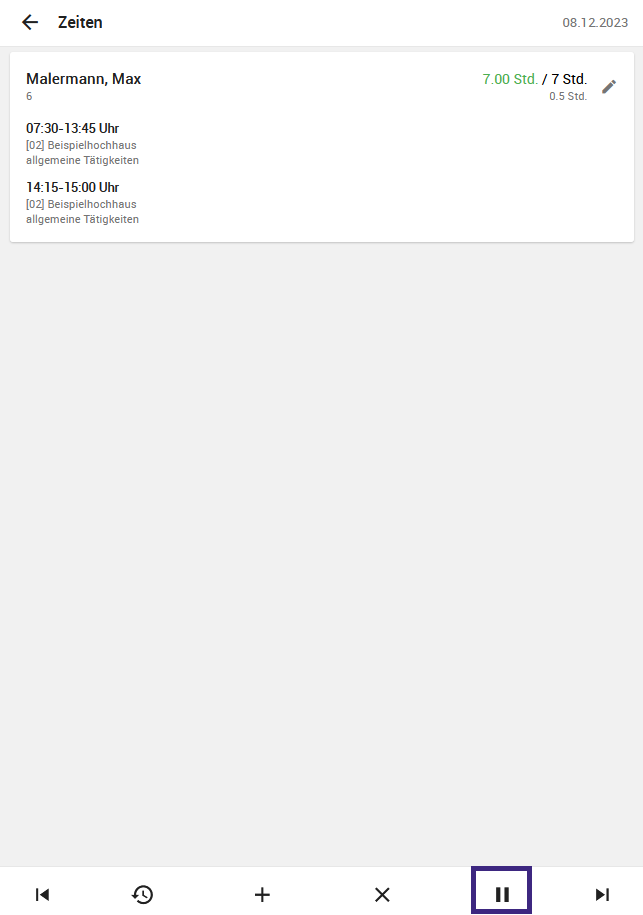
A new screen will open showing you the breaks for the day. You can edit them by clicking on the respective time.
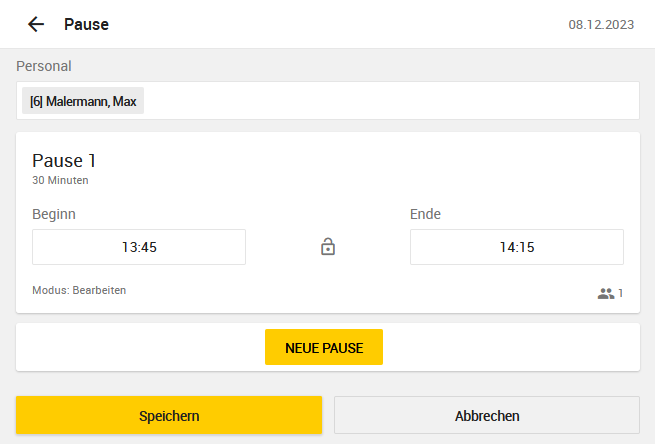
If you want to add another break, select New Break and enter the time period during which you took the break in the field that opens. The break entry is confirmed by clicking Save and then displayed in the overview.