Material documentation
Written By knollp
Last updated 4 months ago
1. Preliminary Considerations
Before you begin entering materials, some preliminary considerations are necessary. Determine in advance which material groups and which materials you would like to enter for future projects. This is because, unlike the usual menu structure, a distinction is made here between material groups and materials.
To create a new material, go to the menu items Master Data -> Material. Here, you first start by entering the material groups. In the next step, you then enter the individual materials for the respective material groups.
2. Entering Material Groups
You can add new material groups by selecting the company and clicking the plus sign. In the tree structure, the new material group will then appear below the selected element or branch.
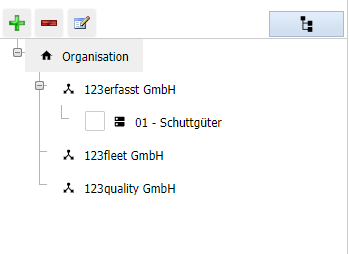
You can also remove a material group by clicking the minus symbol. Make changes using the Edit button.
3. Entering materials
When you select a material group, all materials in that group are displayed in a table on the right side of the screen.

Now click the yellow New button in the top right corner and create a new material.
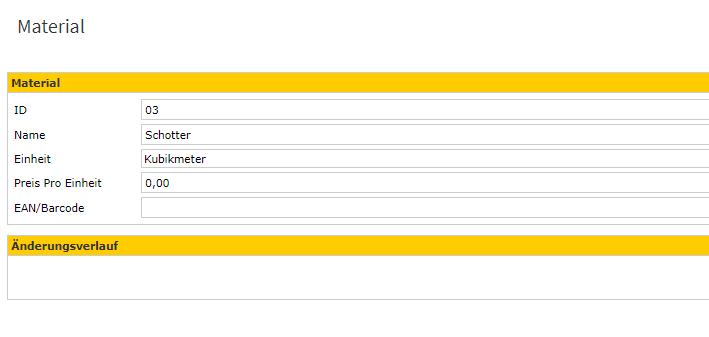
The unit is a dropdown menu. You can create units under Master Data -> Units.
Learn more about creating units at here.
Note: New materials for a material group can only be entered if a material group has been selected beforehand. Additionally, materials cannot be entered directly under the operational node (the organization).
4. Create a QR Code
You can create the QR code directly from the material overview using the barcode number. Select the corresponding material and then click the QR Codes button.

The following window will now open:
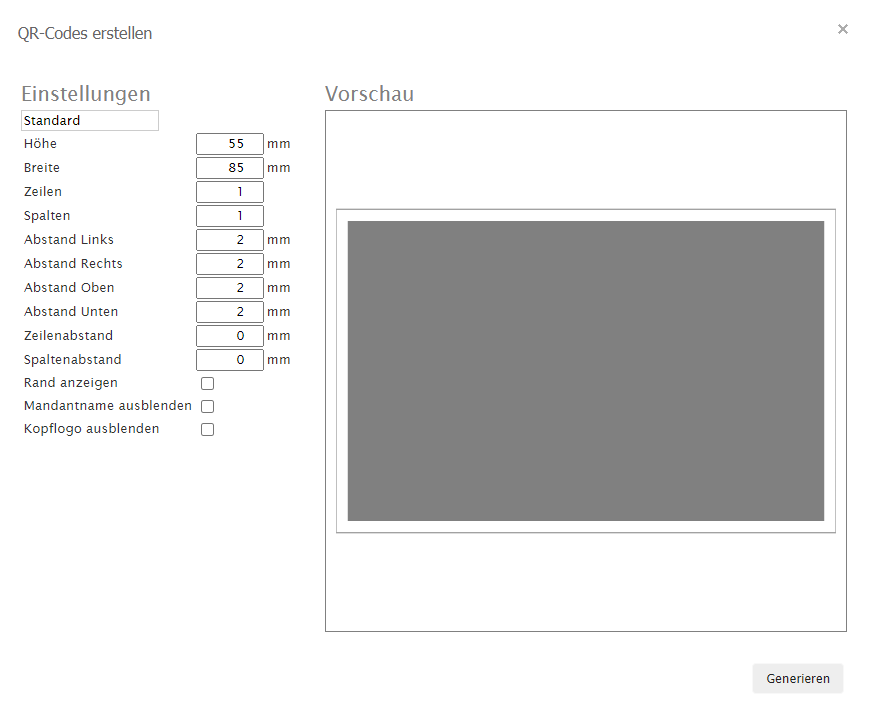
Here, you can specify exact formatting details for how your QR code should be placed on the sheet. You can either enter custom settings or select a standard option from the list at the top.
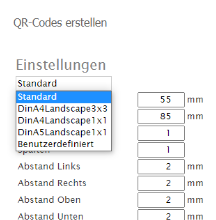
Click Generate to generate the QR code.
You can then use the QR code in the Material tile on the app or in the web interface for faster material entry.
Important! For material entry, it is essential to define a supplier. You can find instructions on how to create one at here. Without assigning a supplier, material cannot be entered.